The Home page: today at a glance
Home is the first page after you sign in. In a minute it tells you what Ivy sold, which shoppers are waiting for your team, how her week went and what she couldn't answer. This page explains each card and every number on it.
Updated · 9 min read
Feature overview:Chatbot analytics
On this page
Open Home in the sidebar, or press the Strathly logo. The page refreshes itself every minute and whenever something happens in the store, so you can leave it open.
From top to bottom: the period, your store's row, a notice when something needs fixing, the sales chart and Needs you, three cards (Ivy this week, Live now, Sold after a conversation), then Ivy couldn't answer. On a narrow window the cards stack.
The period#
The menu at the top right picks the period for every number on Home: Today, Last 7 days (the default), Last 30 days or Last 90 days. Next to the title, the dates it covers. Periods end today and include it, so today's numbers are still growing. Days follow your store's time zone.
The store row#
- Your store's name and its address, which opens your storefront.
- Live, while Ivy is live on your store.
- Copy chat link copies a link to your store that opens the chat by itself, like
https://aurorawool.co/?strathly_open=1. Share it in an email or a social post. The button reads Copied for a moment.
The status notice#
When Ivy isn't answering shoppers, a notice under the store row says why, with the button that fixes it:
| Notice | Button |
|---|---|
| Shopify is disconnected | Reconnect Shopify |
| Finish setting up Ivy | Continue setup |
| Your last payment failed | Update payment method (Open billing when Shopify bills you) |
| Your free trial ended, Your subscription ended | Choose a plan |
| Ivy is paused: you're out of conversations | Buy conversations, or Start your plan now, Upgrade your plan or Open Billing, depending on your plan |
| Ivy is paused | Resume Ivy |
Billing buttons are for admins and the owner; an agent reads who to ask. While Ivy is live, there is no notice. What each state means for shoppers is on Pause Ivy or hide the chat.
Sales from conversations#
The large card shows the money from orders placed after a conversation with Ivy. Hover the ? next to the title to read the rule: "Orders placed within 3 days of a conversation with Ivy."
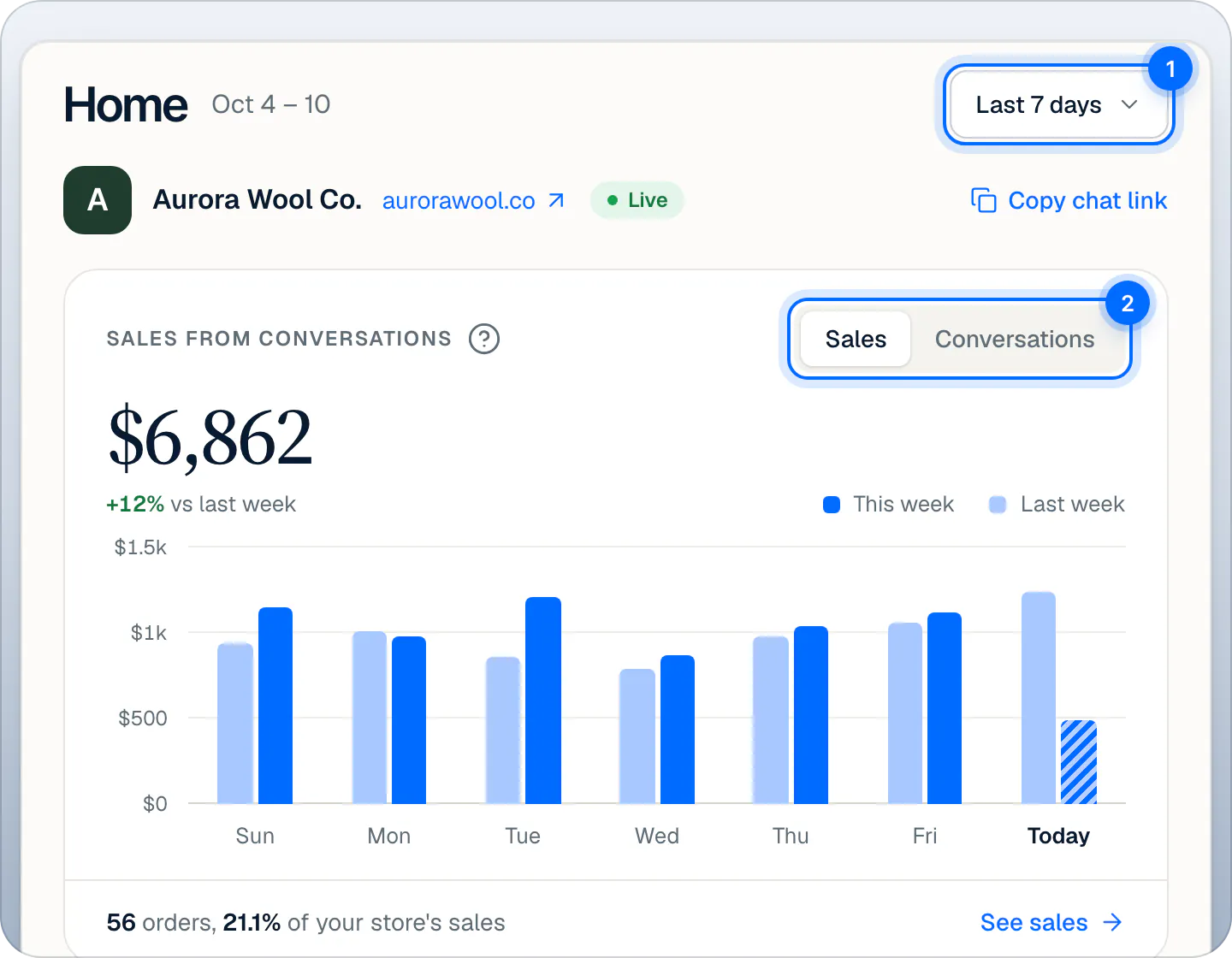
- Sales or Conversations: the switch at the top right changes the number, the comparison, the chart and the line under it. Conversations counts the conversations shoppers started, with at least one message from the shopper.
- The comparison under the number: green when better, red when worse, against the period just before ("vs last week"). With Today, it compares with a typical day of the same weekday by this hour, like "vs a typical Friday by now". When the previous period has too little to compare (fewer than 20 orders or conversations, 100 with Today), the change is shown in gray. When your store went live during the previous period, there is no comparison.
- The chart: for 7 days, a bar per day next to the same day last week, today hatched; for 30 days, a daily line; for 90 days, a bar per week; for Today, a line by hour next to the typical day.
- The line under the chart: how many orders, and what share of your store's sales they are ("56 orders, 21.1% of your store's sales"). The share appears once Strathly has seen your store's first order since install. See sales opens the orders in Analytics. In Conversations mode, it names your busiest day and links to See conversations.
How an order is tied to a conversation, and what happens to cancelled or refunded orders, is on Read your analytics.
Needs you#
The five conversations that have waited longest for your team, the same as the Inbox's Needs you view: shoppers waiting on a person, in conversations that are unassigned or assigned to you. See the Inbox.
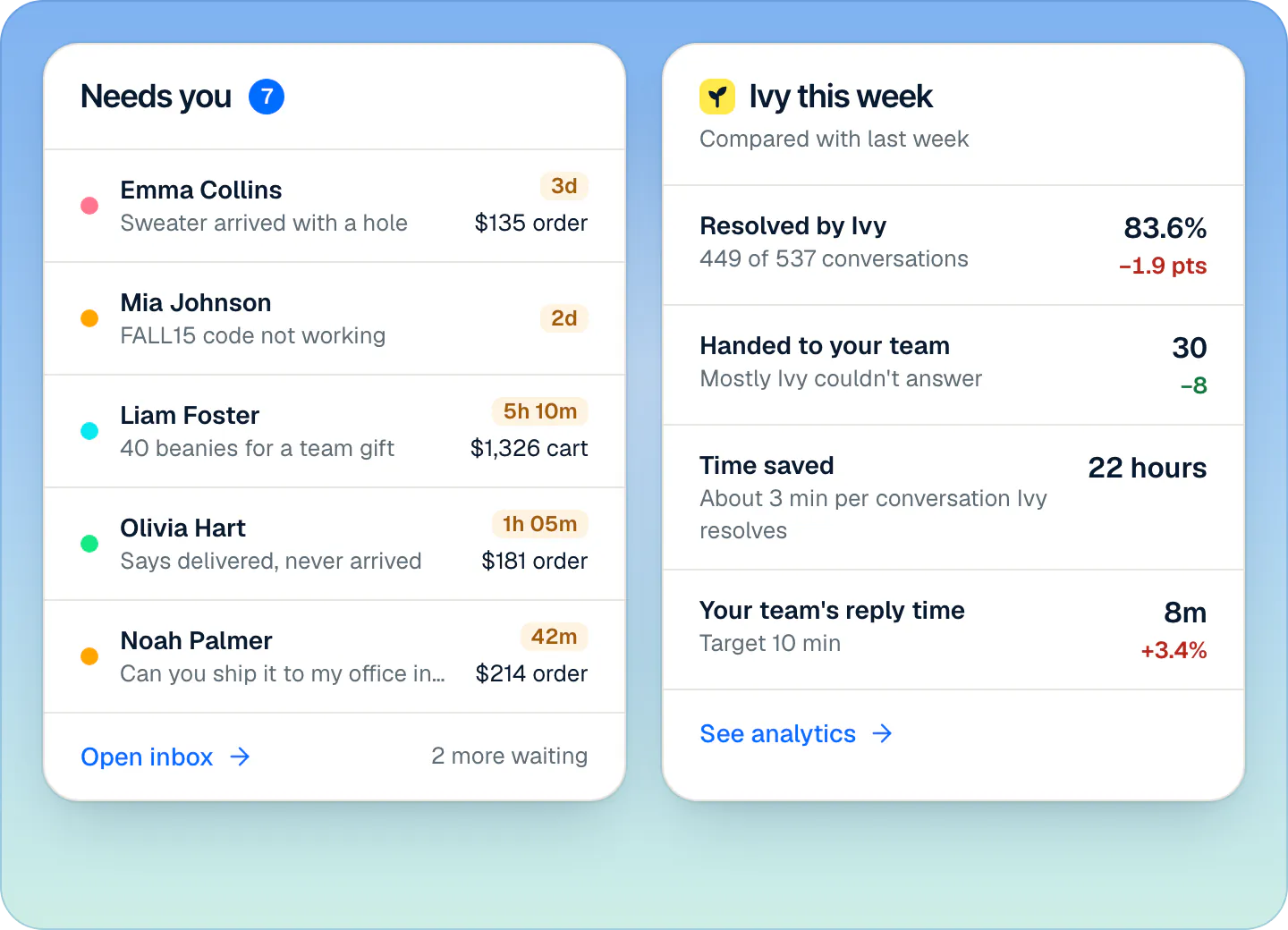
Each row shows the reason's color, the shopper, what the conversation is about, how long they've waited, and the money at stake: an order ("$135 order") or a cart ("$1,326 cart"). The wait turns orange once it's over your reply target, set in Settings,Team under Handoffs (10 minutes by default). Click a row to open the conversation. Open inbox opens the full list, and "2 more waiting" says how many aren't shown.
When nobody is waiting, the card says You're all caught up.
Ivy this week#
The card is named for the period ("Ivy this week", "Ivy today", "Ivy in the last 30 days") and compares with the one before.
| Row | What it counts |
|---|---|
| Resolved by Ivy | The share of finished conversations Ivy resolved without your team, like "449 of 537 conversations". Conversations still going on are left out ("N in progress"). The change is in points. |
| Handed to your team | How many conversations Ivy passed to your team, and the most common reason ("Mostly refund requests"). Fewer is green. The change shows when the previous period had 10 or more handoffs. |
| Time saved | 3 minutes for every conversation Ivy resolved: "About 3 min per conversation Ivy resolves". |
| Your team's reply time | The median time from a handoff to your team's first reply, next to your reply target. Faster is green. |
See analytics opens Analytics on the same period. Resolved by Ivy opens Analytics › Conversations and Your team's reply time opens Analytics › Team. For admins, Handed to your team links to the handoff rule behind most handoffs (or to Unanswered, when it's mostly "Ivy couldn't answer").
How is time saved counted?#
Each conversation Ivy resolved on her own counts 3 minutes: about what a person spends reading the question, looking it up and replying. Conversations handed to your team or left without an answer count nothing. 440 resolved conversations make 22 hours.
When is a conversation resolved by Ivy?#
Each conversation ends in exactly one way, checked in this order:
- Handed to your team: Ivy passed it on at some point.
- In progress: Ivy is still in it, with a message in the last 30 minutes. Not counted yet.
- Left without an answer: an unanswered question came from it, or the shopper's last message got no reply.
- Resolved by Ivy: everything else.
Live now#
The shoppers chatting with Ivy right now (seen in the last 2 minutes), those building a cart first. Each row says what they're doing: "Building a cart" with the products, "Looking at" a product, or their last words, and the cart total. Click a row to watch the conversation in the Inbox.
When nobody is chatting, the card says No one is chatting right now. While Ivy is paused, the dot turns amber and the card notes that she finishes the conversations she's in and takes no new ones.
Sold after a conversation#
The five products that brought the most money from orders placed after a conversation, in the period, with how many sold. Admins can click a product to open it on the Products page. See products sold opens the full list in Analytics.
Ivy couldn't answer#
Admins and the owner see up to three of the questions Ivy couldn't answer, most asked first: how many times, when it was last asked, whether a shopper is waiting for a reply right now, and what Ivy said at the time.
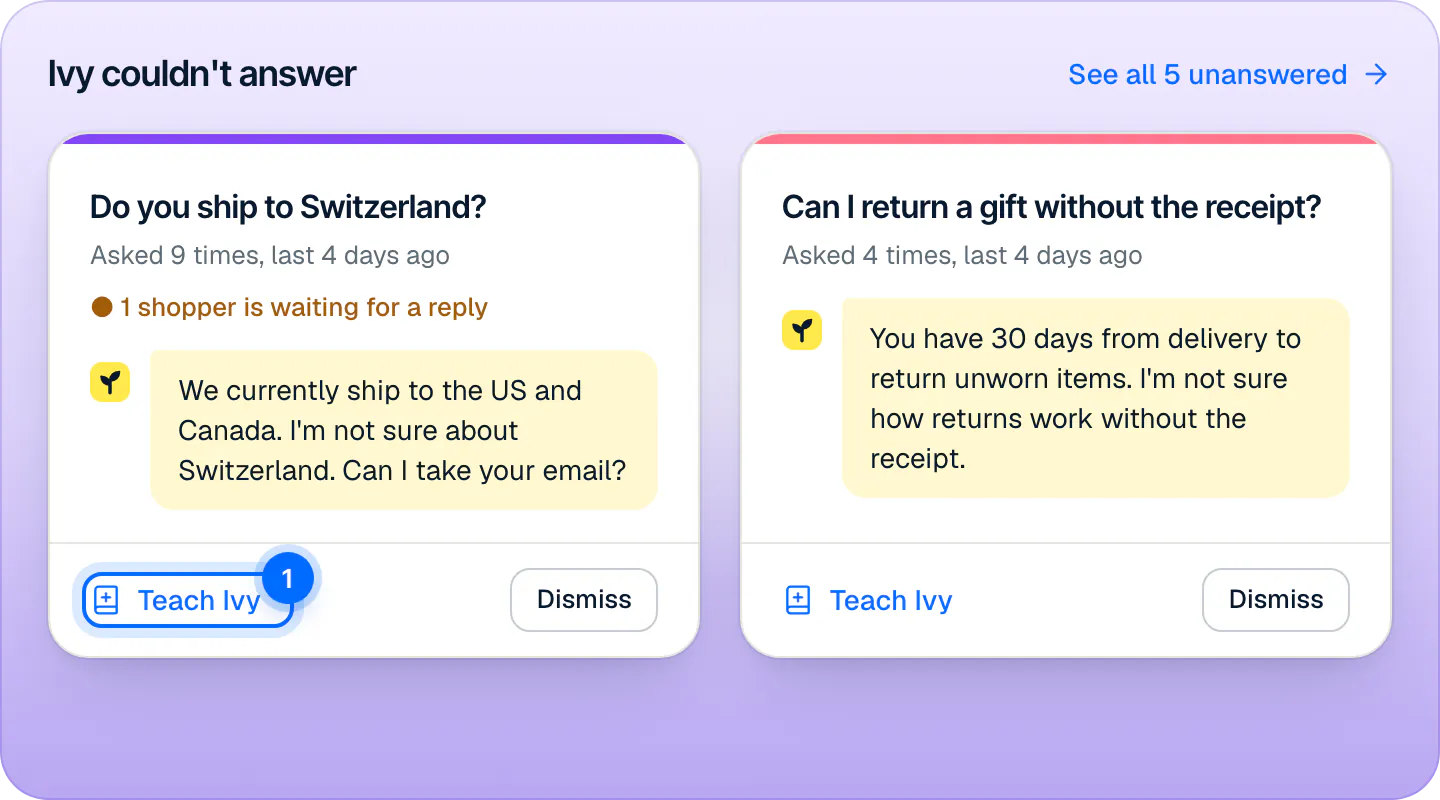
- Teach Ivy opens the teach dialog with the question filled in. See Teach Ivy and correct her.
- Dismiss removes the card and leaves the question to your team, with Undo.
- See all N unanswered opens Knowledge,Unanswered. See Fill the gaps Ivy found.
Your first days: Next steps#
Until Ivy's first counted conversation, the sales chart is replaced by a short list of next steps. Its title is the status sentence once Ivy is live, like "Ivy is live on aurorawool.co".
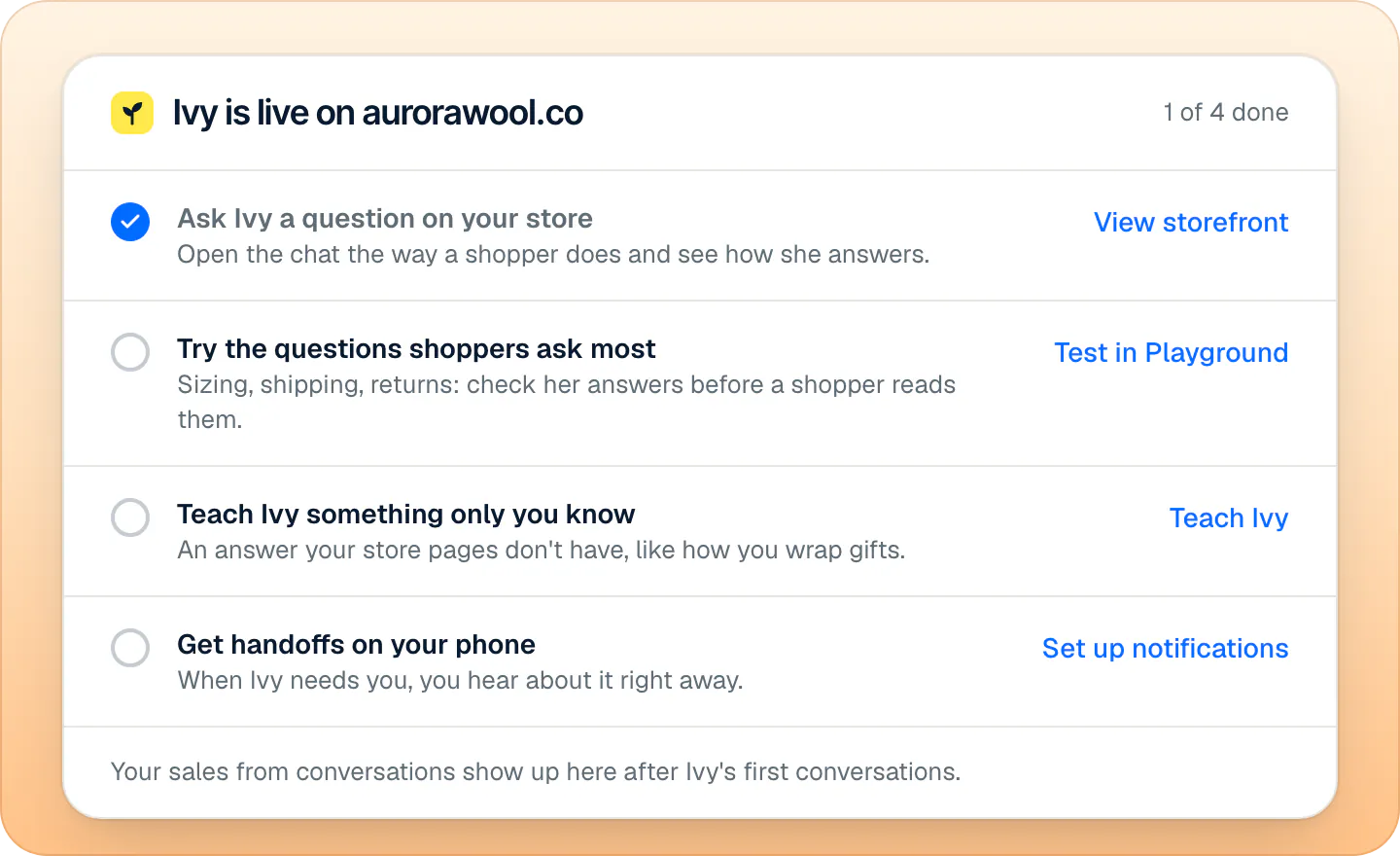
| Step | Button | Done when |
|---|---|---|
| Ask Ivy a question on your store | View storefront | Someone on your team opened it once |
| Try the questions shoppers ask most (admins) | Test in Playground | Someone opened the Playground from here once |
| Teach Ivy something only you know (admins) | Teach Ivy | Your store has at least one written answer |
| Get handoffs on your phone | Set up notifications | You have the iPhone app with notifications on |
The first two steps check that the link was opened, not what happened next. While setup isn't finished, the card reads No sales to show yet instead, and the notice above offers Continue setup. The go-live checklist covers what to check before shoppers arrive.
What agents see#
Agents see Home too, without Ivy couldn't answer and without the Playground and Teach Ivy steps. On their Home, the products in Sold after a conversation and the Handed to your team row are not links.
Frequently asked questions
Why is a number zero or a dash?
A dash means the number doesn't exist yet: on the first day, or when no handoff was answered in the period. A comparison is missing when your store went live during the previous period, and gray when the previous period had too few orders or conversations to compare. The share of your store's sales appears after your first order since install.
What counts as a sale?
An order placed within 3 days of the last message of a conversation in which Ivy replied, and that can be tied to that conversation. Cancelled orders drop out; refunded orders stay. How sales are counted has the full rule.
Are Playground tests counted on Home?
No. Playground conversations never count, on Home, in Analytics or on your bill.
Why does Home show a different conversation count from Billing?
Home and Analytics count conversations as threads. Billing counts shopper visits Ivy took part in, with its own rules. See What counts as a conversation.
Related pages
- AnalyticsRead your analyticsSales from conversations (orders within 3 days of a chat with Ivy), outcomes, topics, languages, busy hours, answers marked wrong, team stats and exports.
- InboxHow the Inbox worksNeeds you, Mine, Ivy is handling, Resolved, All and Spam: what each Inbox view holds, what the status chip means and how the wait clock works.
- KnowledgeFill the gaps Ivy foundQuestions Ivy couldn't answer, grouped when shoppers ask the same thing, with a draft when your knowledge has one. Answer once, reply to who's waiting.