Put the chat on your store
The chat goes on your Shopify store as a theme app embed called Strathly AI chat. Strathly opens your theme editor with it already switched on, so you only press Save. This page covers that, the manual path, the embed's settings, how to check the chat is on, and what to do when it doesn't show.
Updated · 9 min read
Feature overview:Shopify chat widget
On this page
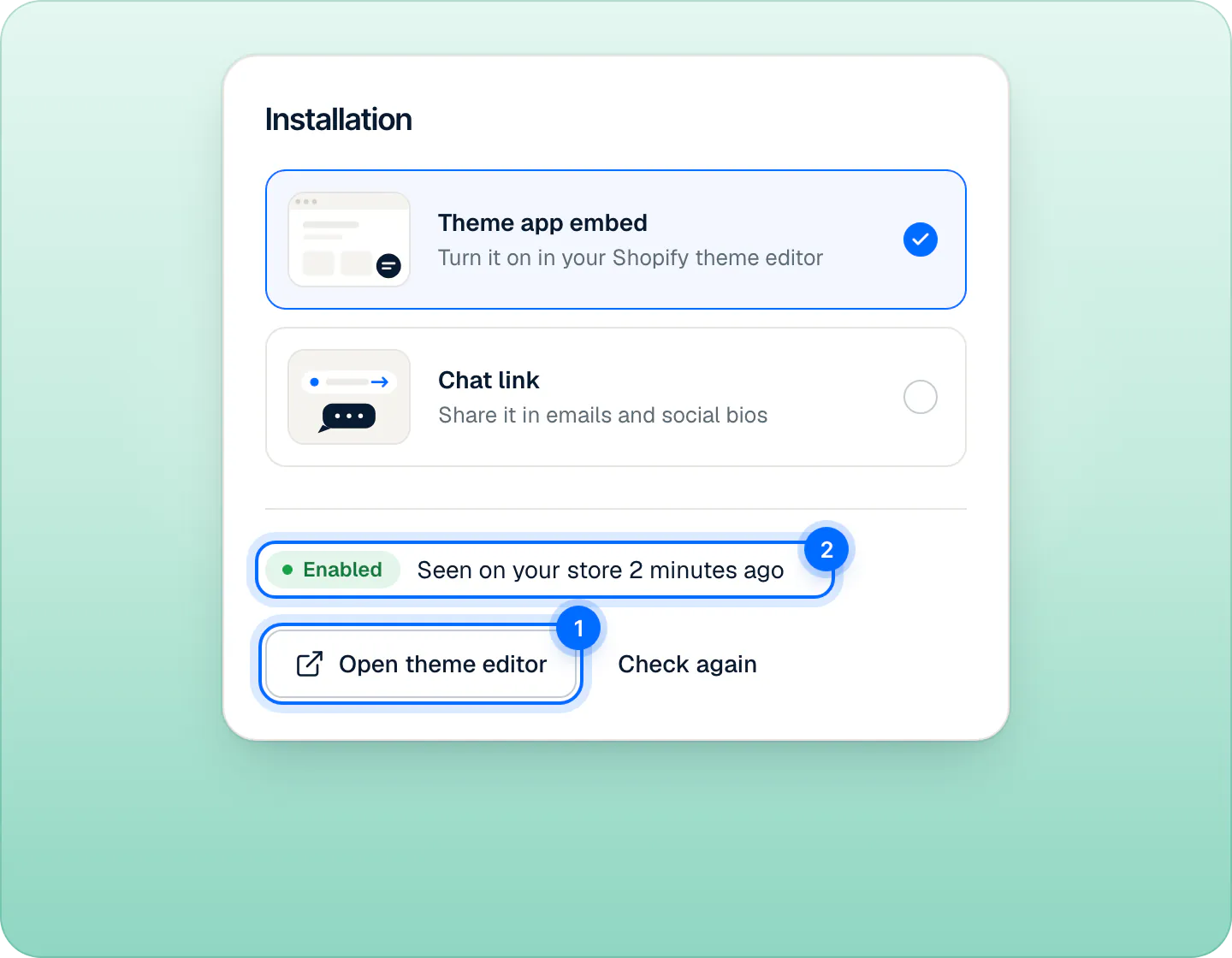
Ivy,Widget, card Installation, has two options:
| Option | What it is | Use it for |
|---|---|---|
| Theme app embed | A Shopify app embed you switch on in the theme editor. | Putting the chat on your store. This is the only way, and it needs no code. |
| Chat link | A link to your store that opens with the chat already open. | Emails, social bios, QR codes. |
You need to be the store's owner or an admin in Strathly, and your Shopify staff account needs permission to manage themes. If you're still in setup, the last step, Turn on the chat, has the same button: see the quickstart. Replacing another chat app? Switch its embed off in the same save: see switch from another chat.
Turn on the theme app embed#
In Strathly, open Ivy,Widget and scroll to Installation. Leave Theme app embed selected and press Open theme editor. Shopify's theme editor opens in a new tab, on your live theme's App embeds, with Strathly AI chat already switched on.
In the theme editor, press Save at the top right. Until you save, nothing changes on your store.
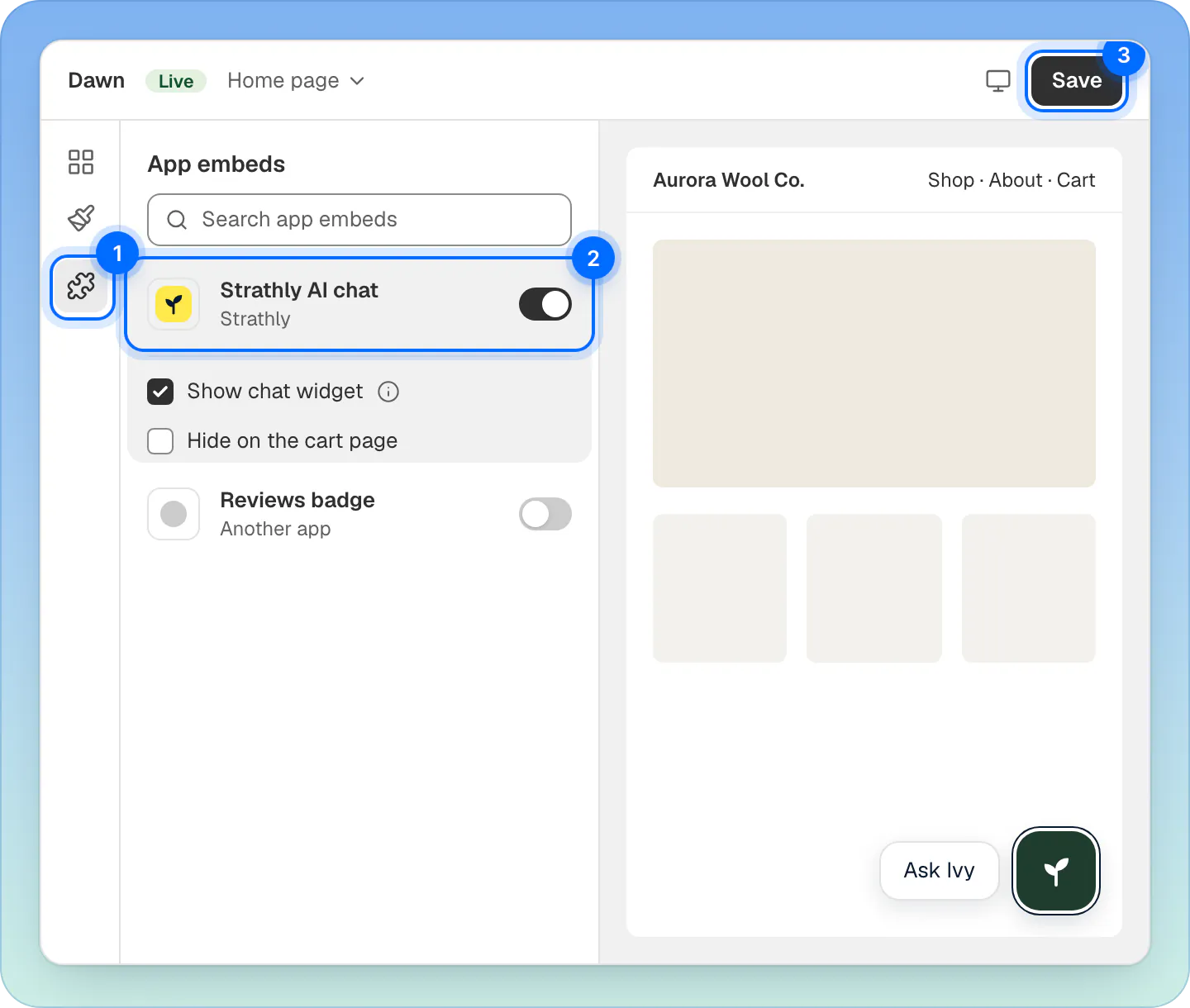
In the theme editor: (1) App embeds, (2) Strathly AI chat switched on, (3) Save. Open any page of your store in a new browser tab. A page of your store loading the chat is how Strathly sees it.
Back in Strathly, press Check again. The status turns Enabled with Seen on your store and the time. A message confirms The chat is showing on your domain.
Open theme editor shows only while your store is connected to Shopify. If it's missing, reconnect Shopify first: see disconnect and uninstall.
Where are App embeds in the theme editor?#
You can also switch the embed on by hand, from your Shopify admin:
Go to Online Store,Themes. Next to your current theme, press Customize.
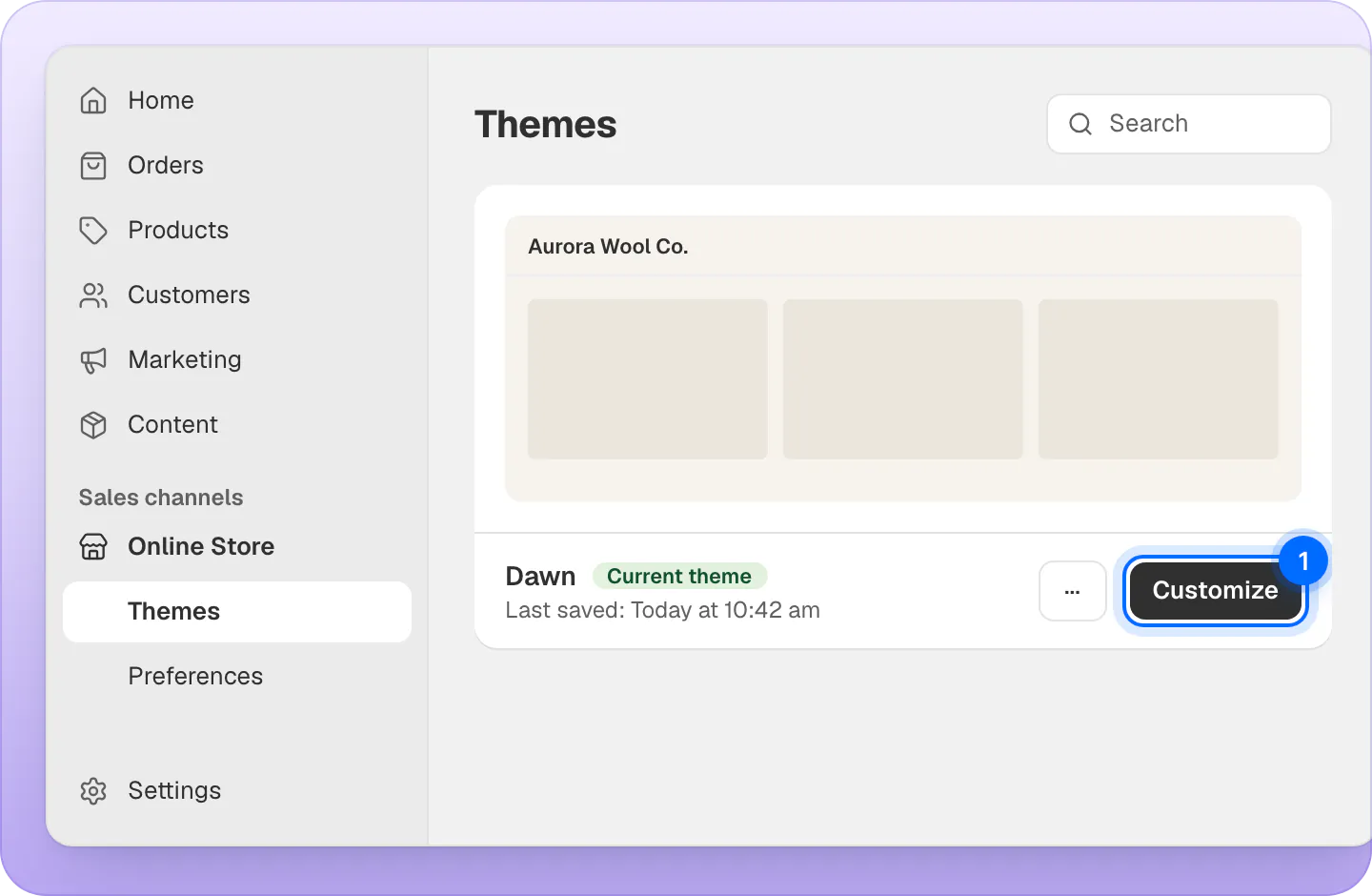
Doing it by hand: Online Store › Themes, then Customize on your current theme. In the theme editor's left bar, select App embeds.
Find Strathly AI chat and switch it on.
Press Save.
App embeds belong to a theme. If you publish a different theme later, or preview a new one, switch Strathly AI chat on in that theme too, then save. The chat appears on the theme that is live.
The embed's settings#
Select Strathly AI chat in App embeds to see its settings. They are the only ones that live in Shopify; everything else is in Strathly.
| Setting | Default | What it does |
|---|---|---|
| Show chat widget | On | Turn it off to hide the chat for a while without switching off the app embed. |
| Hide on the cart page | Off | Hides the chat on your cart page only. |
There is no setting to show the chat on some pages only. Besides the cart page, the only other choice is phones: Show on phones in Ivy,Widget,Options, covered in customize the chat.
How Strathly knows the chat is on#
Strathly reads your live theme's settings to see whether the chat is switched on in it (the read-only themes permission). The Installation card names your live theme and shows one of three states:
| Status | Line beside it | Meaning |
|---|---|---|
| Enabled | On in your live theme, and its name | The app embed is on and saved in the theme your shoppers see. |
| Hidden | On in your live theme, with Show chat widget unticked | The embed is on, but its own Show chat widget box is unticked, so the chat doesn't show. |
| Off | Not turned on in your live theme | The embed is off in that theme, or was never added to it. Turn on the chat opens the theme editor with it switched on: press Save. |
Under it, Last seen on your store says when a page of your store last loaded the chat. Check again reads your theme from Shopify once more, for example right after you saved it.
A store connected before the themes permission was added sees the older status, based only on the storefront loading the chat (Enabled, Not seen lately, Not seen yet), and a link to update permissions in Settings,Integrations.
When you publish a new theme#
App embeds belong to each theme, and Shopify switches them off in a theme you publish. So when you publish a new theme, or switch the chat off in your live theme, Ivy disappears from your store. Strathly notices within a minute:
- The owner and admins get a notification in the dashboard and an email, once per theme: Ivy is off your store, with a button that opens the theme editor with the chat switched on.
- Home shows the same notice until the chat is back on.
- Press Save in the theme editor and the notice goes away by itself.
Strathly also checks your theme once a day, in case a change was missed.
The other signs that the chat is live: a green dot on the Ivy row of the sidebar, and Live on your domain at the top of Ivy's pages. The go-live checklist walks through them.
When does the chat show to shoppers?#
Saving the embed is not enough on its own. The chat shows on your store only when all four of these hold:
- You went live. Setup ends with Go live. Before that, the chat never shows, even with the embed saved.
- Your store is connected to Shopify. If it was disconnected, Home says Shopify is disconnected with Reconnect Shopify.
- Your trial or plan is active. If the trial ended without a plan, a payment failed or the subscription ended, the chat goes off the store until billing is fixed in Settings,Billing.
- The app embed is on and saved in your live theme, with Show chat widget ticked.
If you publish another theme, it starts with the embed off: see when you publish a new theme.
Two settings then narrow where it shows: Hide on the cart page in the embed, and Show on phones in Ivy,Widget.
When any of them is missing, shoppers see nothing at all: no button and no error. Pausing Ivy is different: the chat stays, and new shoppers get a contact form instead (see pause Ivy or hide the chat).
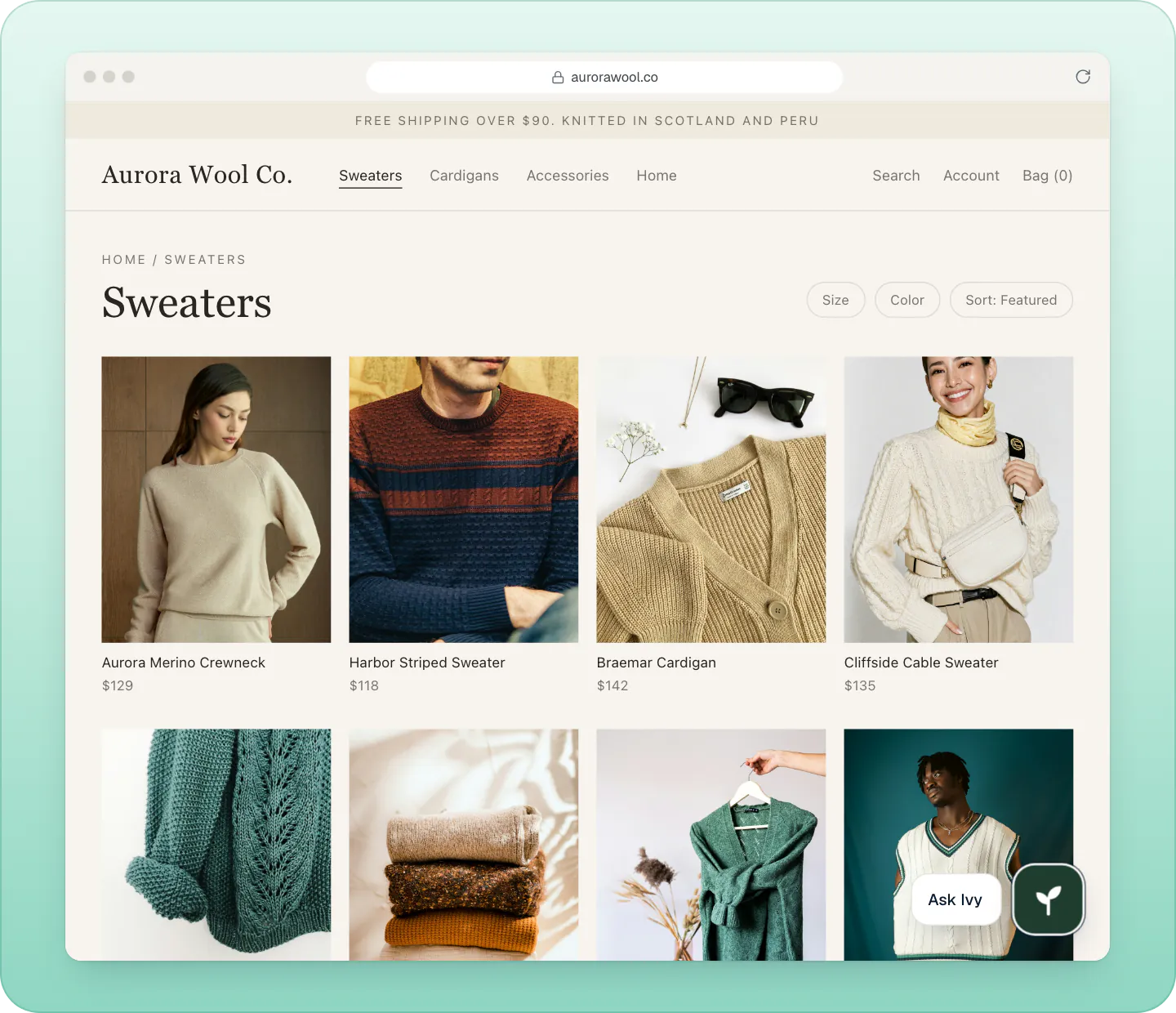
Why isn't the chat showing after I saved?#
Check these in order:
- Setup isn't finished. Home shows Finish setting up Ivy with Continue setup. Go live first.
- The trial or plan isn't active. Look at Settings,Billing.
- Shopify is disconnected. Reconnect it from the notice on Home.
- You saved a theme that isn't live, or switched themes since. Open Online Store,Themes and check the embed on the current theme.
- Show chat widget is off in the embed's settings.
- You're on a phone and Show on phones is off. The chat is hidden on screens up to 480 pixels wide.
- You're on the cart page and Hide on the cart page is on.
- The page was open from before. Changes take about a minute to reach pages already open. Reload.
- Your store is password protected. Only visitors who enter the password reach the chat. Open your store yourself, past the password, then press Check again.
The full list, with what to do for each, is in fix a chat that doesn't show.
Share a chat link#
Select Chat link in Installation to copy your link. It looks like https://yourstore.com/?strathly_open=1: it opens your store with the chat already open. Use it in order emails, newsletters, social bios or a QR code. Home has the same link under Copy chat link.
The link opens the chat only where the chat is installed and live.
Remove the chat#
To take the chat off your store, open the theme editor, switch off Strathly AI chat (or untick Show chat widget) and press Save. Nothing stays behind in your theme.
To stop Ivy from answering but keep a way for shoppers to reach you, pause her instead: new shoppers get a contact form that lands in your Inbox. See pause Ivy or hide the chat.
Frequently asked questions
Do I need to edit my theme's code?
No. The app embed adds the chat without touching your theme's files, and there is no snippet to paste. You switch it on and press Save; switching it off removes it.
Does it work with every Shopify theme?
Yes. Shopify supports app embeds in both Online Store 2.0 themes, like Dawn, and older vintage themes, because they don't depend on the theme's sections (Shopify's developer docs). Look for App embeds in your theme editor's left bar.
The embed is on but Strathly says Not seen yet. Why?
Strathly hasn't seen a page of your store load the chat. Open any page of your store in a new tab, then press Check again. If it still says Not seen yet, check that you saved the embed in your live theme, with Show chat widget ticked.
Can I show the chat on some pages only?
Only partly. You can hide it on the cart page (Hide on the cart page) and on phones (Show on phones off). There is no setting for other pages.
Does the chat slow down my store?
No. It's under 42 KB compressed and loads after your page, so it doesn't hold up your store, and its fonts come from Strathly, not from a third party.
Can the chat open by itself?
No. It never opens or pops up on its own. To open it from a link, use your chat link.
Related pages
- TroubleshootingFix a chat that doesn't showThe chat shows once Shopify is connected, Ivy is live, your plan is active and the app embed is saved. Check each in order, then phones and the cart page.
- Storefront widgetMake the chat look like your storeSet the accent color, background, launcher, position, greeting and up to three suggested questions, with a live preview on desktop and phone.
- Get startedMove from another chat appMoving from Shopify Inbox or another chat app: set up Ivy first, swap the old chat's app embed for Strathly's in one save, then update your chat links.