Fix a chat that doesn't show
The chat appears on your store only when four things are true: Shopify is connected, you pressed Go live, your plan or trial is active, and the app embed is switched on and saved in your theme. Work through this page in order: most fixes take a minute.
Updated · 6 min read
Feature overview:Shopify chat widget
On this page
- Start with Ivy's status
- 1. Is Shopify connected?
- 2. Did you press Go live?
- 3. Is your plan active?
- 4. Is the app embed on and saved?
- 5. Missing only on phones?
- 6. Missing only on the cart page?
- 7. Still nothing?
- Two chat buttons on your store
- A contact form instead of Ivy
- A password-protected store
- Frequently asked questions
Most fixes need the owner or an admin in Strathly, and someone who can customize the theme in Shopify.
Start with Ivy's status#
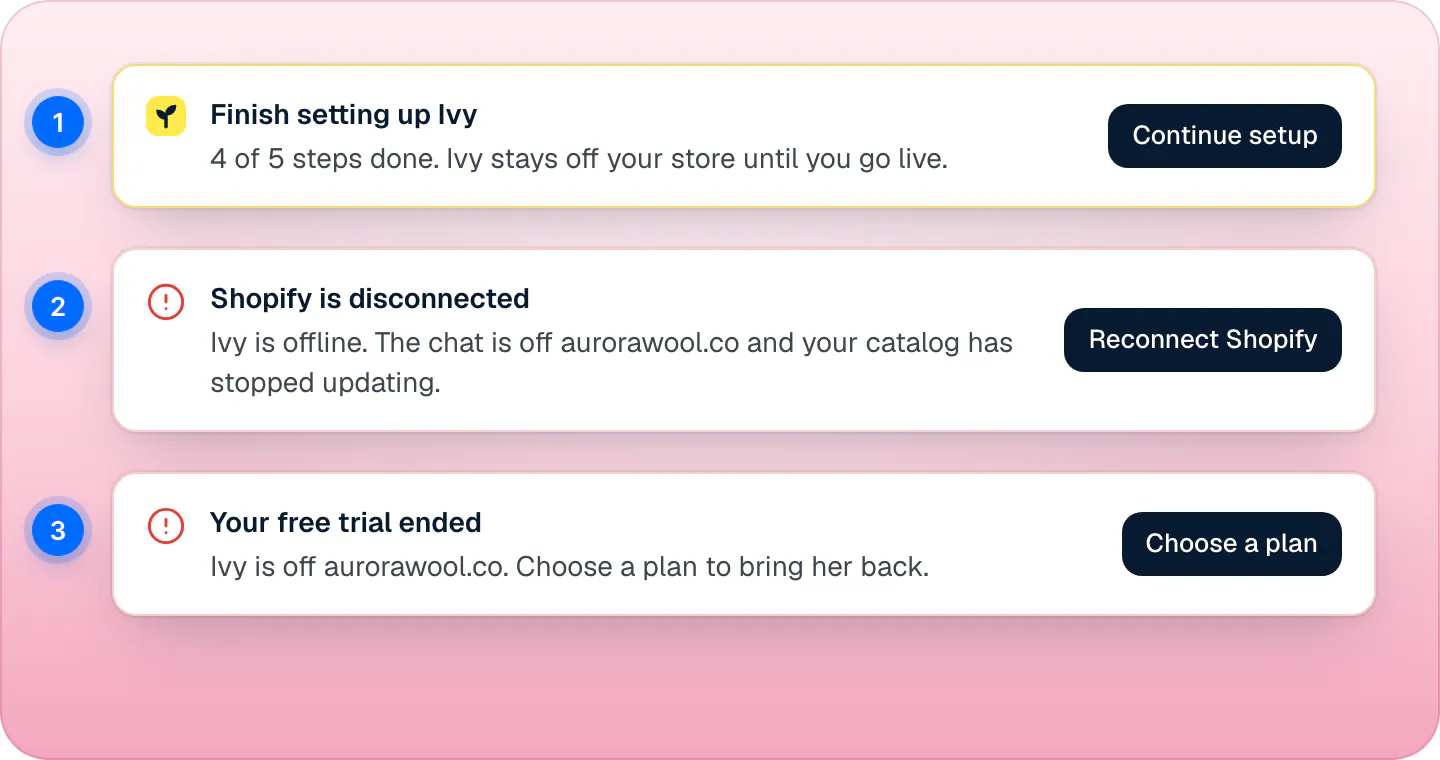
Open Home. When Ivy isn't live, a notice at the top says why, with the button that fixes it. The dot next to Ivy in the sidebar tells you the same at a glance.
| Status and notice | What it means | Fix |
|---|---|---|
| Offline (gray), "Finish setting up Ivy" (1) | You haven't pressed Go live. | Continue setup and finish the last step. See step 2. |
| Offline (red), "Shopify is disconnected" (2) | Strathly isn't connected to your store. | Reconnect Shopify. See step 1. |
| Offline (red), "Your free trial ended", "Your last payment failed" or "Your subscription ended" (3) | No active plan. | The notice's button opens Settings,Billing. See step 3. |
| Paused (orange) | Ivy is paused or out of conversations. | The chat shows, with a contact form. See a contact form instead of Ivy. |
| Live (green) | Steps 1 to 3 are fine. | The app embed is the likely cause: go to step 4. |
1. Is Shopify connected?#
The chat shows only while your store is connected. If Home says "Shopify is disconnected", press Reconnect Shopify and approve the permissions in Shopify. See disconnect or uninstall.
2. Did you press Go live?#
The chat never shows before Go live, the last step of setup, even with the app embed on. If Home says "Finish setting up Ivy", press Continue setup and finish Turn on the chat. See the go-live checklist.
3. Is your plan active?#
The chat needs a running free trial or plan. When a trial ends unpaid, a payment fails or a plan is cancelled, the chat comes off your store. Open Settings,Billing and use the notice's button: Choose a plan or Update payment method. See change your plan or cancel.
4. Is the app embed on and saved?#
The chat reaches your storefront through a Shopify theme app embed called Strathly AI chat. It has to be switched on and saved in the theme your store uses.
Open Ivy,Widget and scroll to Installation, with Theme app embed selected. The chip says Enabled (the chat is on in your live theme), Hidden (on, with Show chat widget unticked) or Off (not turned on in your live theme), and the line next to it names the theme. A store that hasn't granted the themes permission sees Enabled (the chat loaded on your store in the last 24 hours), Not seen lately or Not seen yet instead.
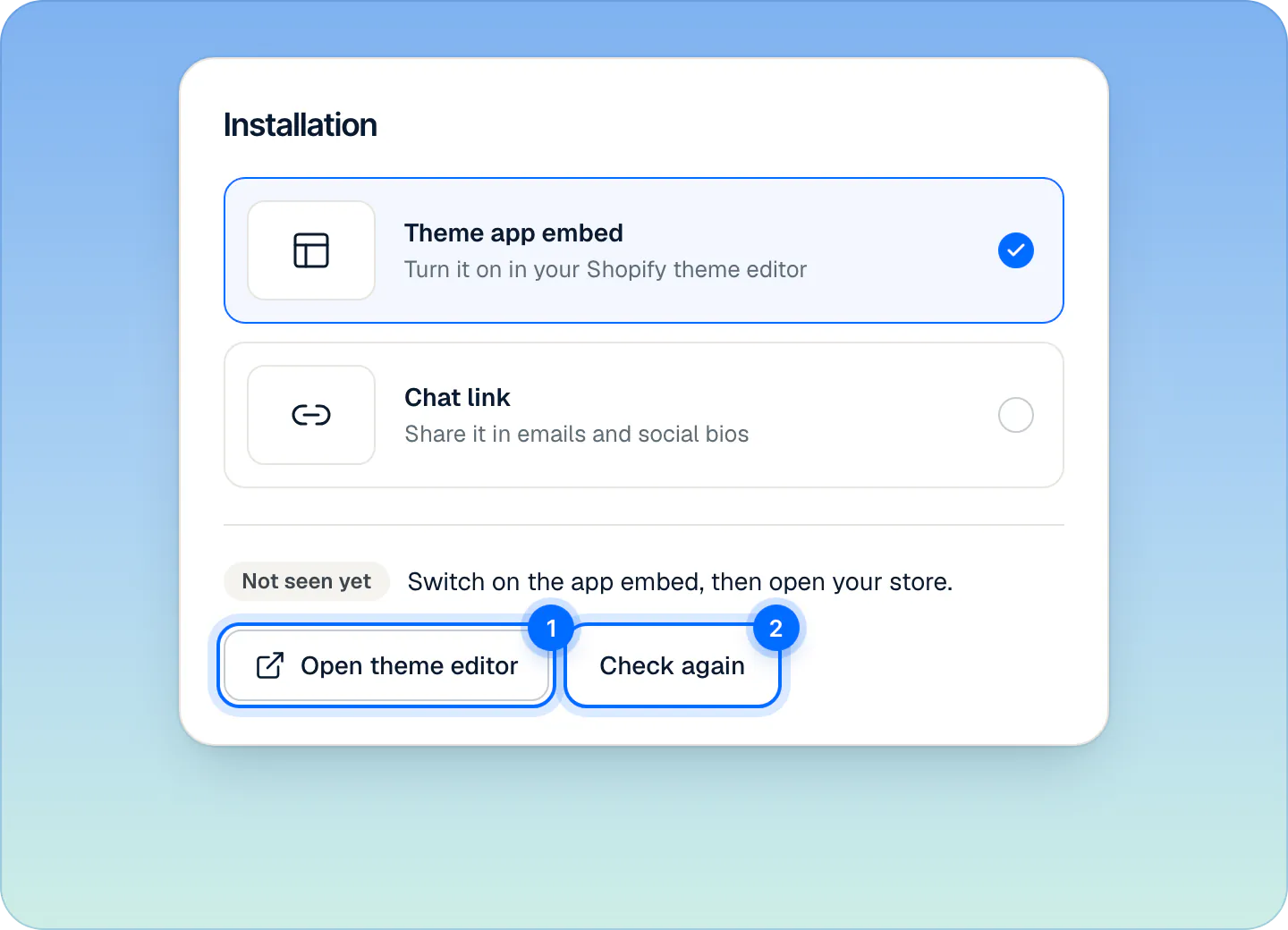
Not seen yet means your store hasn't loaded the chat. Open theme editor, press Save in Shopify, open your store, then Check again. Press Open theme editor (1). Shopify's theme editor opens on your current theme, at App embeds, with Strathly AI chat already switched on.
Press Save in the theme editor. Until you save, nothing changes on your store.
Open your store in a new tab, then come back and press Check again (2). You'll see "The chat is showing on" your domain.
To check by hand, in your Shopify admin go to Online Store,Themes, press Customize on the current theme, then open App embeds. Strathly AI chat must be on and Show chat widget ticked (1). Press Save.
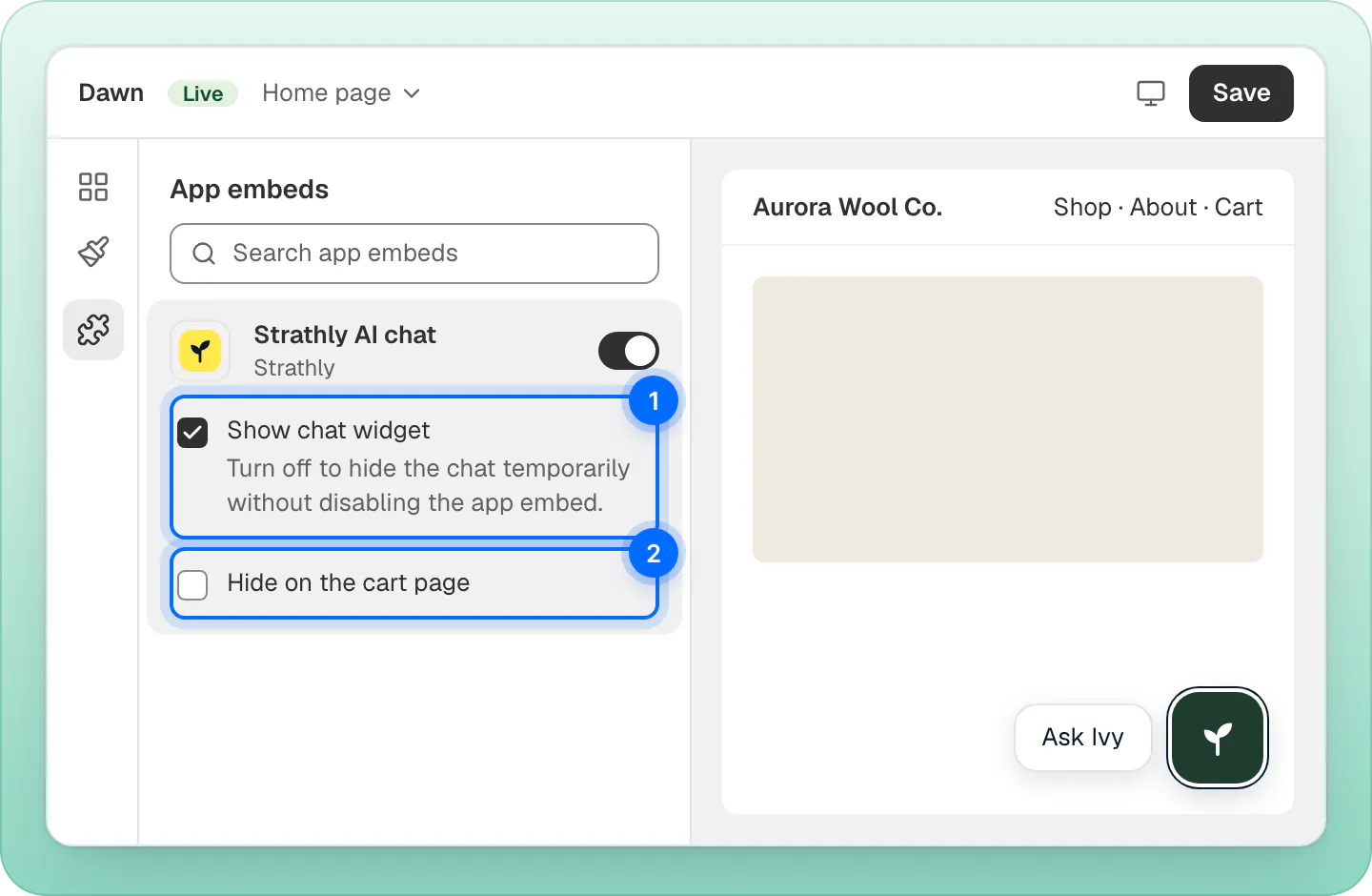
If Strathly AI chat isn't in the list, Strathly isn't installed on that Shopify store (reconnect it), or you're editing a theme that isn't the published one: use Open theme editor, which always opens the current theme.
5. Missing only on phones?#
In Ivy,Widget, card Options, check that Show on phones is on. When it's off, the chat doesn't show on screens up to 480 pixels wide. See customize the chat.
6. Missing only on the cart page?#
In the theme editor, open Strathly AI chat in App embeds and untick Hide on the cart page (2). Press Save.
7. Still nothing?#
- Reload your store in a private window. Pages that were already open take about a minute to pick up a change.
- Look at the browser console (right-click, Inspect, Console). "[Strathly] widget unavailable" means one of the four conditions above isn't met yet.
Still stuck? The FAQ has short answers to other common questions, or email support@strathly.com with your .myshopify.com address.
Two chat buttons on your store#
Another chat app is still on. Switch its embed off in App embeds in the theme editor and press Save. If it isn't listed there, turn its chat off from that app's own settings or uninstall the app. See switch from another chat.
A contact form instead of Ivy#
When Ivy is paused or your conversations have run out, the chat still shows, but new shoppers see "Leave us a message" instead of Ivy. What they write lands in your Inbox. Resume Ivy, or add conversations in Settings,Billing. See pause Ivy or hide the chat and extra conversations.
A password-protected store#
Strathly can't see a store behind a password, so the chip may stay at Not seen yet. You can still go live: in setup, Go live unlocks once you've pressed Open theme editor, so save the app embed there. The chip turns Enabled when the storefront first loads the chat, for example after you remove the password.
Frequently asked questions
Why doesn't the app embed appear in my theme editor?
Strathly isn't installed on that Shopify store, or you're in a theme that isn't the published one. Use Open theme editor in Ivy › Widget, which opens your current theme.
I saved the theme but the chat is still missing
Check that Shopify is connected, that you pressed Go live and that your plan is active: Home shows a notice when one of them isn't. Then reload your store in a private window, since pages already open take about a minute to change.
Why does the chat show on desktop only?
Show on phones is off in Ivy › Widget › Options. Switch it on and the chat shows on screens up to 480 pixels wide too.
Does pausing Ivy hide the chat?
No. Paused, the chat shows a contact form to new shoppers. To hide the chat, untick Show chat widget in the app embed.
Does Go live prove the chat is on my store?
No. Go live switches Ivy on, but the chat appears only once the app embed is saved in your theme. The Enabled chip in Ivy › Widget shows your store loaded the chat in the last 24 hours; with Ivy live, that means shoppers see it.
Related pages
- Storefront widgetPut the chat on your storeOpen the theme editor from Strathly with the app embed already on, then press Save. No theme code to edit, nothing to paste. Plus a chat link for emails.
- Get startedBefore you go live: a checklistTen checks before and right after shoppers meet Ivy: knowledge, handoff rules, business hours, notifications, the app embed and a test chat.
- IvyPause Ivy or hide the chatPause Ivy and new shoppers get a contact form. Hide the chat on phones from Ivy › Widget, or on the cart page or everywhere from your Shopify theme.