Reply to a shopper
When Ivy hands a shopper to your team, she has usually written the reply already. This page shows how to send it, change it or write your own, what happens when the shopper has left, and how to talk to your team in internal notes the shopper never sees.
Updated · 6 min read
Feature overview:AI chatbot with human handoff
On this page
Every role can reply: agents, admins and the owner. The reply box is under the thread of every conversation your team has. On a conversation Ivy is handling, press Take over first; on a resolved one, press Reopen.
Reply to a waiting shopper#
Open the conversation from Needs you. The composer is on Reply (press R to jump to it), and Ivy's reply is already in the box, marked Drafted by Ivy.
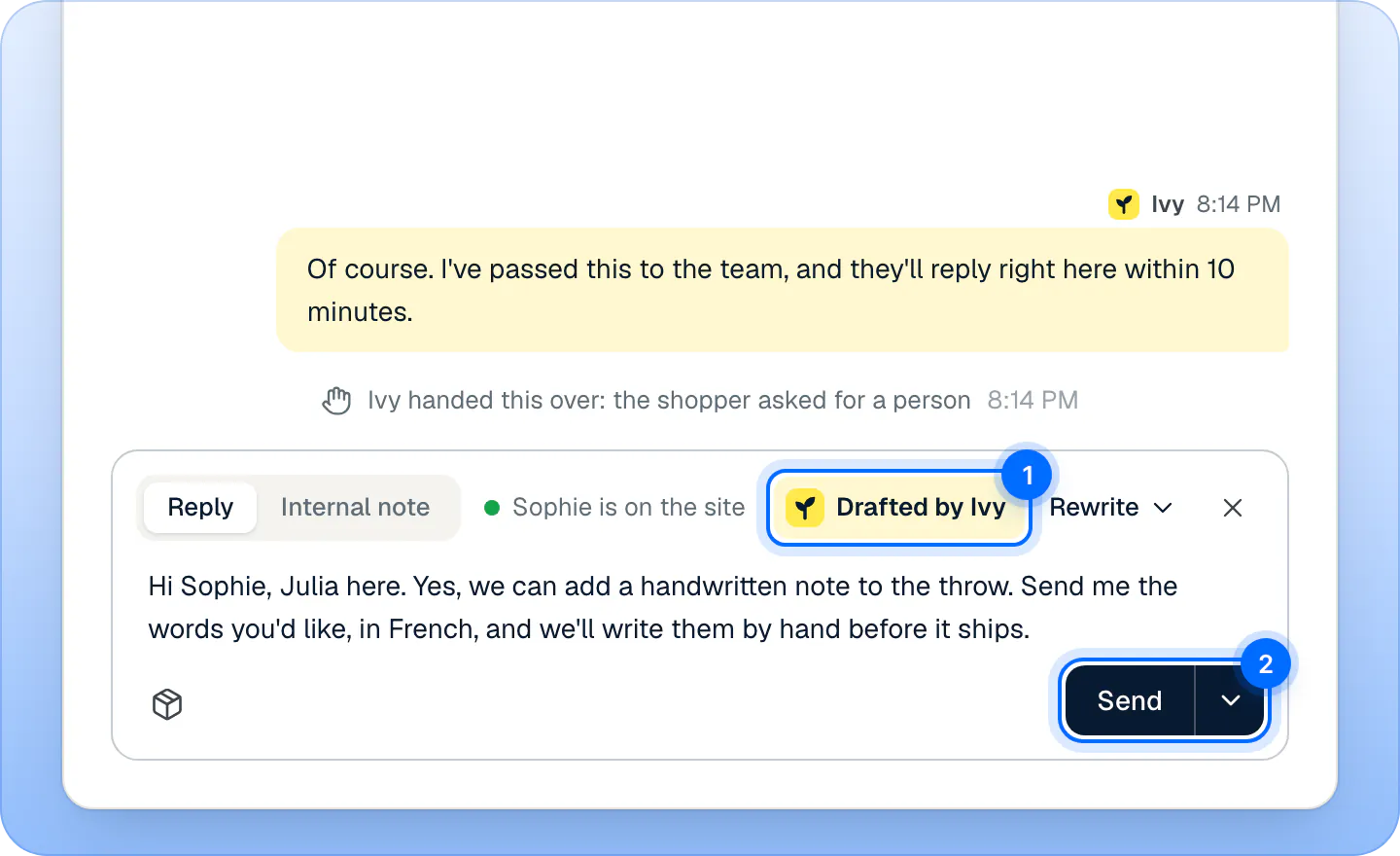
Ivy's draft is already in the reply box: edit it if you like, then press Send. Read it, and change what you like. To start from an empty box, press × next to Rewrite (the toast lets you undo it).
Press Send (CtrlEnter, or ⌘Enter on a Mac). To send and close the conversation in one go, open the arrow beside Send and choose Send and resolve (CtrlShiftEnter).
Your reply appears at once in the thread and in the shopper's chat on your store. There is no confirmation message: the bubble in the thread is the confirmation. If it can't be sent, it goes back into the composer with a message saying why.
Sending a reply also:
- makes the conversation yours, even if a teammate had it (they aren't notified);
- stops the wait clock, so the shopper is no longer late;
- clears Ivy's draft for everyone on the team.
The shopper sees your reply under your Name shoppers see, set in Settings,Account, or under your first name when it is empty.
Can Ivy write the reply for me?#
Yes, in three ways:
- Her draft. At every handoff Ivy writes one to four sentences in the shopper's language, from what she knows about your store. She never writes that a refund, a replacement, a cancellation or an address change is done. On an order conversation, her draft can carry the order action itself, for you to confirm: see orders next to the conversation. If a draft arrives while you have the conversation open, it appears in the box as you watch.
- Draft with Ivy. In an empty reply box with no draft, press Draft with Ivy. She writes a reply from the conversation and what she knows about your store.
- Rewrite. With text in the box, press Rewrite and pick Shorter, Friendlier or More formal. Ivy keeps the language, the facts, the numbers and the links, and changes only how it reads. More formal uses the polite form in Italian, German, French and Spanish. Undo rewrite in the same menu brings your text back.
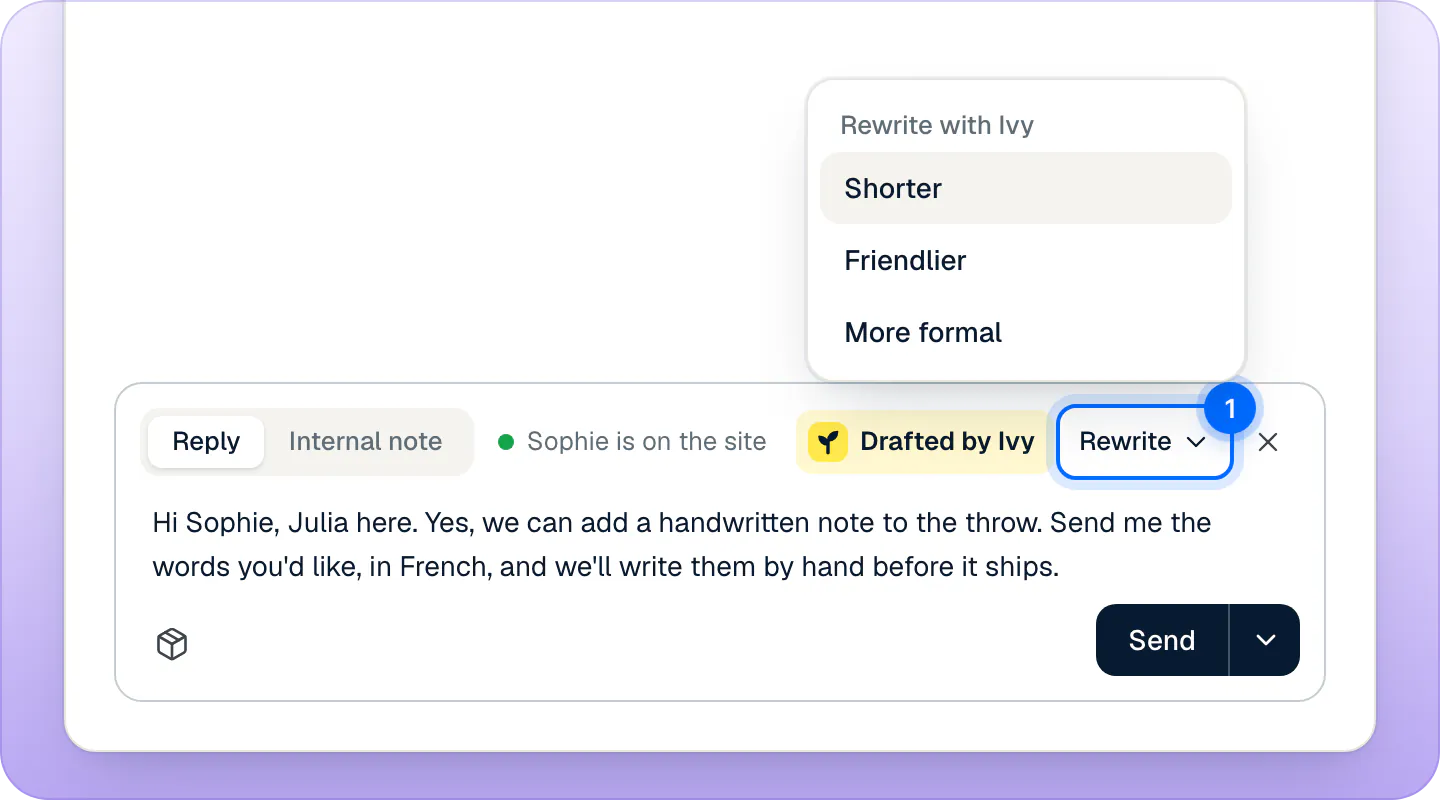
A draft stays marked as Ivy's while you edit it, until you empty the box.
Reply in a conversation Ivy is handling#
The reply box of a conversation Ivy is answering says "Ivy is chatting with" the shopper. Press Take over in the header: the conversation becomes yours, Ivy stops replying to that shopper, and the reply box opens. The toast lets you undo it. More in assign and resolve conversations.
What if the shopper has left?#
Next to Reply, the composer says where the shopper is:
| It says | What happens to your reply |
|---|---|
| Sophie is on the site (green dot) | The shopper reads it in the chat right away. |
| Left, replies go by email | The shopper left the chat and gave an email: your reply goes by email too. |
| Left, replies wait in the chat | No email on file: the reply waits in the chat for when they come back. |
How the email works:
- It goes out about a minute after your reply, and only if the shopper hasn't written again in the meantime. Several replies in a row go in one email.
- If the shopper is still on your store, the email waits: Strathly checks every two minutes whether they've left, for up to 30 minutes. If they're still there after that, no email goes out.
- It is written in the conversation's language, signed with your Name shoppers see ("Julia from Aurora Wool Co. replied to you"), with a link that opens the chat again on your store.
- When the shopper answers the email, it goes to your store's Support email in Settings,General.
Insert a product link#
- Press the package icon at the bottom left of the composer (Insert a product link).
- Type in Search products. You see up to 30 of your active products, with their stock and price.
- Pick one. Strathly adds its name and price on one line and its link to your store on the next.
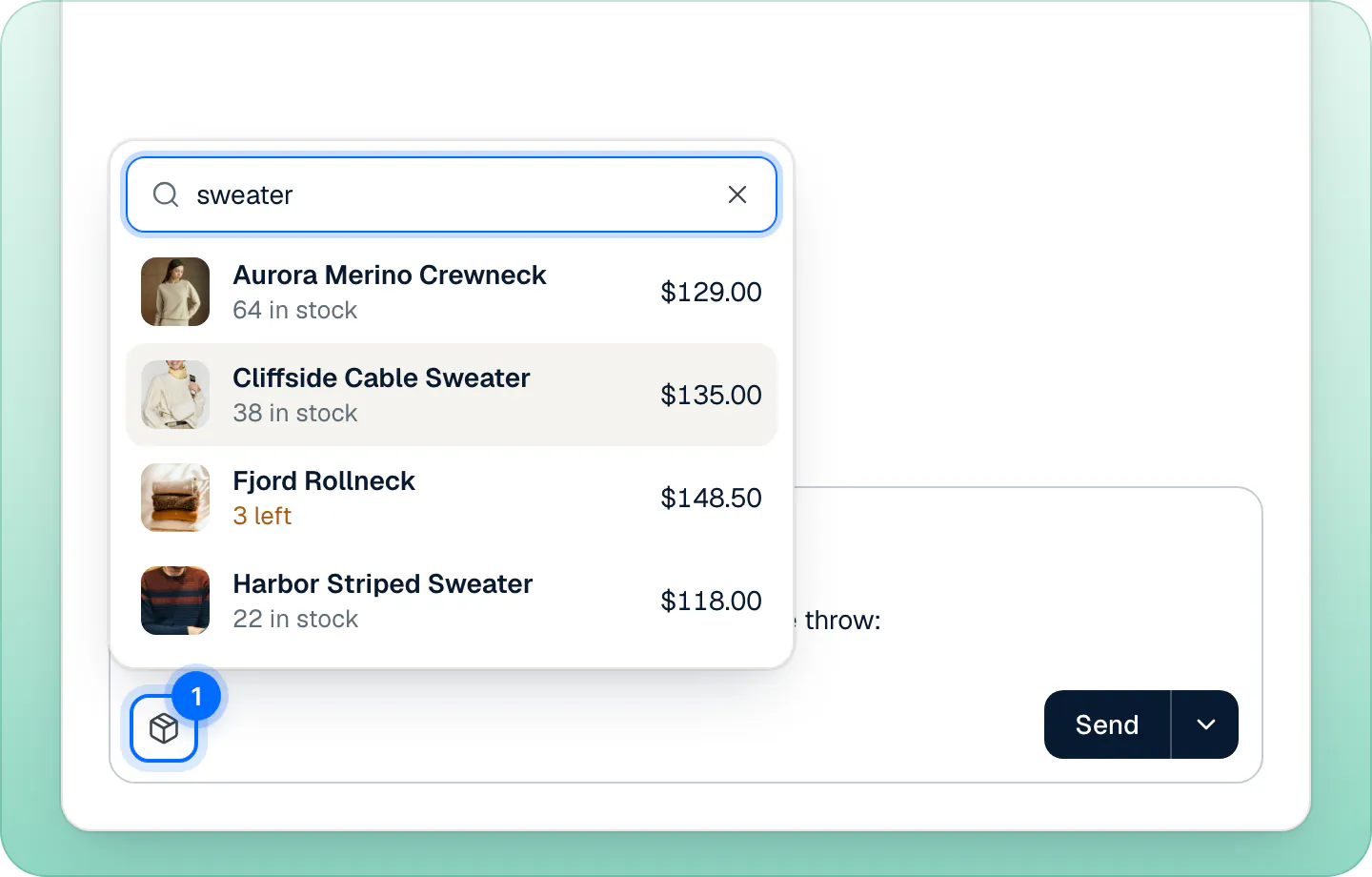
It works in internal notes too.
Write an internal note#
- Switch the composer to Internal note (or press N). The box turns amber and says Only your team sees notes.
- Write your note. Type @ to open Mention a teammate, and pick a name with the arrow keys and Enter, or with the mouse. Teammates who are away are marked Away.
- Press Add note (CtrlEnter).
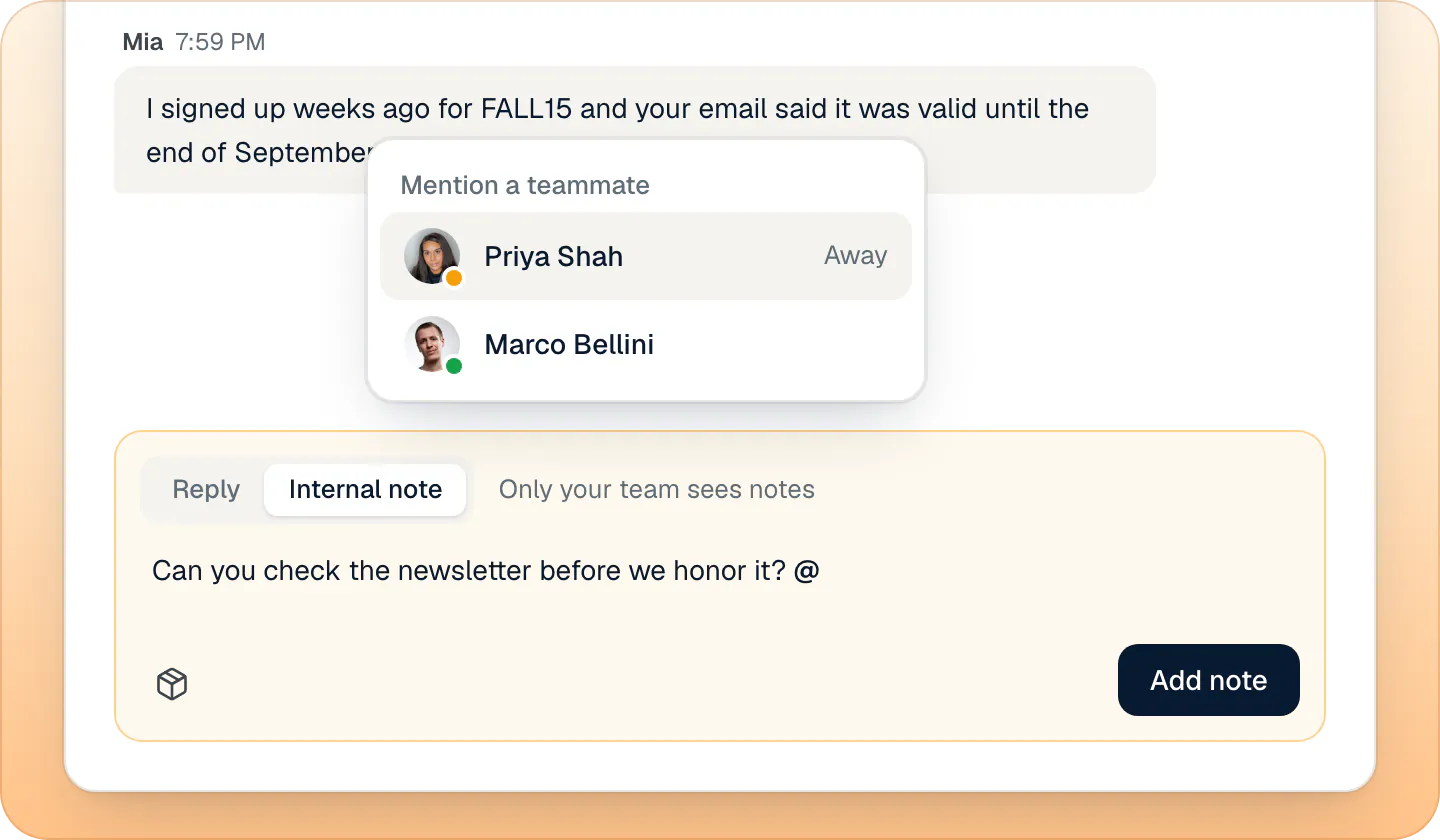
Each teammate you mention gets a row in their notifications ("Julia mentioned you") and, depending on their notification settings, an email and a push on the iPhone. Notes never reach the shopper, and they don't stop the wait clock or change who has the conversation.
Reply and note keep separate drafts in each conversation while the page stays open.
If your reply says something that didn't happen#
Strathly reads your reply before it goes. If it says a refund, a replacement, a cancellation or an address change is done when it isn't, a line under the text warns you, for example "Your reply says the refund is done, but it isn't. Edit the text before sending.", and the button becomes Send anyway. Change the text, or run the action from the order first.
Limits#
- A reply can be up to 4,000 characters, a note up to 2,000.
- A sent reply or note can't be undone. Send and resolve shows a toast whose Undo reopens the conversation; the reply stays sent.
- A reply that carries an order action waits 10 seconds before both go out, and can be stopped in that time: see orders next to the conversation.
Frequently asked questions
Do shoppers see notes?
Never. Notes stay in the Inbox, for your team only, and they don't go into the email a shopper gets.
Which name does the shopper see?
Your Name shoppers see from Settings,Account, or your first name when it is empty. Your team sees your full name.
Does the shopper see that I'm typing?
No. The shopper sees your reply when you send it. You, on the other hand, see "Emma is typing" while the shopper writes.
Can I write notes from the iPhone app?
No. Notes show in the iPhone app, but you write them on the web.
Related pages
- InboxHow the Inbox worksNeeds you, Mine, Ivy is handling, Resolved, All and Spam: what each Inbox view holds, what the status chip means and how the wait clock works.
- InboxOrders next to the conversationSee the shopper's order and past orders next to the chat, then refund, replace, change the address or cancel from the Inbox, with 10 seconds to undo.
- InboxAssign and resolve conversationsTake a conversation, assign it to a teammate, return it to Ivy, resolve or reopen it, and choose how new handoffs are assigned. Most actions can be undone.