Choose when Ivy hands off
Ivy answers most questions on her own and brings in your team for the few that need a person. Handoff rules decide which ones, and what she does with each: hand the conversation over, take the shopper's email, or keep answering and let you know.
Updated · 9 min read
Feature overview:AI chatbot with human handoff
On this page
The rules live in Ivy,Behavior, in the Handoff rules card. Owners and admins can change them. Who receives a handoff, and how fast your team promises to reply, are set in Settings,Team under Handoffs; what happens after hours is in Settings,Business hours.
What triggers a handoff?#
A conversation reaches your team in one of these ways:
- A built-in rule fires (the four rules below).
- One of your keyword rules finds its words in the shopper's message.
- A refund request, following the refund row of the Orders card: see Let Ivy work on orders.
- A handoff that is always on, like a lost package (listed further down).
- The shopper asks directly: the Talk to the team button on the chat's welcome screen and the A person can join anytime. link under the composer always reach your team, whatever your rules say.
The built-in rules#
All four are on by default, with the action Hand off to your team.
| Rule | What Ivy does when it fires |
|---|---|
| When a shopper asks for a person | Hands off and tells the shopper a person is on the way. |
| When a shopper sounds upset | Apologizes briefly, hands off and marks the conversation urgent. |
| When it's a wholesale or bulk order | Hands off so your team can send a quote (wholesale, B2B, corporate orders, custom quotes). |
| When Ivy can't help after 2 replies | Hands off with a summary. Set the number in After how many replies?: 1, 2 (default) or 3. |
The last rule counts the questions Ivy couldn't answer from your knowledge since your team last stepped in.
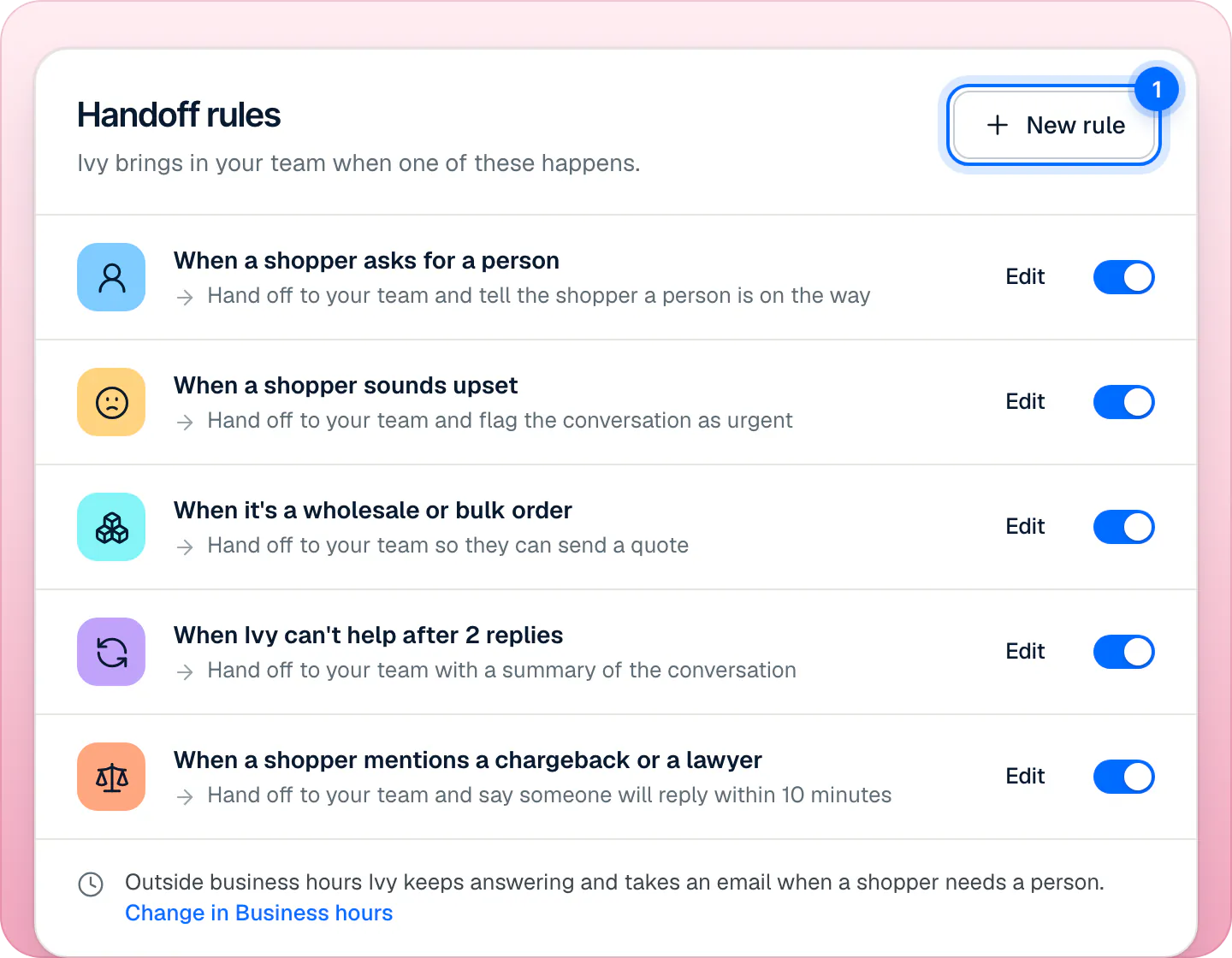
Change a rule#
- Open Ivy,Behavior and scroll to Handoff rules.
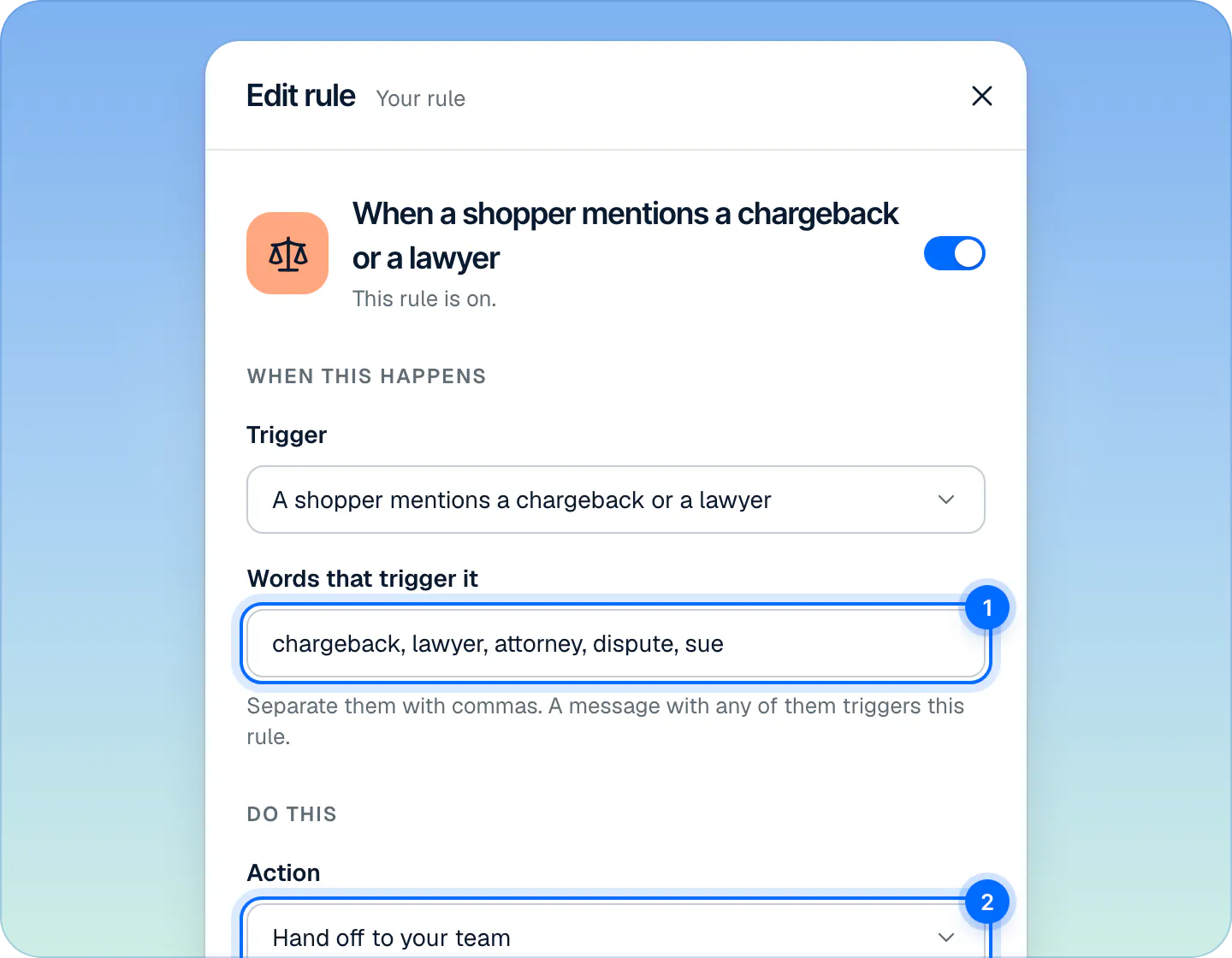
- Click the rule, or its Edit button. The Edit rule panel opens.
- Under Do this, pick the Action. The panel shows What the shopper sees, for example.
- Or switch the rule off with its switch, in the row or at the top of the panel.
- Press Done, then Save changes at the bottom of the page.
Switching a built-in rule off doesn't mean Ivy never brings in your team for it. It means she tries first, and hands off only if she gets stuck. A keyword rule switched off does nothing.
What each action does#
| Action | What happens |
|---|---|
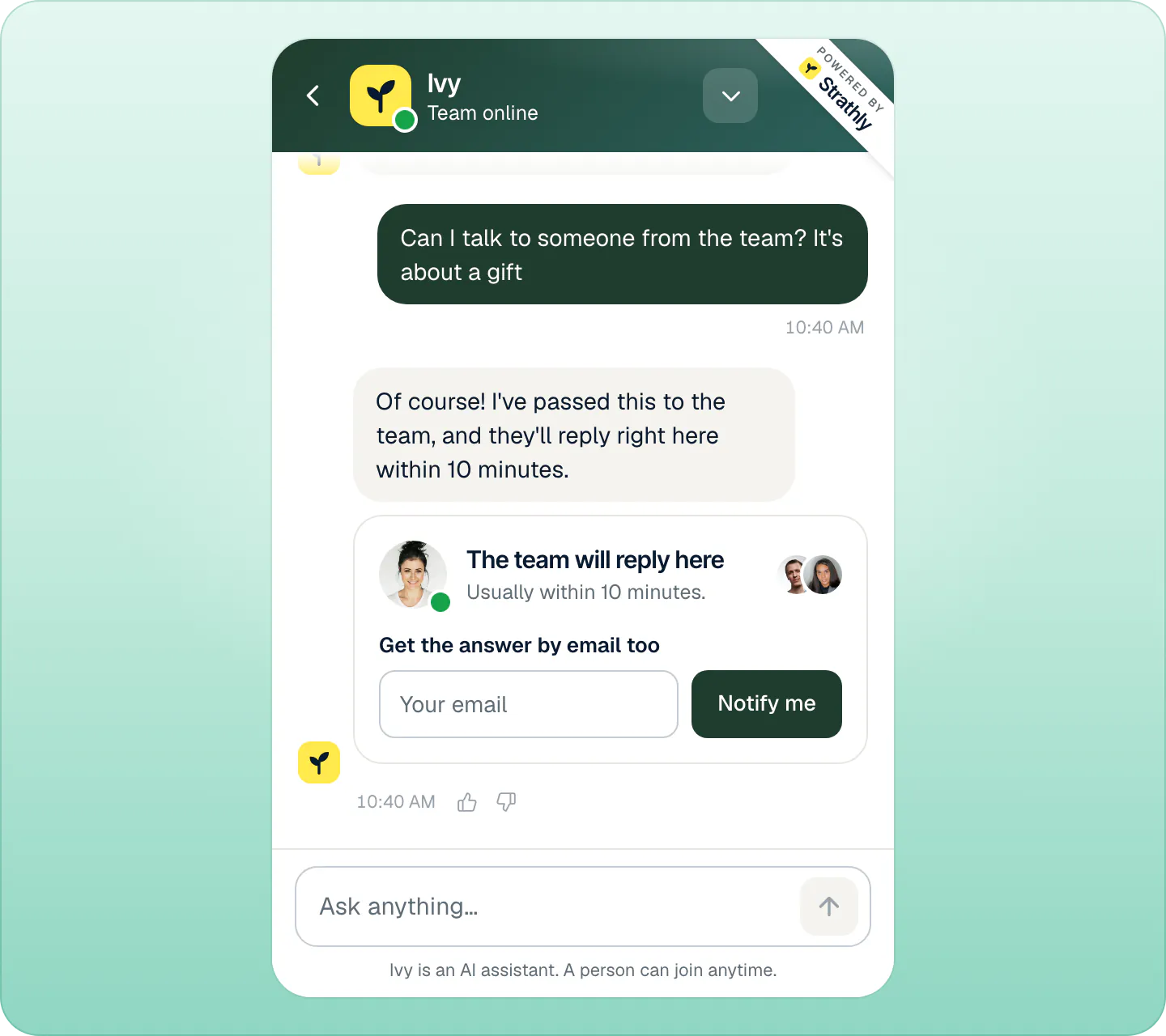
| Hand off to your team | The conversation moves to Inbox,Needs you. The shopper reads that the team will reply, for example "I've passed this to the team, and they'll reply right here within 10 minutes." The time is your reply target. |
| Collect the shopper's email | Ivy asks for the shopper's email. Once it's in, the conversation still reaches Needs you, for your team to answer by email. |
| Answer and notify me | Ivy keeps answering. Your team gets a note in the Inbox and a notification that Ivy sent you a note, once per rule in each conversation. |
The reply target comes from Settings,Team › Handoffs › Reply target: 5, 10 (default), 15, 30 minutes or 1 hour.
Add a keyword rule#
In the Handoff rules card, press New rule.
Pick a template and press Use template. A template you already used shows Added, except Your own words, which you can use again and again.
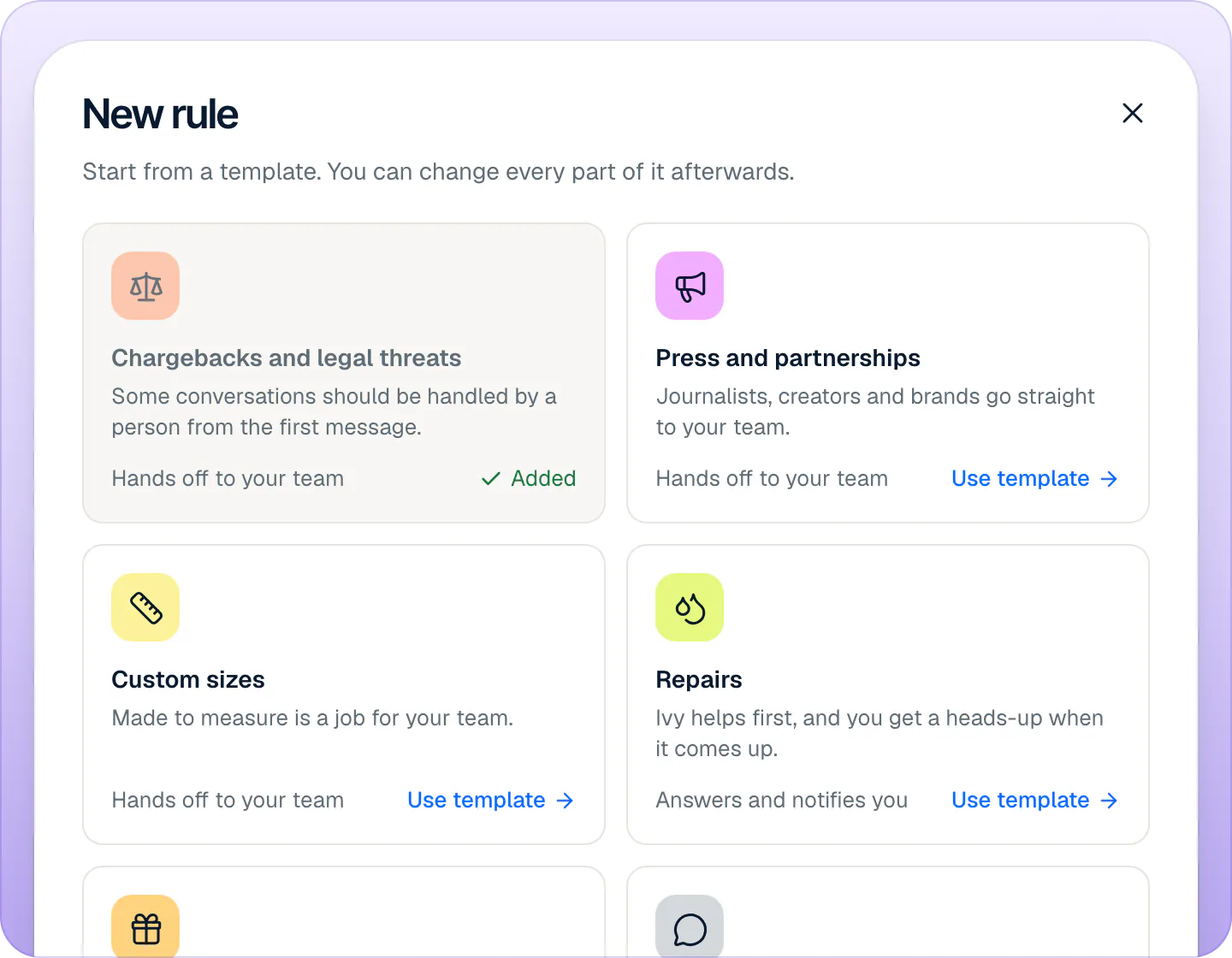
Every rule starts from a template. You can change its words and its action afterwards. In the panel that opens, check Words that trigger it (separated by commas) and the Action.
Press Done, then Save changes.
| Template | Words it starts with | Action |
|---|---|---|
| Chargebacks and legal threats | chargeback, lawyer, attorney, dispute, sue | Hand off |
| Press and partnerships | press, journalist, podcast, collab, partnership, influencer, sponsor | Hand off |
| Custom sizes | custom size, made to order, made to measure, bespoke, tailor | Hand off |
| Repairs | repair, mend, fix, broken | Answer and notify |
| Gift wrapping and notes | gift wrap, gift note, gift message, wrapping | Answer and notify |
| Your own words | none: you type them | Hand off |
How the words are matched:
- Any one of the words is enough. Case doesn't matter, and only whole words count: "sue" doesn't match "issue".
- They're checked on the shopper's message before Ivy replies. With Hand off or Collect the shopper's email, the shopper gets a fixed sentence instead of an answer from Ivy.
- The first matching rule that is on wins. Blocked topics (in Guardrails) are checked before keyword rules.
To remove a rule, open it and press Delete rule, then Save changes. Right after deleting, Undo brings it back.
For the busiest weekend of the year, the Black Friday checklist for Shopify stores lists the handoff rules worth turning on before the sale.
What happens after hours or when nobody is available?#
Ivy keeps answering outside your business hours: nothing pauses. What a handoff does then is set in Settings,Business hours, under Outside business hours, Ivy will:
| Choice | What happens to a handoff |
|---|---|
| Keep answering (default) | Every rule set to Hand off to your team asks for the shopper's email instead, for example "The team is away right now and back tomorrow at 09:00. Could you leave your email? They'll follow up as soon as they're in." Once the email is in, the conversation lands in Needs you. |
| Hand off anyway | The conversation lands in Needs you right away, and the shopper is told when your team is back, for example "The team is away right now. They're back tomorrow at 09:00 and will reply here, or by email if you leave the page." |
Either way your team is notified when the conversation reaches Needs you, following each person's notification settings: someone who pauses alerts while away gets the email but no push. The Business hours page describes Keep answering as "No alerts until you're back"; in practice the alert goes out once the shopper has left an email.
The Talk to the team button follows its own rule: outside your hours it always asks for the shopper's email (unless the chat already has it), whichever choice you made.
Inside your hours, if everyone on the team is set to Away, Ivy asks for the shopper's email and hands off for a reply by email. The line at the bottom of the Handoff rules card shows your current choice, with Change in Business hours. See Hours, holidays and who's available.
Handoffs that are always on#
These aren't rules you can switch off. They show in the Inbox with these reasons:
| Reason | When |
|---|---|
| Ivy couldn't answer | Nothing in your knowledge answers the question. |
| Order change | An order change Ivy may not make herself. |
| Lost package, Exchange, Late return | Always for your team. |
| Discount code | Discounts is set to Ask your team, or a code didn't work. |
| Contact form while Ivy is paused | A shopper wrote through the contact form while Ivy was paused. |
| Out of conversations | Your plan's conversations and extras are used up. |
| Ivy was unavailable | Ivy couldn't answer for a technical reason. |
| Looks like spam, Too many chats from one visitor, Couldn't verify the visitor | A protection fired: see How the chat is protected from abuse. |
Your keyword rules show as Mentioned followed by the rule's name.
What does the shopper see while waiting?#
Under Ivy's message, the chat shows a card: The team will reply here (or The team will reply by email when nobody is online), with Usually within 10 minutes. from your reply target. Until the chat knows their email, the shopper can leave it under Get the answer by email too and press Notify me. Then the card confirms where your team will write. See What shoppers see.
What your team gets#
- The conversation lands in Inbox,Needs you with the reason, a summary by Ivy and a reply she drafted. See How the Inbox works.
- Notifications follow each person's settings: see Choose your notifications.
- Who it's assigned to follows Settings,Team › Handoffs › When Ivy hands off: Leave it for anyone to take (default) leaves it unassigned for the first to reply; Assign to whoever is available gives it to one available teammate in turn, skipping anyone away.
- Who is alerted is a separate choice, made by each person in Settings,Notifications: with Alert me about set to Every handoff (the default), they get the email and push even when the conversation was assigned to someone else. The bell row and the desktop alert of an assigned handoff go to the assignee only.
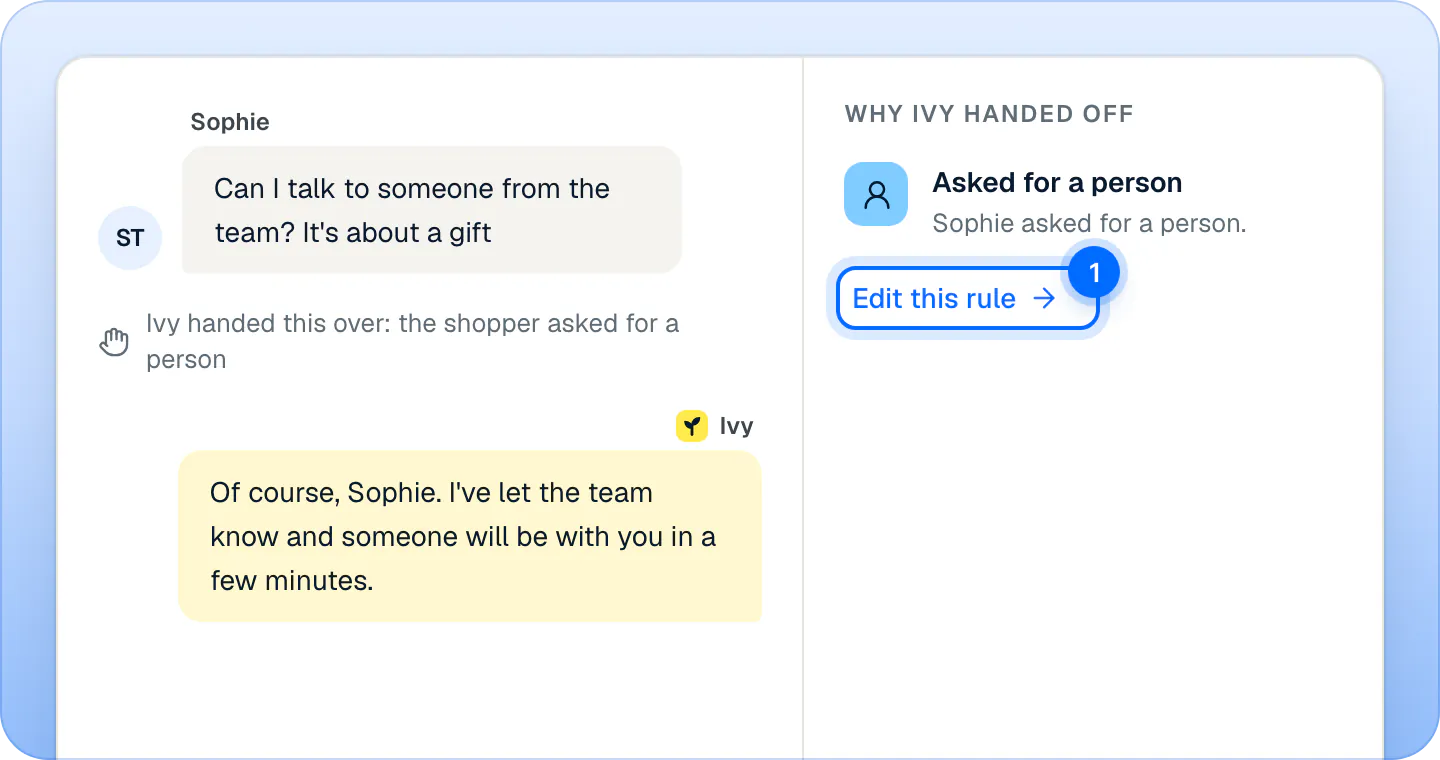
- In the conversation, Why Ivy handed off names the rule, with a link to change it.
Limits#
| What | Limit |
|---|---|
| After how many replies? | 1, 2 or 3 (default 2) |
| Keyword rules | 30 rules, 40 words each, 60 characters per word |
| Reply target | 5, 10, 15, 30 or 60 minutes (default 10) |
Frequently asked questions
Can I stop all handoffs?
No. You can switch rules off, so Ivy tries first, but shoppers can always ask for your team with Talk to the team, and a few handoffs are always on.
Does Collect the shopper's email skip the Inbox?
No. Once the shopper leaves an email, the conversation lands in Needs you for a reply by email.
Which handoffs are urgent?
Those from When a shopper sounds upset: the conversation is marked urgent in the Inbox.
Who gets the handoff?
It depends on two settings. Assignment is store-wide, in Settings,Team › Handoffs: by default nobody is assigned and the first teammate to reply takes it; with Assign to whoever is available, the conversation goes to the next available teammate. Alerts are personal, in Settings,Notifications: everyone whose Alert me about is Every handoff (the default) gets the push and email for every handoff, even one assigned to someone else, while Mine and unassigned limits them to their own and unassigned handoffs.
Does the wait clock stop after hours?
No. The time a shopper has been waiting keeps counting outside your business hours.
From the blog
- Blog · ComparisonsLive chat for ecommerce: what it does for sales, and the software worth paying for [2026]Live chat for ecommerce in 2026: what it does for sales (with the research), what to look for, and 7 live chat tools compared on price, AI and orders.
- Blog · Customer supportChatbot vs live chat for Shopify stores: which one, and when you need bothChatbot vs live chat for a Shopify store: what each does well, what each costs, which questions go to a person, and how to run both in one chat.
- Blog · Customer supportBlack Friday customer service checklist for Shopify [2026]A Black Friday customer service checklist for Shopify stores, dated for BFCM 2026: policies, cut-offs, replies, handoff rules, hours and the week after.
Related pages
- TeamHours, holidays and who's availableSet your weekly business hours and date-specific hours for holidays, choose what Ivy does when you're closed, and set each teammate to Available or Away.
- InboxHow the Inbox worksNeeds you, Mine, Ivy is handling, Resolved, All and Spam: what each Inbox view holds, what the status chip means and how the wait clock works.
- Storefront widgetWhat shoppers see in the chatThe chat from the shopper's side: languages, product cards and Add to cart, order status, the AI notice, and email replies after they leave.