Recommend products and build carts
Ivy sells as well as she supports. She searches your Shopify catalog, shows shoppers product cards they can add to their cart, and builds a real cart with a checkout button when they're ready. This page shows what shoppers see and every way you can steer what she recommends.
Updated · 6 min read
Feature overview:AI shopping assistant
On this page
Product recommendations are always on: there is nothing to switch on. What you can do is decide which products Ivy may suggest and tell her what to keep in mind. Owners and admins manage that in Products and Ivy,Behavior.
How Ivy picks products#
When a shopper describes what they're after ("a warm sweater, nothing itchy"), Ivy searches your catalog by meaning and by keywords. She narrows the search when the shopper gives a price range, asks for something in stock or names a collection.
For the products that fit, she reads the full details: the description, the options, the price and stock of every variant, whether stock is low (one to three left), and your Note for Ivy on the product. Then she recommends a few by name, usually no more than three in one message.
What she searches:
- Only active products. Drafts and archived products are never recommended.
- Only products with Ivy can recommend it switched on in Products. With it off, she never suggests the product herself: not as a pick, an alternative or a card she offers. When a shopper asks about it by name, she still answers with its price, options and stock (with its card when they named it), and adds it to a cart if they want to buy it.
- Products, prices and stock exactly as Shopify has them. She never invents a product, a price or availability, and never pastes product links: the cards do that.
Your catalog stays in step with Shopify on its own; see Your products in Strathly.
What shoppers see: product cards#
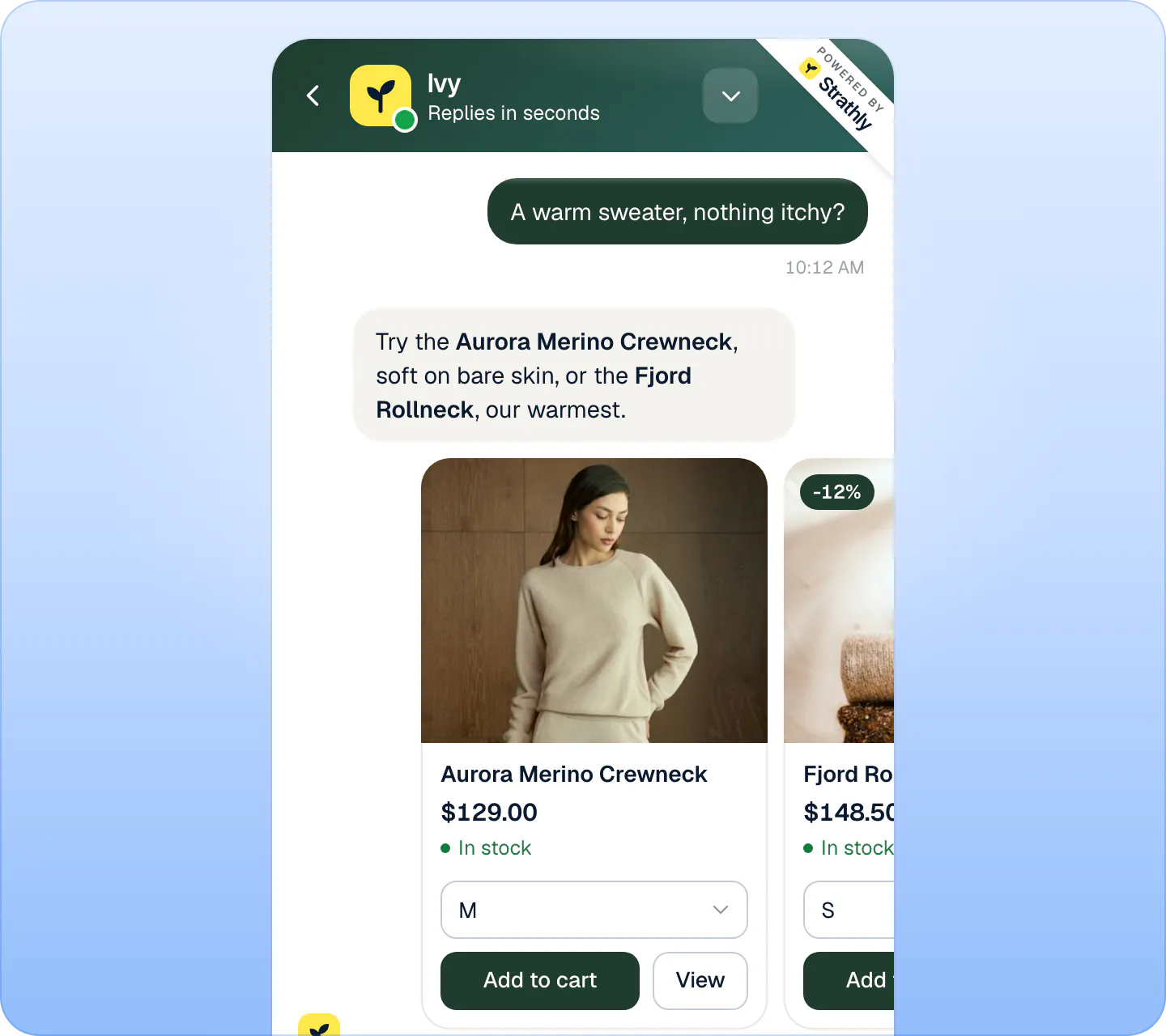
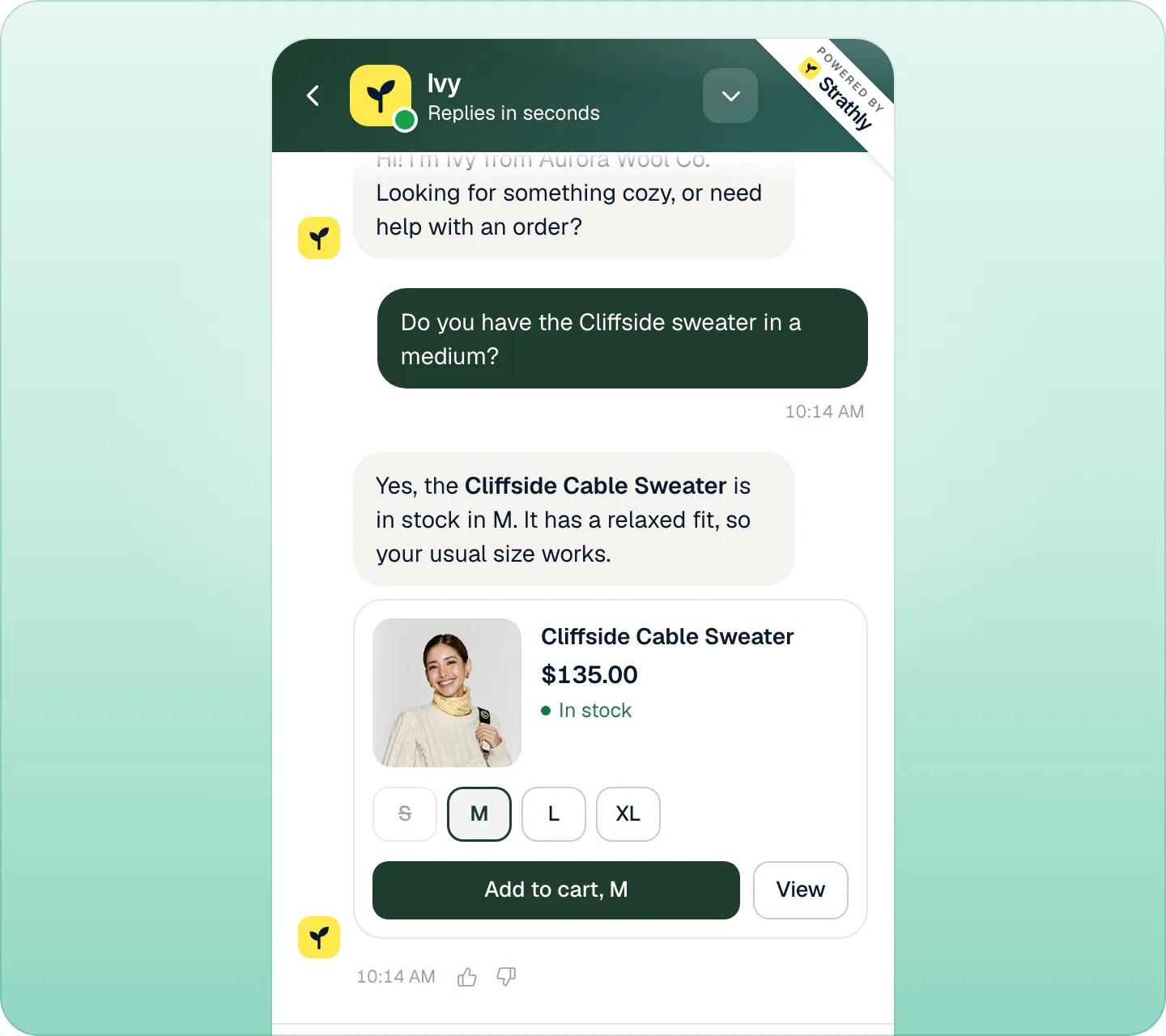
Each product Ivy names in her reply appears as a card under it, up to six per message. One product gets a larger card; two or more make a carousel the shopper can swipe.
Each card shows:
- The photo, the title and the price. When the product has a compare-at price, it's struck through and a badge shows the discount (for example -12%).
- In stock or Sold out.
- The options, when the product has several: chips (sizes like S, M, L, XL) on a single card when there are up to six short ones, otherwise a menu. Sold-out options can't be picked, and the first available one is selected.
- Add to cart and View. View opens the product page in a new tab. With chips, the button says which option goes in the cart, like Add to cart, M.
The cards have no star ratings or reviews.
What Add to cart does#
Add to cart puts one unit of the chosen option into the shopper's Shopify cart, on your store. The button reads Adding…, then Added with a check. Your team sees a line in the conversation that the shopper added the product to the cart.
If Shopify refuses (the variant just sold out, for example), the product page opens in a new tab instead. The chat doesn't refresh your theme's cart drawer or cart count: they update on the shopper's next page view.
The cart and the checkout button#
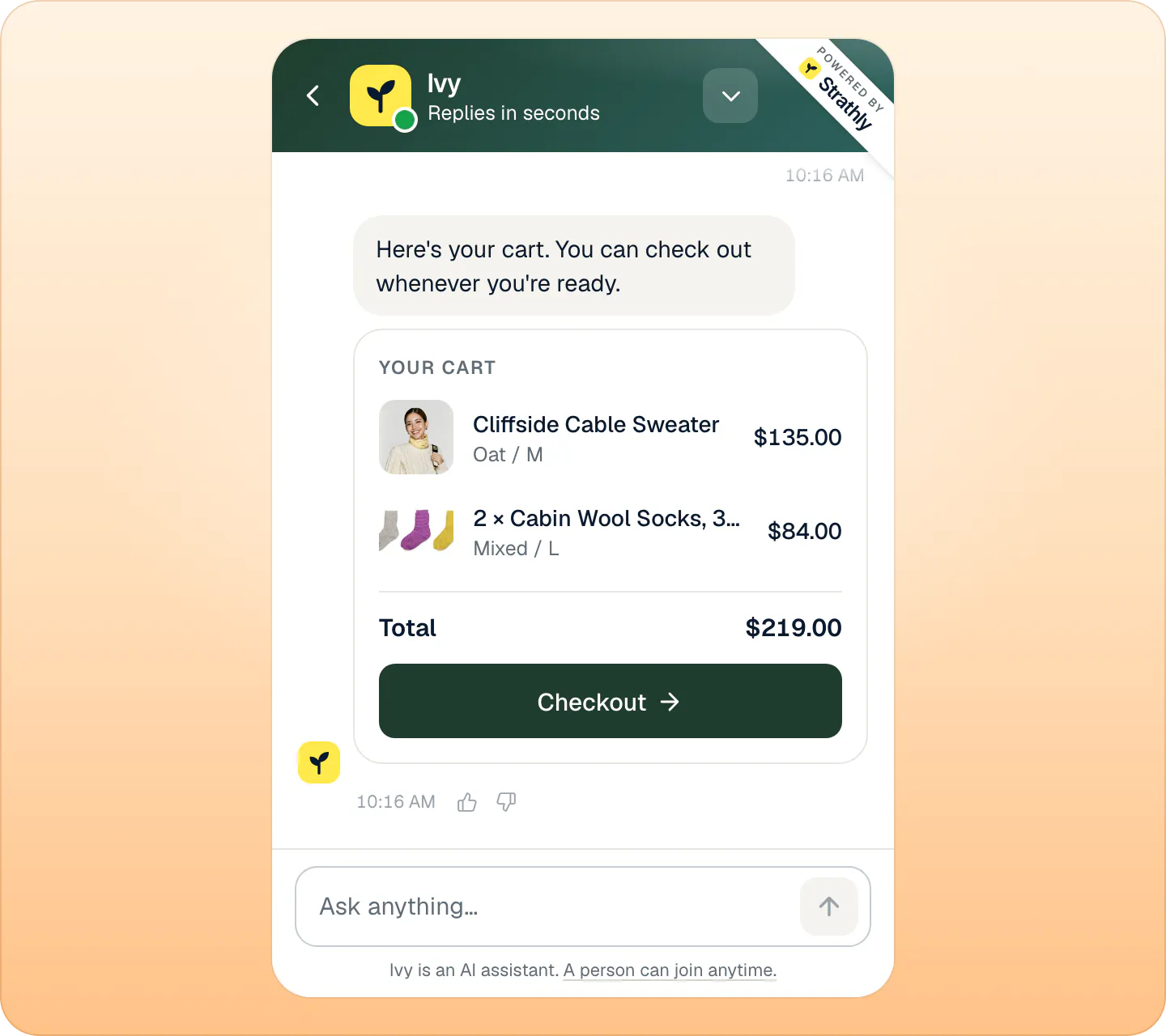
When a shopper wants to buy, Ivy builds a real Shopify cart and shows it in the chat:
- Your cart, with each item, its option and its price.
- A free-shipping bar, only when your Shopify shipping has a free rate with a minimum order: "$12 away from free shipping", then Free shipping unlocked.
- Total, and the Checkout button, which opens your store's checkout with that cart.
A cart holds up to 20 lines, with 1 to 99 of each item. Ivy won't put a sold-out option in it.
How sales are counted#
The chat tags the shopper's cart with the conversation, so Shopify carries it onto the order. An order placed within 3 days of a conversation with Ivy counts as Sold after a conversation, on Home, in Analytics and on each product. The tag follows Shopify's Customer Privacy API: where your store asks shoppers for consent, it's set only once the shopper allows analytics in your cookie banner. See Read your analytics.
Steer what Ivy recommends#
Choose which products she may suggest. In Products, switch Ivy recommends off for a product in the list, or open it and switch off Ivy can recommend it. The Not recommended filter lists the ones you switched off. Drafts can't be recommended: publish them in Shopify first.
Add a note to a product. Open the product in Products, write in Note for Ivy (only she sees it, up to 1,000 characters), for example "Runs small, suggest a size up.", and press Save note.
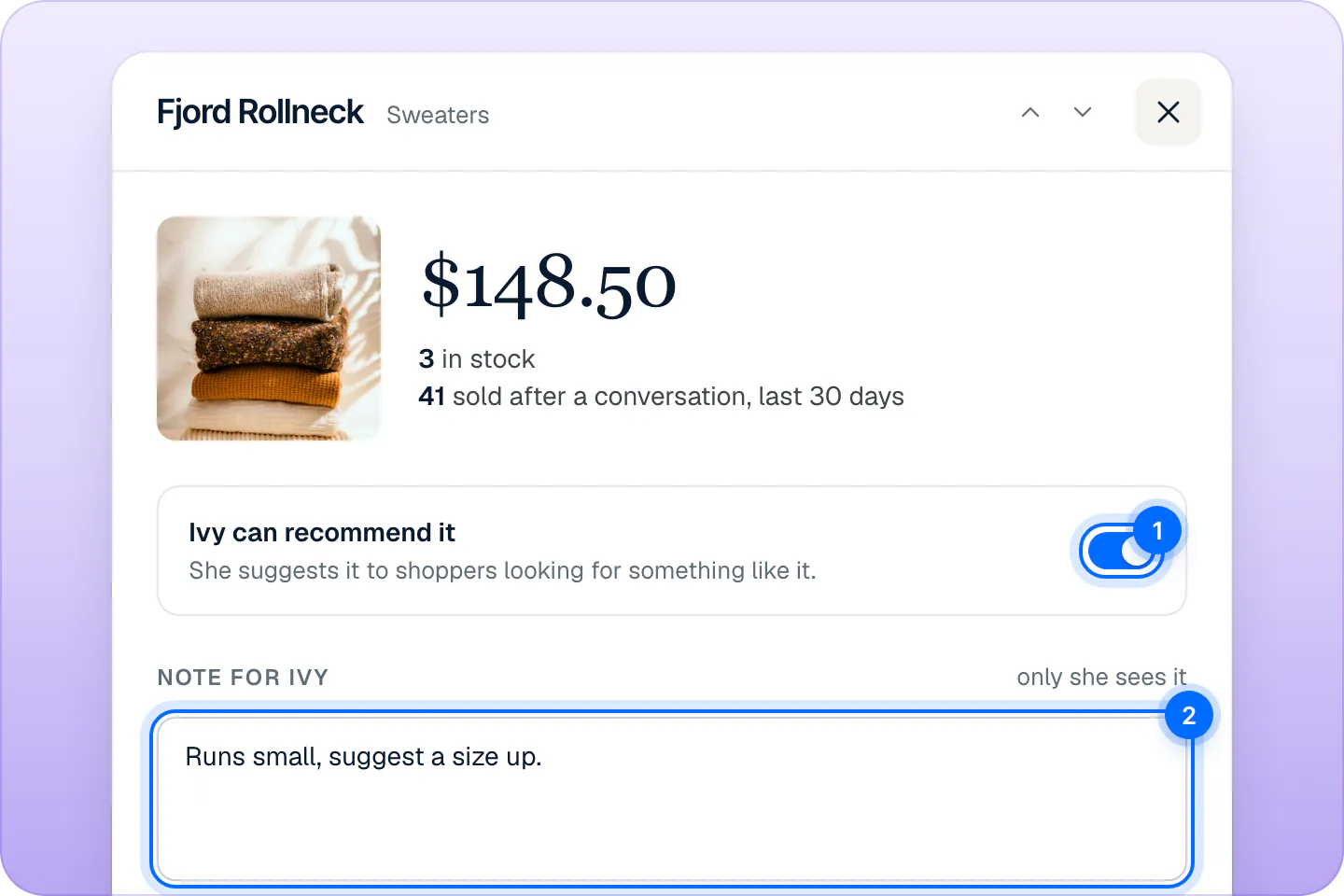
On Products you decide which products Ivy can recommend (1) and add a note only she reads (2). Sample store. Give store-wide rules. In Ivy,Behavior, Custom instructions takes rules like "Ask what the shopper needs it for before recommending a product." It's also where you ask for add-ons: there is no separate upsell setting.
Decide about discount codes. Ivy,Behavior › Discounts sets what she says when a shopper asks for a code. Strathly doesn't create codes. See Set Ivy's name, tone and rules.
Test it. In a product's panel, Test in Playground asks Ivy about that product, with nothing reaching your store.
Ivy keeps the first 400 characters of a note in mind while she searches, and reads the whole note when she looks at the product's details: put what matters most first.
Limits#
| What | Limit |
|---|---|
| Products Ivy recommends in one message | Usually up to 3 |
| Product cards shown under one message | Up to 6 |
| Cart | Up to 20 lines, 1 to 99 of each |
| Note for Ivy | 1,000 characters |
| Sales window | 3 days after a conversation with Ivy |
Frequently asked questions
Can I stop Ivy recommending a product?
Yes. Switch Ivy recommends off for it in Products (in the product's panel the switch is Ivy can recommend it). Ivy then never suggests it on her own, but when a shopper asks about it by name she still answers with its price, sizes and stock. Drafts are never recommended.
Does Ivy create discount codes?
No. She can offer one welcome code that you created in Shopify, set in Ivy,Behavior › Discounts.
Does the cart go to my Shopify checkout?
Yes. Checkout opens your store's own Shopify checkout with the cart Ivy built.
How do I see what Ivy sold?
Products shows, for each product, how often Ivy recommended it, how often it went into a cart and what sold after a conversation. Analytics,Sales has the totals.
From the blog
Related pages
- KnowledgeYour products in StrathlyWhich product details Ivy reads from Shopify, how changes reach her (product webhooks or Sync now), and how to stop her suggesting a product or add a note.
- IvySet Ivy's name, tone and rulesRename Ivy, set her tone and reply length, choose her languages, decide what she does with discount codes and topics she won't discuss, then save.
- AnalyticsRead your analyticsSales from conversations (orders within 3 days of a chat with Ivy), outcomes, topics, languages, busy hours, answers marked wrong, team stats and exports.