Move from another chat app
Moving to Strathly from Shopify Inbox or another chat app takes one visit to your theme editor. Set Ivy up while your old chat keeps running, then switch the two chats in a single save, so your store is never without a chat and never shows two.
Updated · 5 min read
On this page
You need to be the owner or an admin in Strathly, with a Shopify staff account that can manage themes and apps.
Step 1: Set up Ivy while your old chat stays on#
Follow the quickstart up to the Test step: connect your store, let Ivy read it, make her yours and test her. Nothing appears on your store until Go live, so your shoppers keep using the old chat in the meantime.
Step 2: Bring over what your old chat knew#
You don't need to import your catalog, policies or FAQ pages: Ivy reads them from Shopify. What's worth bringing is what only your old tool had:
- Saved answers or an FAQ you wrote in the old tool. Add each one with Teach Ivy in the sidebar, or export them as a CSV, PDF or text file and upload it in Knowledge with New › Upload a file, up to 20 MB. See add files and web pages.
- Past conversations don't move. Strathly has no importer for chat history. Keep the old app's records, or export them from it, if you need them.
Then test Ivy on the questions your shoppers ask most in Ivy,Playground.
Step 3: Swap the chats in your theme#
In Strathly's last setup step, Turn on the chat, press Open theme editor (it's also in Ivy,Widget, card Installation). Shopify's theme editor opens on App embeds with Strathly AI chat already switched on.
In the same App embeds list, switch off your old chat's embed. Shopify Inbox has its chat embed in this list too.
Press Save. Both changes go live together.
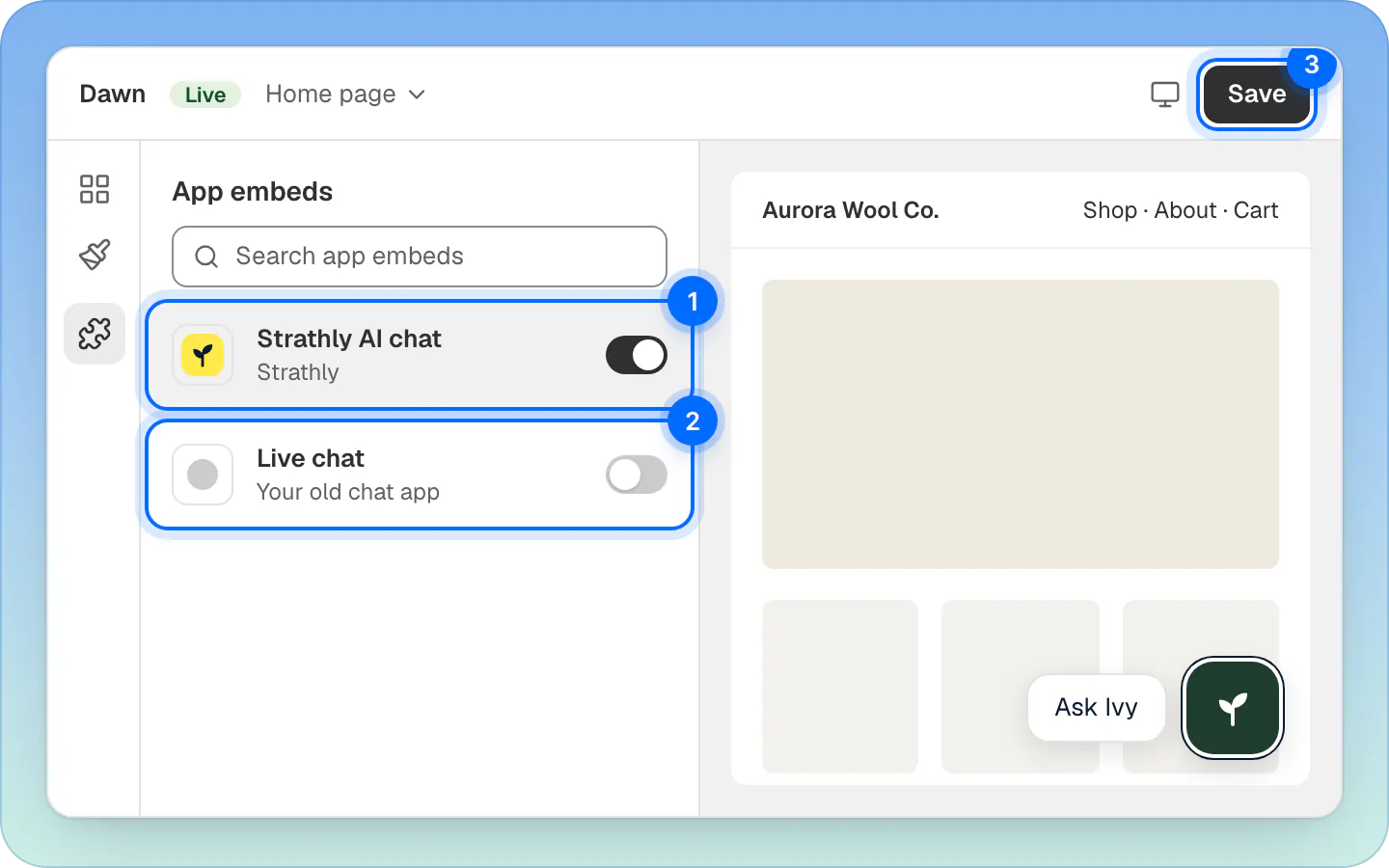
In one visit: (1) Strathly AI chat on, (2) the old chat's embed off, (3) Save. Back in Strathly, finish the step and press Go live.
Old chat not in App embeds? Turn its chat off from the old app's own settings, or uninstall the app. If its button still shows after that, ask the old app's support to remove what it added to your store. More on the embed itself: put the chat on your store.
Turning off Shopify Inbox's chat#
Shopify Inbox's chat button is an app embed too: in the theme editor's App embeds, switch off Shopify Inbox's chat in the same save as you switch Strathly's on. Shopify Inbox can also hide the chat from its own settings. Turning the chat off doesn't uninstall Shopify Inbox. Shopify keeps its current steps in its help center.
Step 4: Check there's one chat button#
Open your store on a computer and on a phone: only Strathly's button should show, in the corner you chose. In Strathly, Ivy,Widget, card Installation, says Enabled with Seen on your store and the time once a page of your store has loaded the chat.
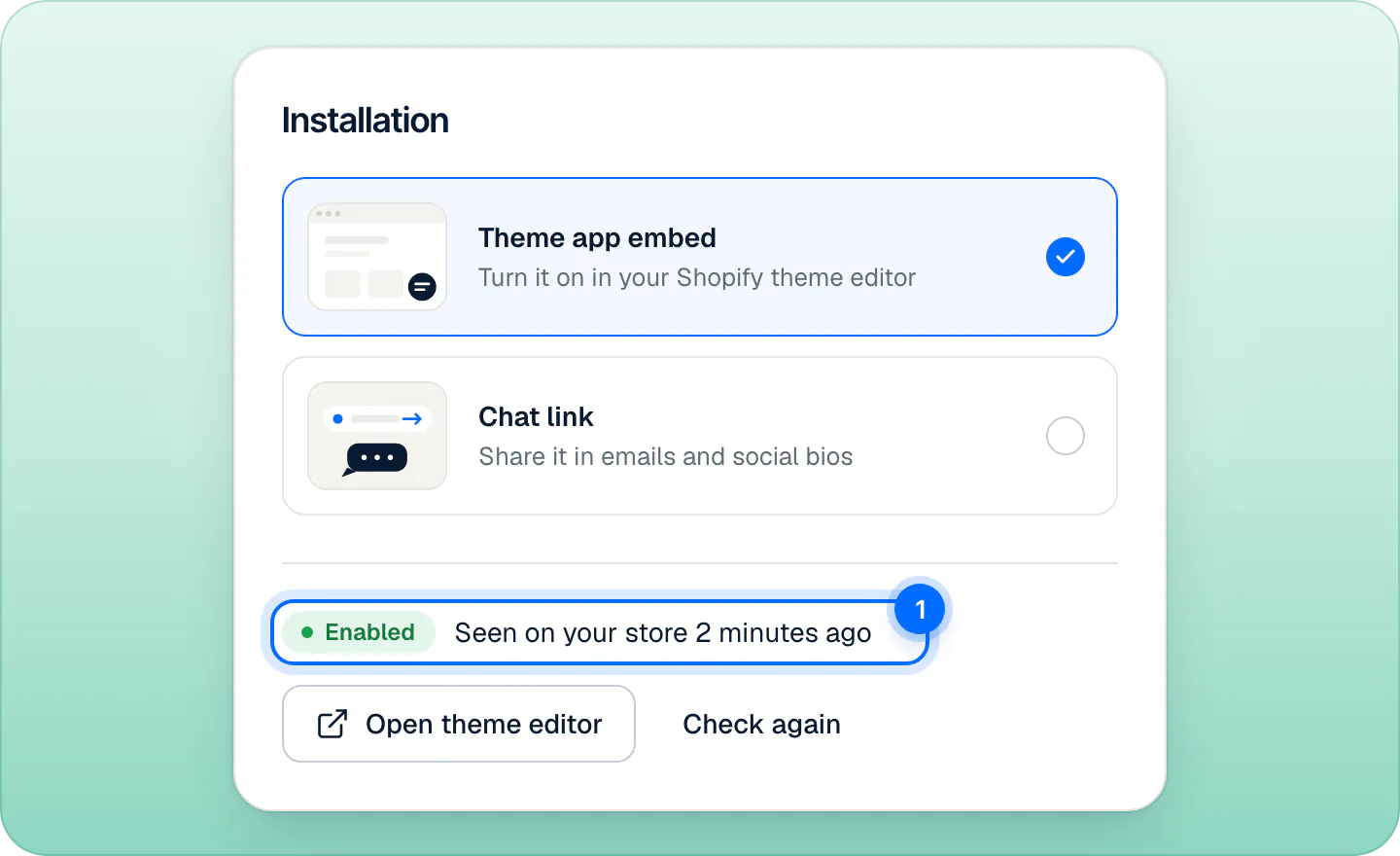
If you still see two buttons, the old chat is still on: check the embed you switched off was on your live theme, and that the old app has no other way of adding its chat.
Step 5: Update links to your old chat#
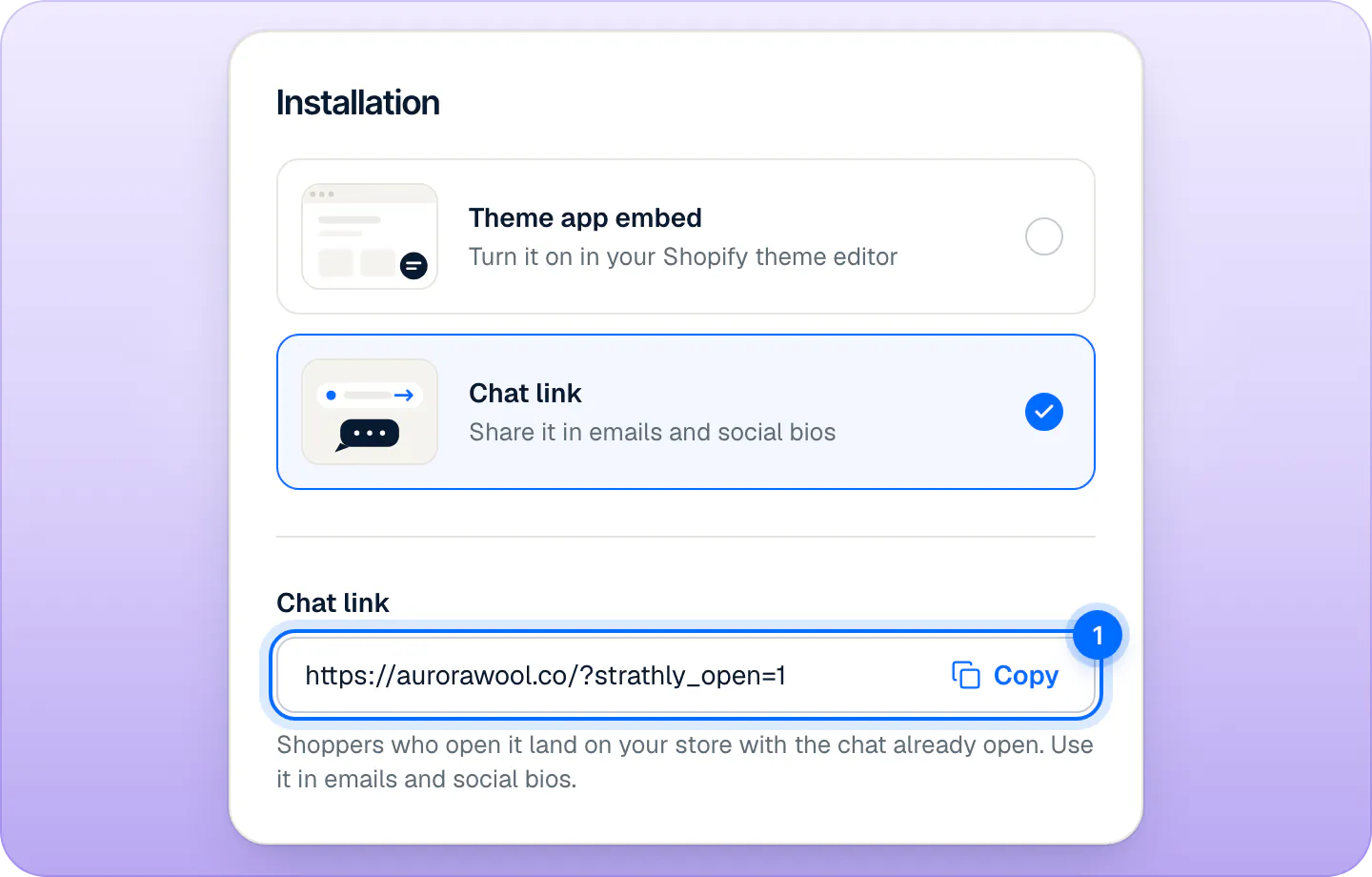
Replace "chat with us" links in your emails, social bios and pages with your Strathly chat link. It opens your store with the chat already open. Copy it from Ivy,Widget, card Installation, option Chat link, or from Copy chat link on Home.
Step 6: Uninstall or cancel the old app#
The old app's billing is separate from Strathly's. Once you're happy with Ivy, uninstall the old app from your Shopify admin or cancel it with its provider.
Can I run both for a while?#
You can, but shoppers then see two chat buttons, possibly on top of each other, and Strathly doesn't detect other chats. If you need both for a short time, put Strathly's button on the other side: Ivy,Widget, card Launcher, Position. See customize the chat.
Frequently asked questions
Do I need to import my products or FAQs?
Products, policies, pages and shipping: no, Ivy reads them from Shopify and keeps them in sync. Answers you wrote yourself in the old tool: add them with Teach Ivy or as a file in Knowledge.
Will my old conversations move to Strathly?
No. There is no chat history import. Your Strathly Inbox starts with the first conversation on your store after you go live.
Will shoppers see two chat buttons?
Only if both chats stay on. Switch the old one off in the same save as you switch Strathly's on.
Does turning off Shopify Inbox's chat delete its messages?
Turning off the chat on your store doesn't uninstall Shopify Inbox. What happens to its messages if you uninstall it is up to Shopify: check Shopify's help center before you remove it.
From the blog
- Blog · ComparisonsGorgias vs Zendesk for Shopify stores: pricing, AI and which one to choose [2026]Gorgias vs Zendesk for a Shopify store in 2026: how each one bills tickets, seats and AI, what each does with orders, and what a small team pays.
- Blog · ComparisonsGorgias alternatives for Shopify stores: 7 options compared on price and AI [2026]Seven Gorgias alternatives for Shopify stores in 2026, compared on what the AI does, how each one bills it, and which fits a store that wants its chat to sell.
- Blog · ComparisonsIntercom (Fin) alternatives for ecommerce: 7 options after the Salesforce deal [2026]Intercom alternatives for online stores after Salesforce bought Fin: seven options compared on selling in the chat, order actions and what you pay for.
Related pages
- Get startedSet up Strathly in five stepsSet up Strathly on Shopify in five steps: connect your store, let Ivy read your catalog and policies, make her yours, test her, then switch on the chat.
- Storefront widgetPut the chat on your storeOpen the theme editor from Strathly with the app embed already on, then press Save. No theme code to edit, nothing to paste. Plus a chat link for emails.
- KnowledgeAdd files and web pagesUpload a PDF, Word, text, Markdown or CSV file up to 20 MB, or add one web page at a time with a weekly re-read. What Ivy keeps, and the limits.