What shoppers see in the chat
This page walks through the chat on your store as a shopper meets it: the button, the welcome screen, Ivy's answers with products and orders, what happens when a person takes over, and what changes when Ivy is paused. Every picture is the real chat, with a sample store.
Updated · 8 min read
Feature overview:Shopify chat widget
On this page
- Opening the chat
- The welcome screen
- Do shoppers know they're talking to an AI?
- Which language does the chat use?
- Products and Add to cart
- Order status
- When a person takes over
- What if they close the chat or leave?
- When Ivy is paused or you're out of conversations
- Feedback on Ivy's answers
- What the chat stores on the shopper's device
- Frequently asked questions
What shoppers see depends on a few of your settings: the look and the first words come from Ivy › Widget, how Ivy talks and when she hands off from Ivy › Behavior. The pictures below use the default settings, with handoff on. Ivy is the assistant's default name; if you rename her, the chat uses your name everywhere.
Opening the chat#
The chat lives behind a square button in the bottom corner of every page, with a short label beside it, like Ask Ivy. A click opens the chat; another click minimizes it.
The chat never opens or sends a message on its own. The only thing that appears unprompted is the label beside the button. When a reply arrives while the chat is minimized (typically your team answering after the shopper moved on), the button shows a red count and a small preview card with who wrote and the start of the message. Clicking the card opens the chat.
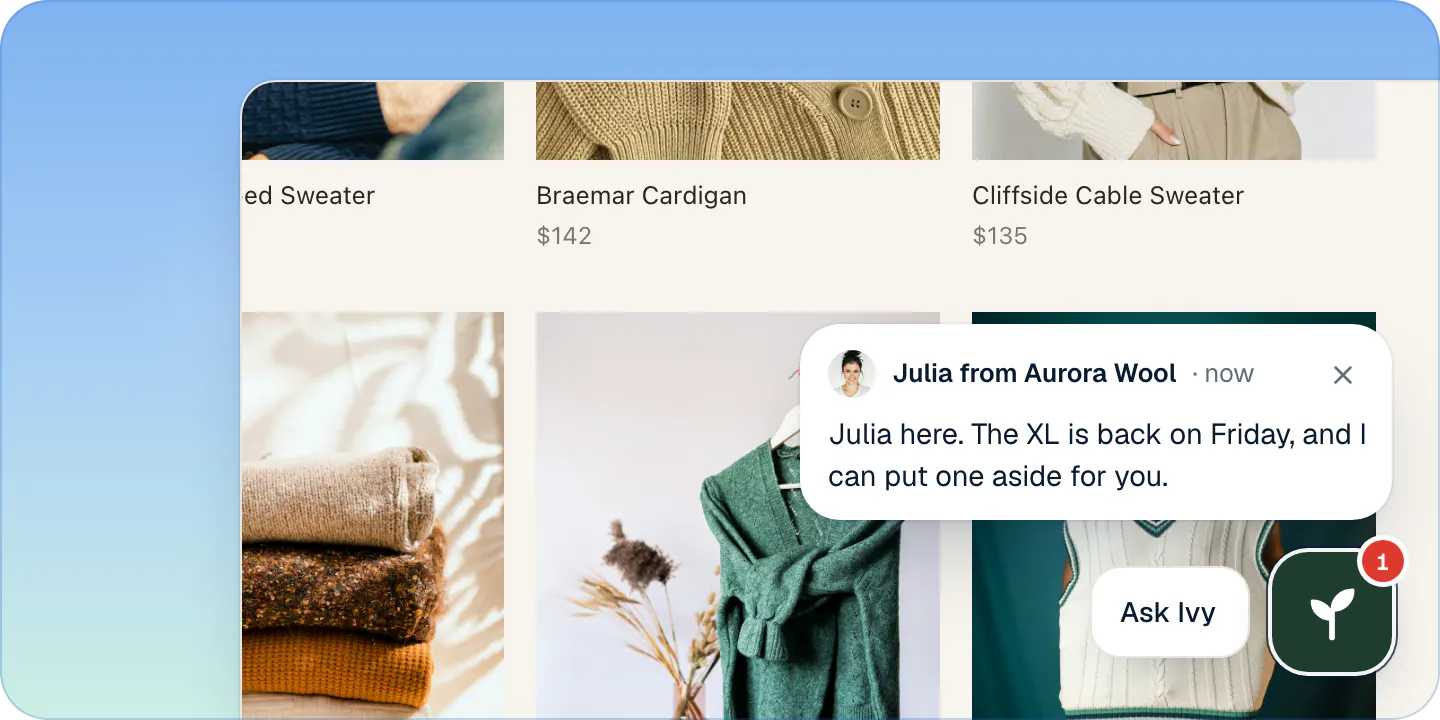
On a phone the chat opens full screen and closes with an × at the top. On a computer it opens as a panel above the button. The Esc key closes it.
The welcome screen#
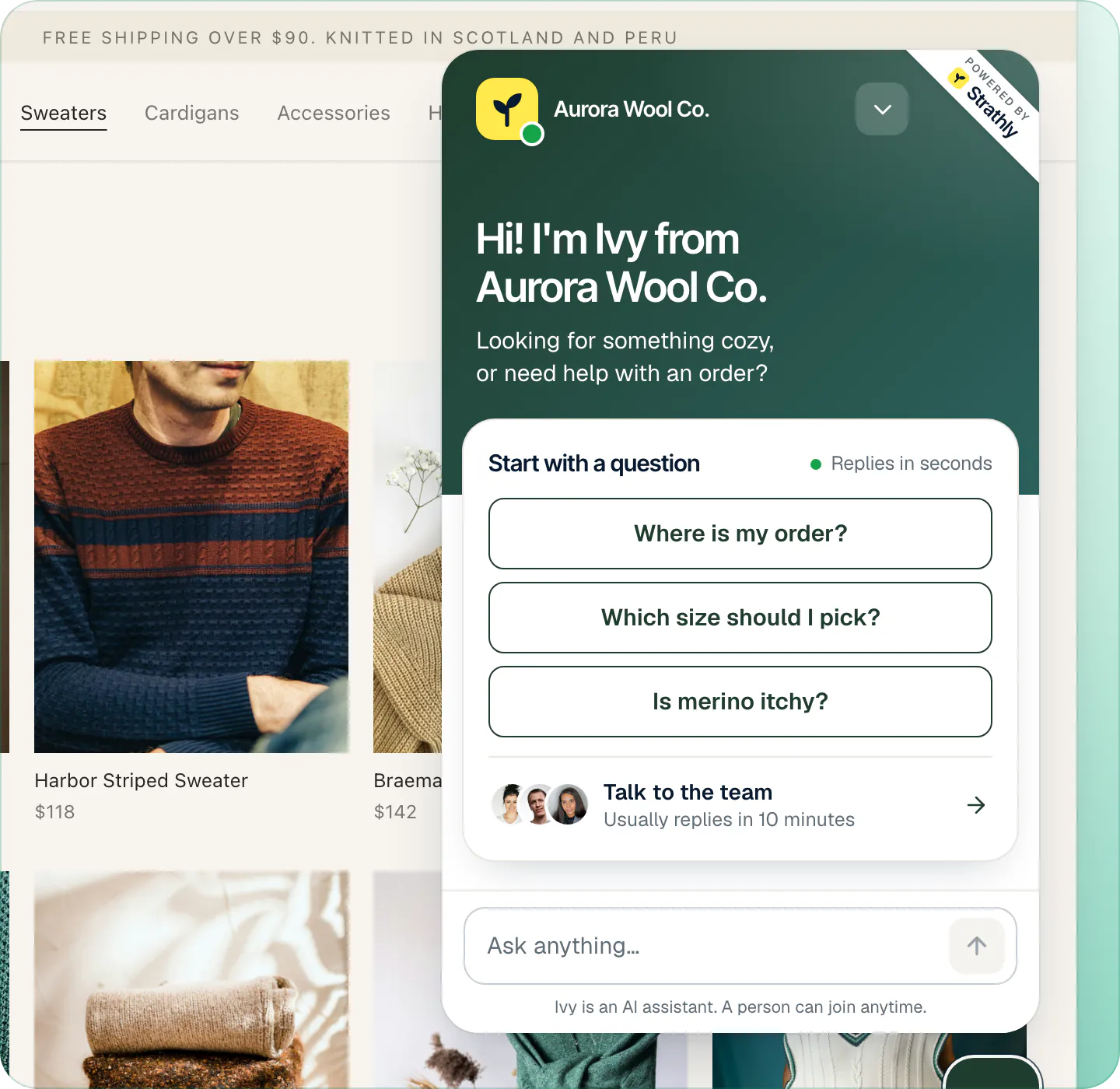
A shopper who hasn't chatted yet sees:
- Ivy's emblem with a green dot, and your store's name.
- Your greeting as a headline, with its last sentence underneath.
- Start with a question, with Replies in seconds, and your suggested questions as buttons. A tap sends that question.
- Talk to the team, with up to three of your teammates' faces and a line under it: Usually replies in 10 minutes (from your reply target) or Replies here or by email. It shows only while handoff is on.
- Your conversations, when the shopper has chatted with you before.
- The message box, Ask anything…
Do shoppers know they're talking to an AI?#
Yes. Under the message box, the chat always says Ivy is an AI assistant. When handoff is on it adds A person can join anytime. While the shopper is talking with Ivy, that second sentence is a link: clicking it asks for a person, like Talk to the team.
Which language does the chat use?#
There are two kinds of words in the chat:
- The chat's own buttons and labels (Start with a question, Talk to the team, Ask anything…) are in English, Italian, Spanish, French or German. On your Shopify store they follow the language the storefront is shown in; otherwise the shopper's browser language; otherwise English.
- Ivy's replies are in the language the shopper writes in, and switch if the shopper switches. You can limit her to the languages you choose in Ivy,Behavior: see languages.
What you typed yourself, like your greeting, your suggested questions and the button's label, shows exactly as you wrote it.
Products and Add to cart#
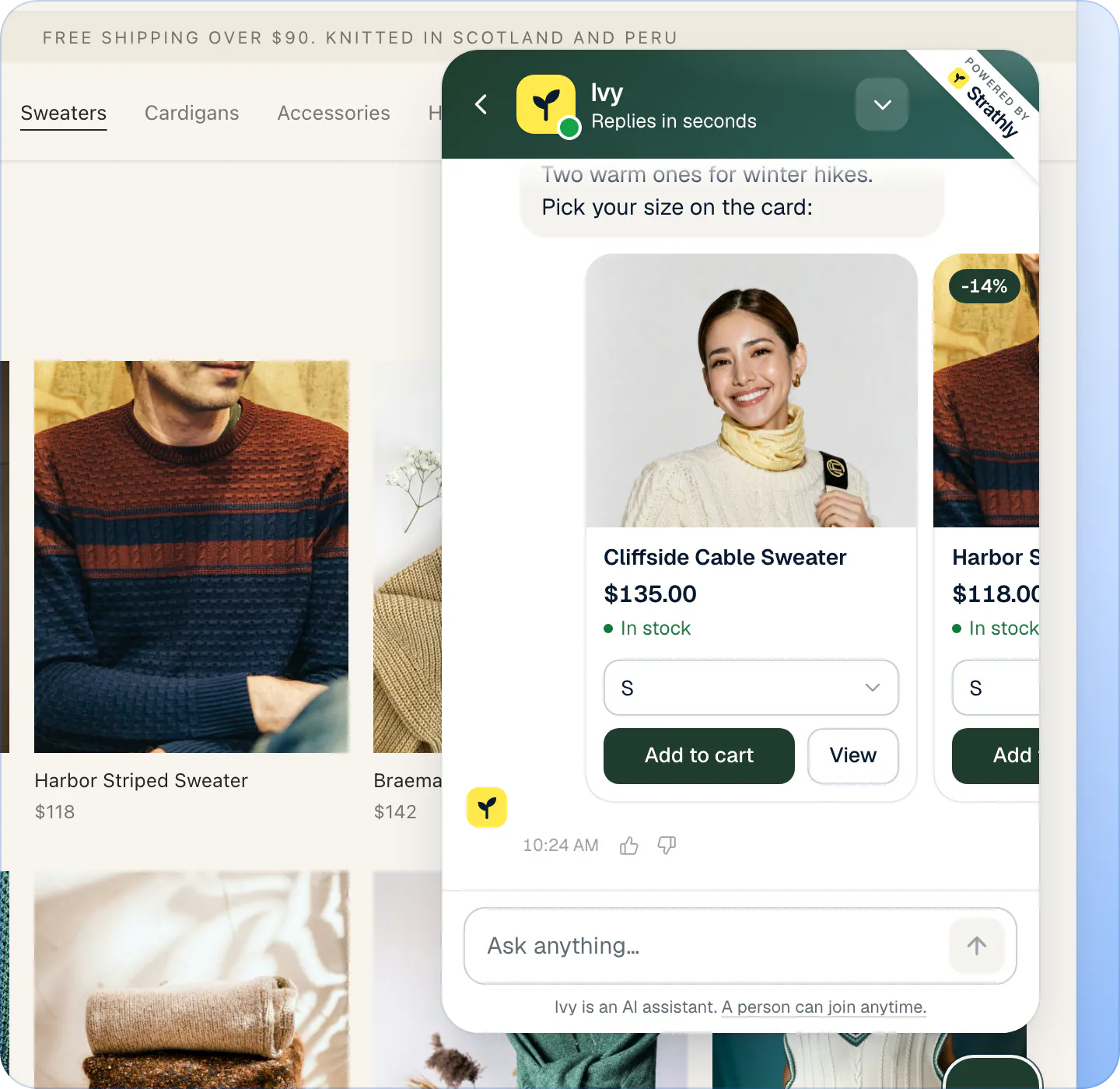
When Ivy recommends products, each one comes as a card under her message:
- The photo, the title and the price, with the old price struck through and a badge like -14% when the product is on sale.
- In stock or Sold out.
- The options to choose from, as small buttons or a menu. Sold-out options can't be picked.
- Add to cart, which puts the product in the shopper's Shopify cart and turns into Added, and View, which opens the product page in a new tab.
Several products come as a row of cards that scrolls sideways.
Ivy can also build a cart for the shopper. It comes as a Your cart card with the items, the Total and a Checkout → button that goes straight to your Shopify checkout. When your Shopify shipping has a free-shipping minimum, the card shows how far the shopper is from it, or Free shipping unlocked.
Which products Ivy may show, and how, is on product recommendations.
Order status#
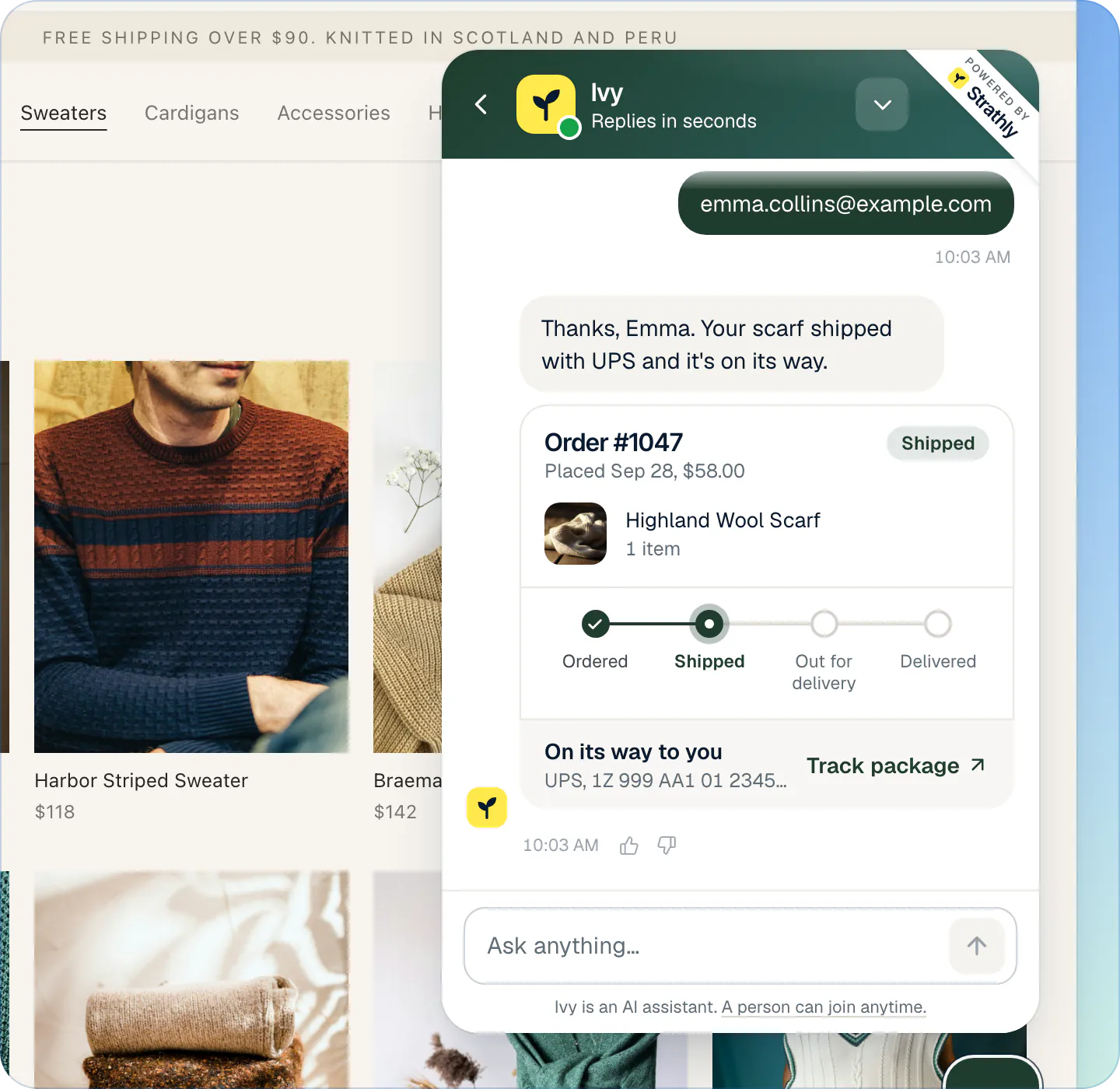
There's no form to fill in: the shopper asks in their own words, like "Where is my order?". Ivy needs two things to look an order up, the order number and the email used at checkout, and asks for whichever is missing. Then she answers with an order card: the order number, the date and total, the items, the steps Ordered, Shipped, Out for delivery and Delivered, the carrier and Track package ↗.
Refunds, address changes, replacements and cancellations go to your team by default. If you let Ivy handle some herself, a shopper who isn't signed in to your store first types a 6-digit code that Ivy sends to the order's email. See order status and order actions.
When a person takes over#
When the shopper asks for a person, or one of your handoff rules applies, Ivy says so in one line and a card appears under it:
- The team will reply here, with Usually within 10 minutes. (your reply target), when someone on your team is available.
- The team will reply by email, when nobody is, or outside your business hours.
- Get the answer by email too, a field and Notify me, until the shopper has given an email. Then: We'll email the address when the team replies. You can also keep this chat open.
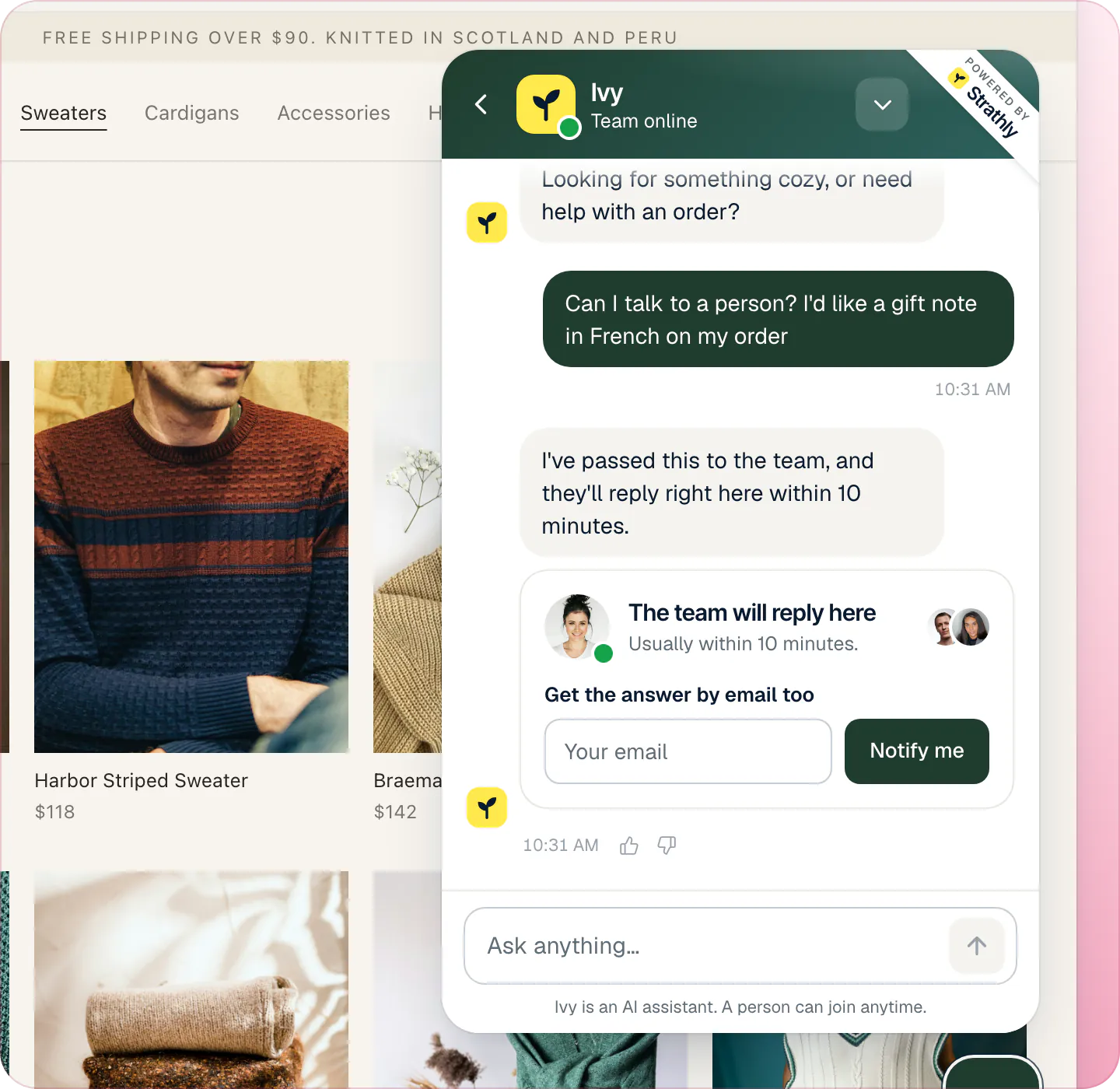
When a teammate writes, a line says Julia joined the chat (with their first name), the header shows their face and name, and the shopper sees them typing. Your internal notes never reach the shopper.
What if they close the chat or leave?#
- Closing only minimizes. There's no button to end a conversation. The conversation follows the shopper on every page of your store, for 7 days on that browser.
- Replies by email. If a teammate replies after the shopper left and the shopper gave an email, they get an email titled like Julia from Aurora Wool Co. replied to you, with the reply and a Continue the chat → button that reopens the chat on your store.
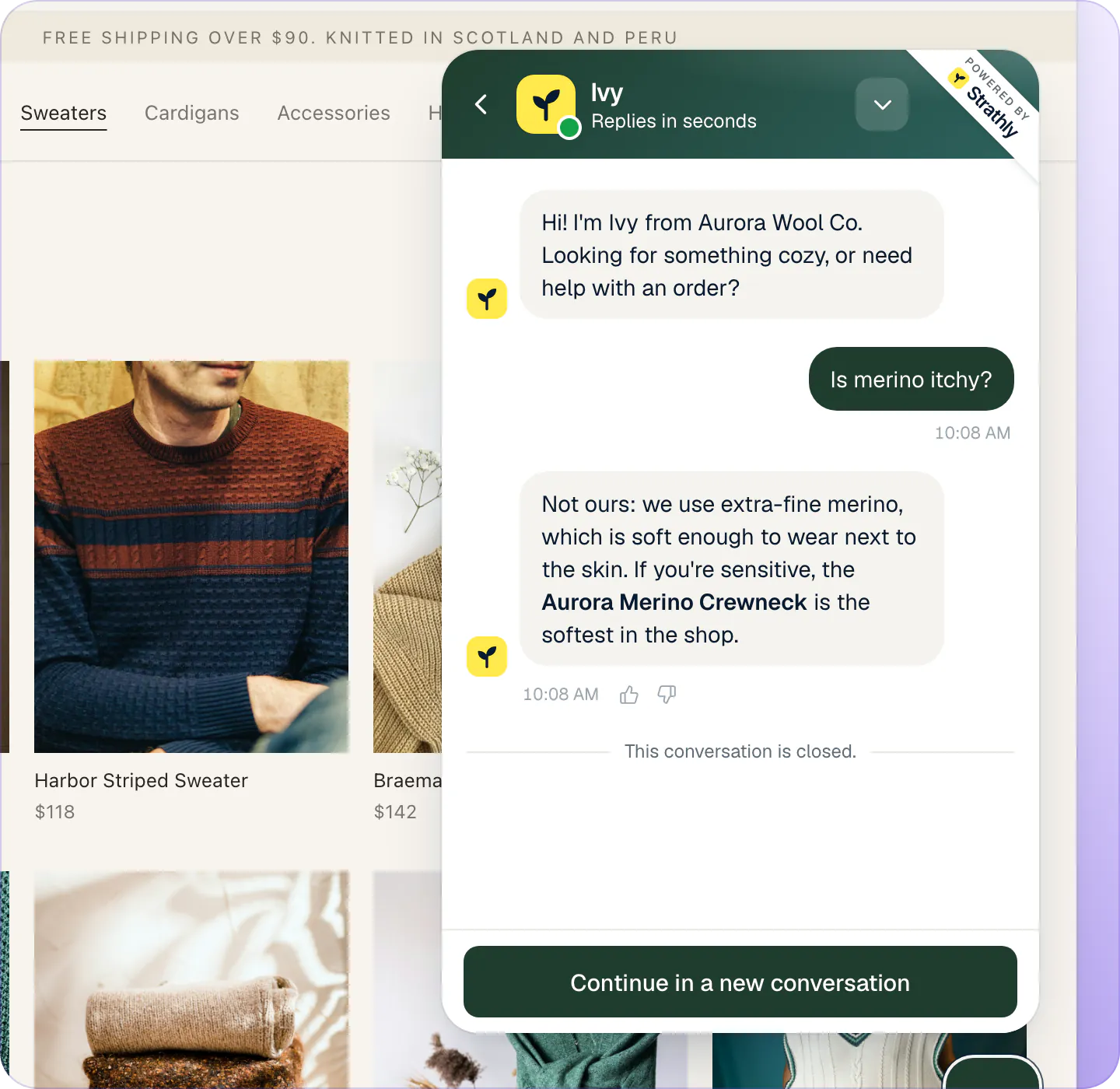
- After a day of quiet, a conversation with Ivy becomes read-only: it says This conversation is closed. with a Continue in a new conversation button. A conversation with your team stays open.
- Your conversations lists the shopper's past chats, up to 20, newest first. A shopper signed in to your store sees them on their other devices too.
When Ivy is paused or you're out of conversations#
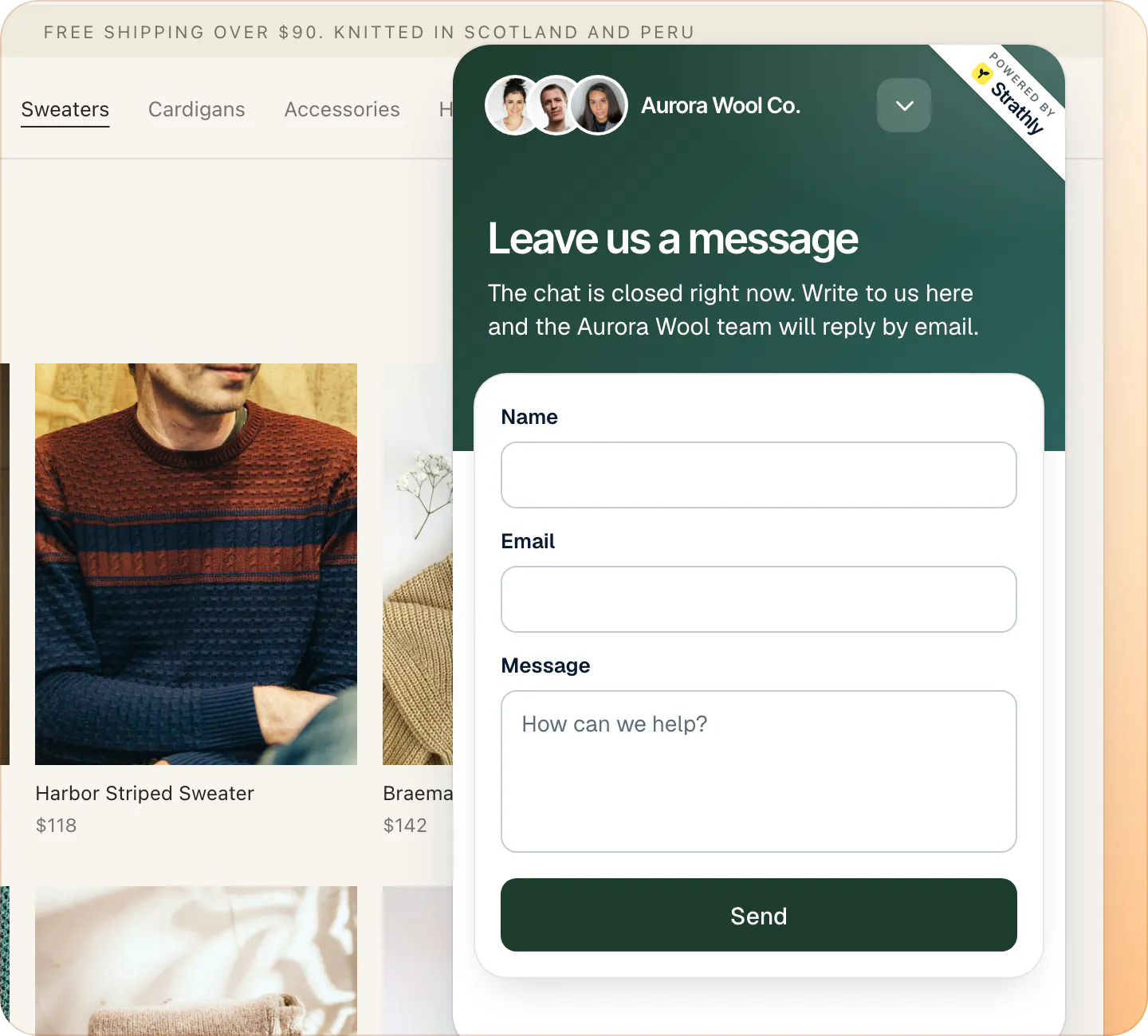
New shoppers see Leave us a message instead of the chat: The chat is closed right now. Write to us here and the store's team will reply by email., then Name, Email, Message and Send. What they write lands in your Inbox under Needs you, and your reply reaches them by email (and in the chat, if they come back). Shoppers who were already chatting carry on as usual.
The shopper isn't told why the chat is closed. See pause Ivy or hide the chat.
Outside your business hours the chat looks the same as always: Ivy keeps answering, and a handoff asks for an email or reaches the team, depending on your business hours settings.
Feedback on Ivy's answers#
Under Ivy's latest answer, two small thumbs let the shopper mark it Helpful or Not helpful. The chat thanks them, and your team sees the vote on the conversation. There's no rating of the whole conversation.
What the chat stores on the shopper's device#
No cookies. The chat keeps a random visitor ID and the current conversation in the browser's storage, and writes them only once the shopper uses the chat. The tag that links a chat to a later order, for sales from conversations, is set only when the shopper accepts analytics in your store's cookie banner (Shopify's Customer Privacy API). More on privacy and shopper data.
Frequently asked questions
Can shoppers end the chat?
There's no end button: closing the chat minimizes it. A conversation Ivy handled alone closes by itself after 24 hours of quiet.
Can shoppers send photos in the chat?
No. The chat takes text only, up to 2,000 characters a message.
Do shoppers rate the conversation?
No. They can mark Ivy's answers Helpful or Not helpful, and your team sees it.
What does a shopper see if they write too fast?
You're sending messages too quickly. Please wait a moment. above the message box. It takes more than 12 messages a minute to see it. Other protections are invisible: see spam and abuse.
Related pages
- Storefront widgetMake the chat look like your storeSet the accent color, background, launcher, position, greeting and up to three suggested questions, with a live preview on desktop and phone.
- IvyRecommend products and build cartsHow Ivy picks products from your catalog, what the product cards and Add to cart do, how she builds a cart with a checkout button, and how to steer her picks.
- IvyAnswer “Where is my order?”Ivy looks up an order from its number and checkout email and shows its status, items, carrier and tracking link. Nothing to set up, no login for shoppers.