Make the chat look like your store
Ivy › Widget is where the chat on your store gets its colors, its button, its first words and its options. Every change shows in the live preview before you save, and reaches your store about a minute after.
Updated · 8 min read
Feature overview:Shopify chat widget
On this page
Open Ivy in the sidebar, then the Widget tab. Owners and admins see this page; agents don't. You can work on it at any time, before or after going live: the preview never depends on your store being live.
The settings cards are on the left, in this order: Appearance, Launcher, Messages, Options and Installation. The preview fills the right side. On a narrow window the preview sits on top and the cards below it.
Ivy's name isn't set here. It's in Ivy,Behavior, card Identity, field Name: rename her there and the chat uses the new name. See Ivy's behavior.
Preview your changes#
The preview is the real chat, drawn with your settings and your store's products. It doesn't create conversations or write anything.
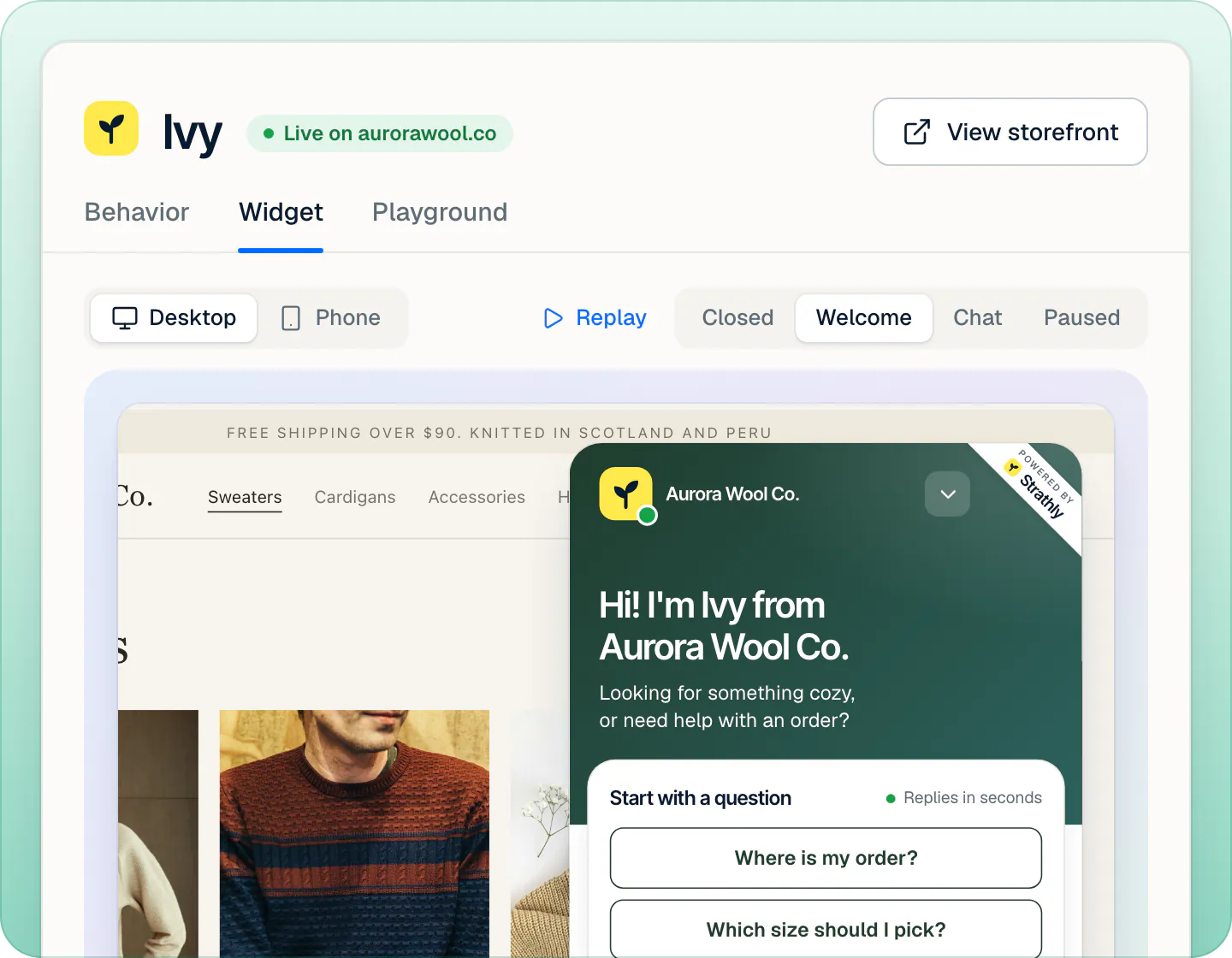
Its toolbar has:
- Desktop and Phone: your store in a browser window, or on a phone where the chat opens full screen.
- Replay: closes and reopens the chat to replay its opening.
- Closed, Welcome, Chat and Paused: the button alone; the welcome screen; a sample conversation with up to three of your products; the contact form new shoppers get while Ivy is paused.
The preview jumps to the state you're editing: the launcher's settings show Closed, the colors and messages show Welcome. Two notes can appear over it:
- Hidden on phones. Turn on "Show on phones" to see it here. when you preview a phone with Show on phones off.
- Shoppers don't see the chat right now. This is how it looks once it's back. while the chat isn't on your store (setup not finished, Shopify disconnected or billing not active).
Appearance#
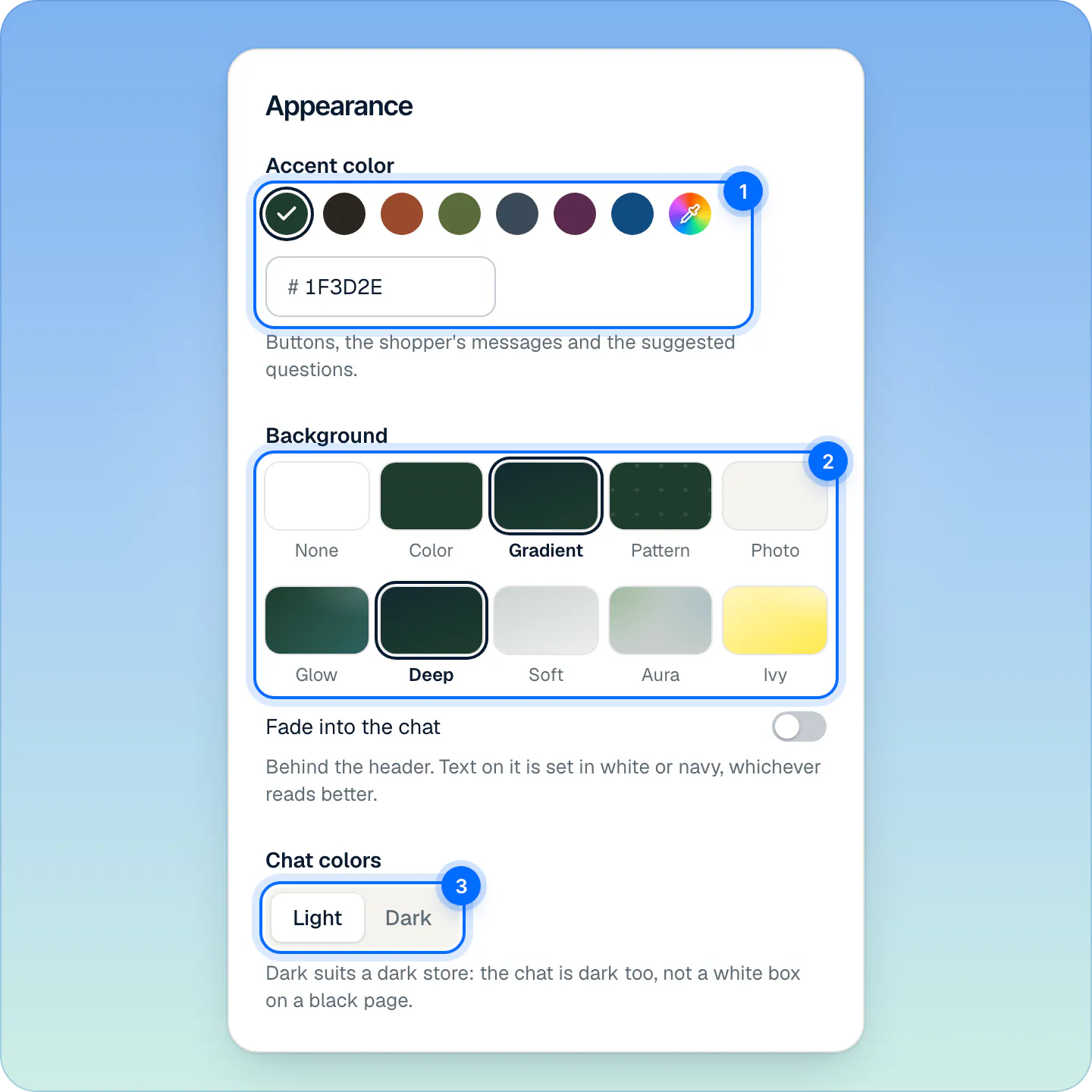
| Setting | Options | What it changes |
|---|---|---|
| Accent color | Seven swatches (Pine, Espresso, Rust, Moss, Slate, Plum, Ocean), Any color (your system's color picker), or a 6-digit hex code | Buttons, the shopper's messages and the suggested questions. |
| Background | None, Color, Gradient, Pattern or Photo | The area behind the chat's header. |
| Fade into the chat | On or off (off by default) | Melts the header's background into the panel below it. Not shown with None. |
| Chat colors | Light or Dark | The panel itself. Dark suits a dark store: the chat is dark too, not a white box on a black page. |
Each kind of background has its own choices:
- Color: your accent color, six suggested colors or any color.
- Gradient: Glow (the default), Deep, Soft or Aura, all made from your accent color, or Ivy, made from Ivy's yellow.
- Pattern: Dots, Lines or Waves, in a Pattern color you pick.
- Photo: a JPG, PNG or WebP image you upload, with a dark layer on top set to Light, Medium (the default) or Strong so the text stays readable. Replace swaps it; Remove goes back to a gradient.
Text on the background is set in white or navy, whichever reads better. If a color you pick is too close to the middle for either, Strathly darkens or lightens it a touch and says so under the field.
The chat's header always shows Ivy's emblem and your store's name. There's no place for your own logo.
Launcher#
The launcher is the square button in the bottom corner of your store that opens the chat.
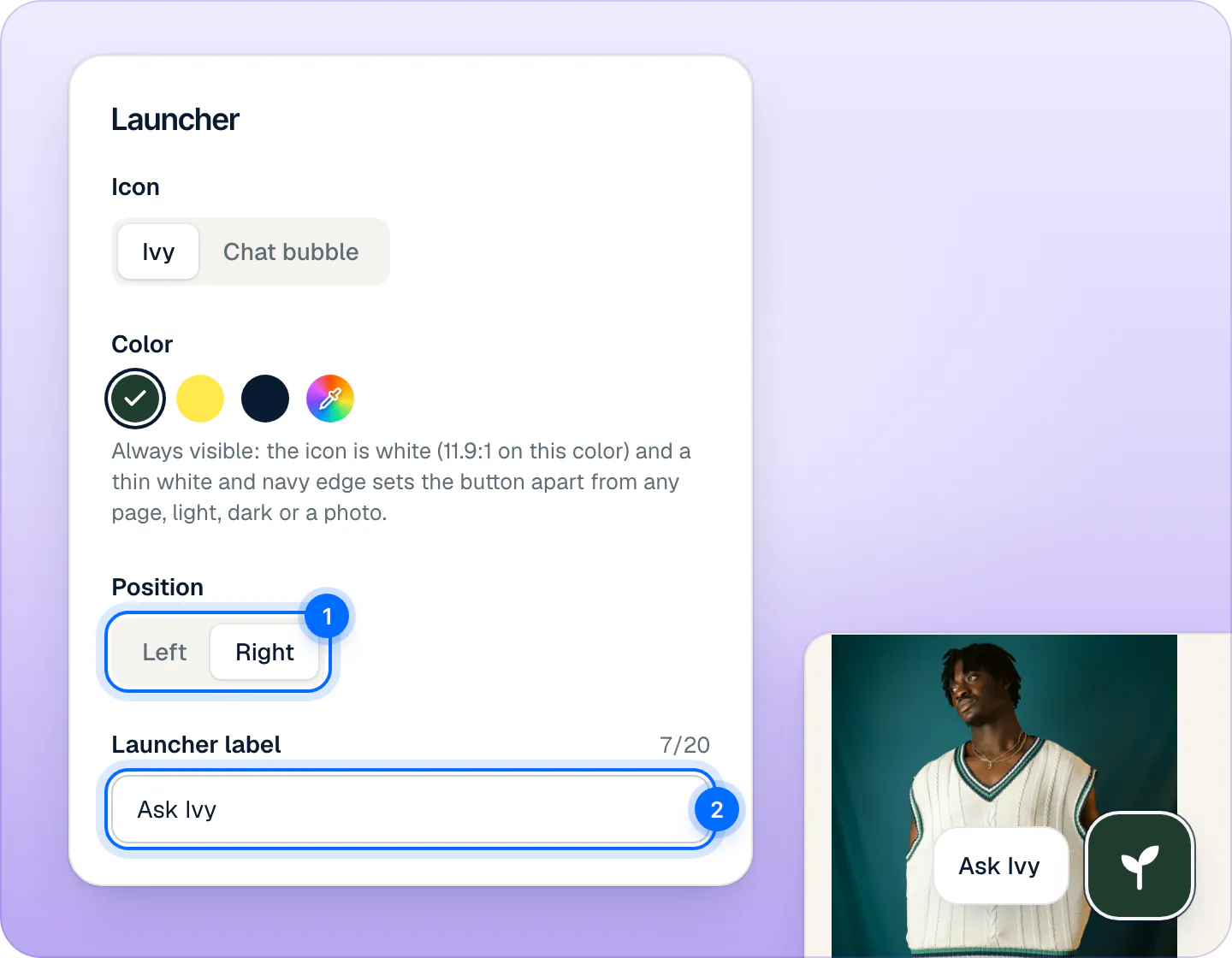
| Setting | Options | Default |
|---|---|---|
| Icon | Ivy (her sprout emblem) or Chat bubble | Ivy |
| Color | Accent color, Ivy yellow, Navy or any color | Accent color |
| Position | Left or Right | Right |
| Launcher label | Up to 20 characters, required | Ask Ivy |
Whatever the color, the icon on it is white or navy, whichever contrasts more, and a thin white and navy edge keeps the button visible on light pages, dark pages and photos.
The label sits beside the button as a small pill and slides in a moment after the page loads. It shows exactly as you type it, in every language. Renaming Ivy doesn't change it: if you rename her, update the label too.
On a page, the button is 60 pixels square (56 on phones), 24 pixels from the corner. When a reply arrives while the chat is closed, it shows a red count and a short preview of the message above it.
Messages#
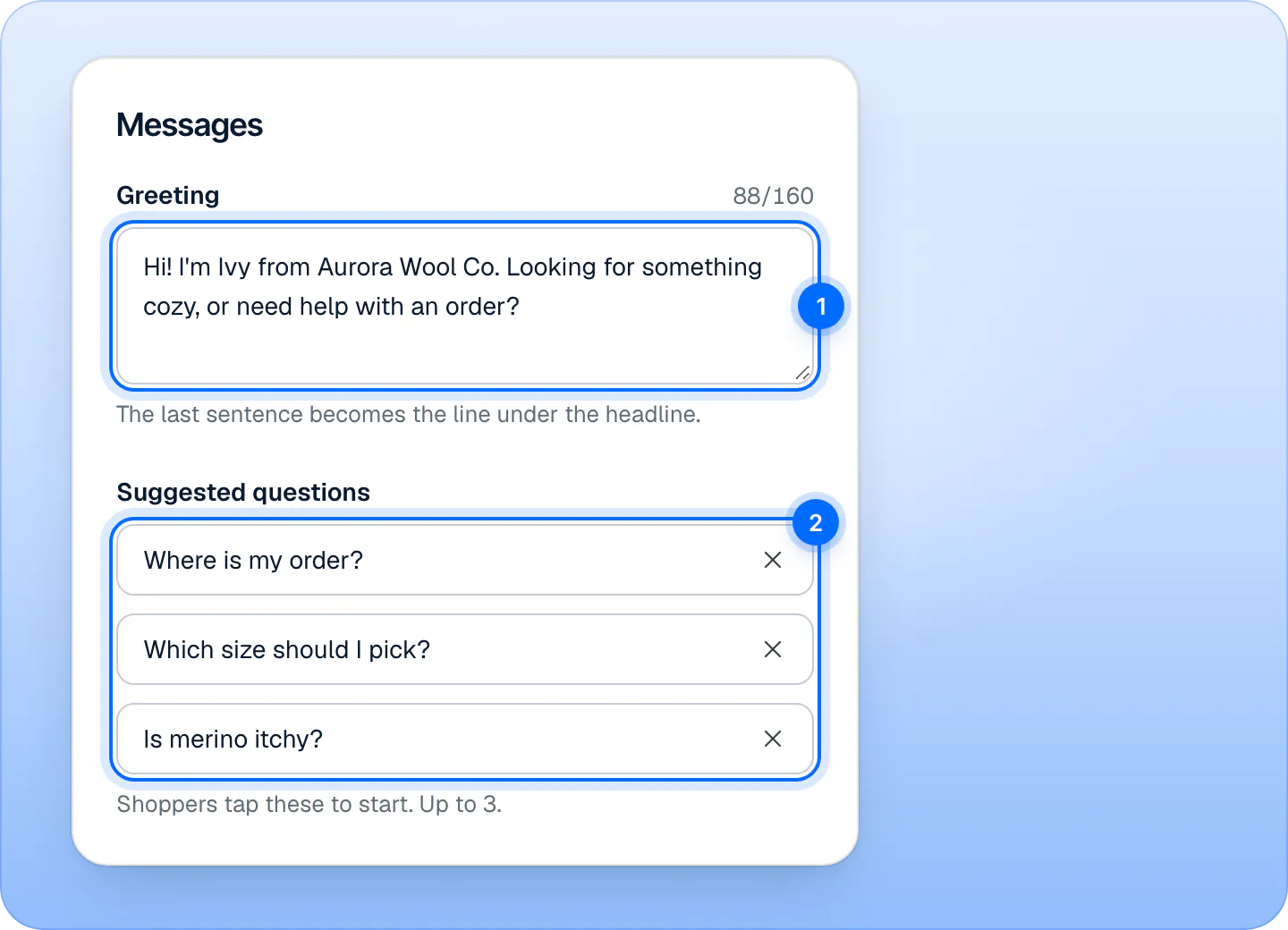
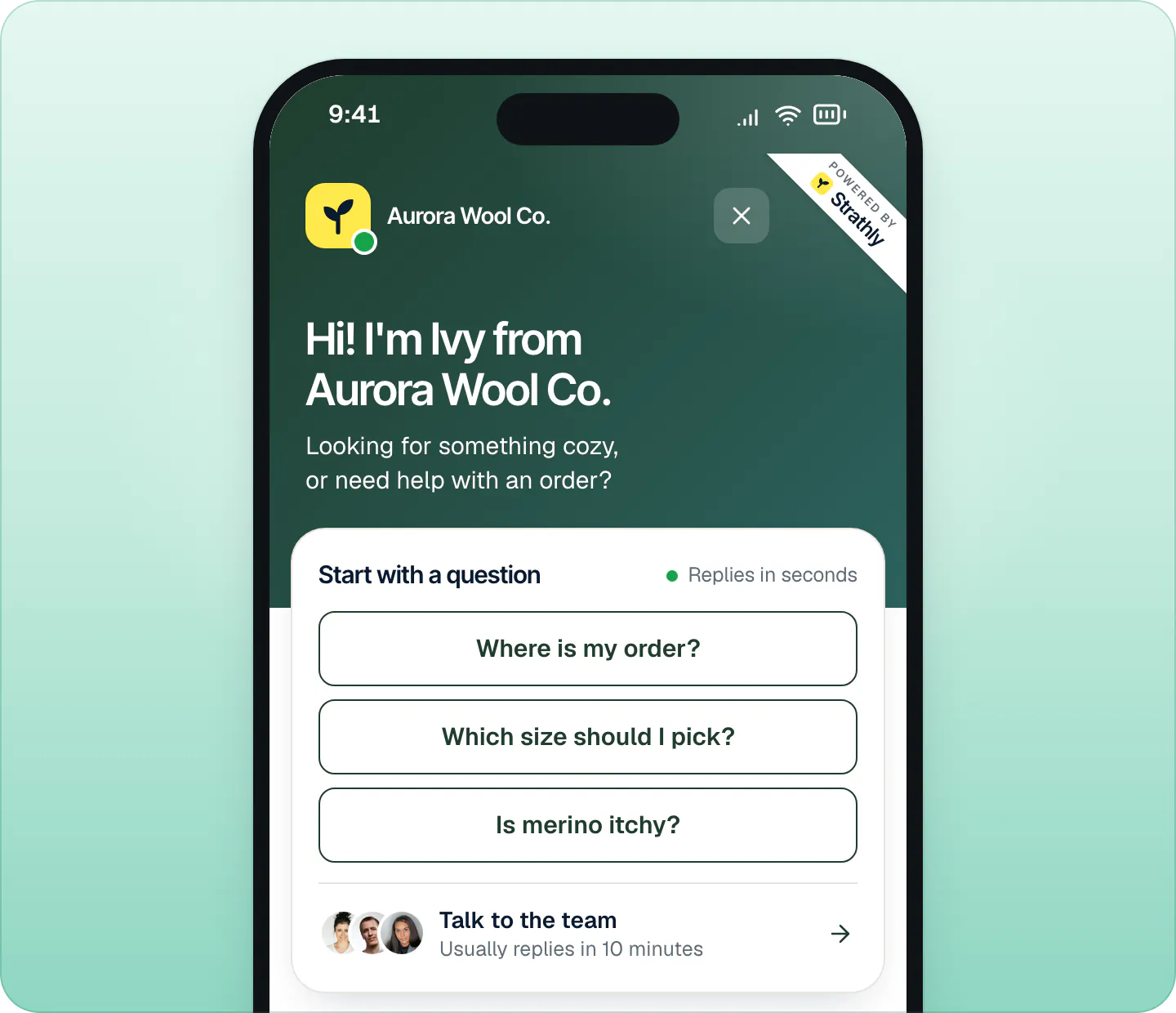
- Greeting: the first thing shoppers read, up to 160 characters. The welcome screen splits it in two: everything but the last sentence becomes the big headline, and the last sentence becomes the line under it. So with "Hello, I'm Ivy, Aurora Wool Co.'s assistant. I can help with products, shipping and orders." (the greeting setup suggests for the Professional tone), the headline is "Hello, I'm Ivy, Aurora Wool Co.'s assistant." and the line under it is "I can help with products, shipping and orders." The greeting is also Ivy's first message when a conversation starts.
- Suggested questions: up to three, 40 characters each. They appear under Start with a question on the welcome screen, and a shopper taps one to start the conversation with it. Press Add a question to add one and × to remove one. With none, that block is hidden.
Good suggested questions are the ones shoppers already ask most: where an order is, sizing, shipping. Ivy › Playground uses them too, under Suggested questions, so you can test them before shoppers do.
The greeting and questions show exactly as you type them, in every language. The one exception: if you never changed the three default questions (Where is my order?, How much is shipping? and Help me choose a product), shoppers see them translated into the chat's language.
Options#
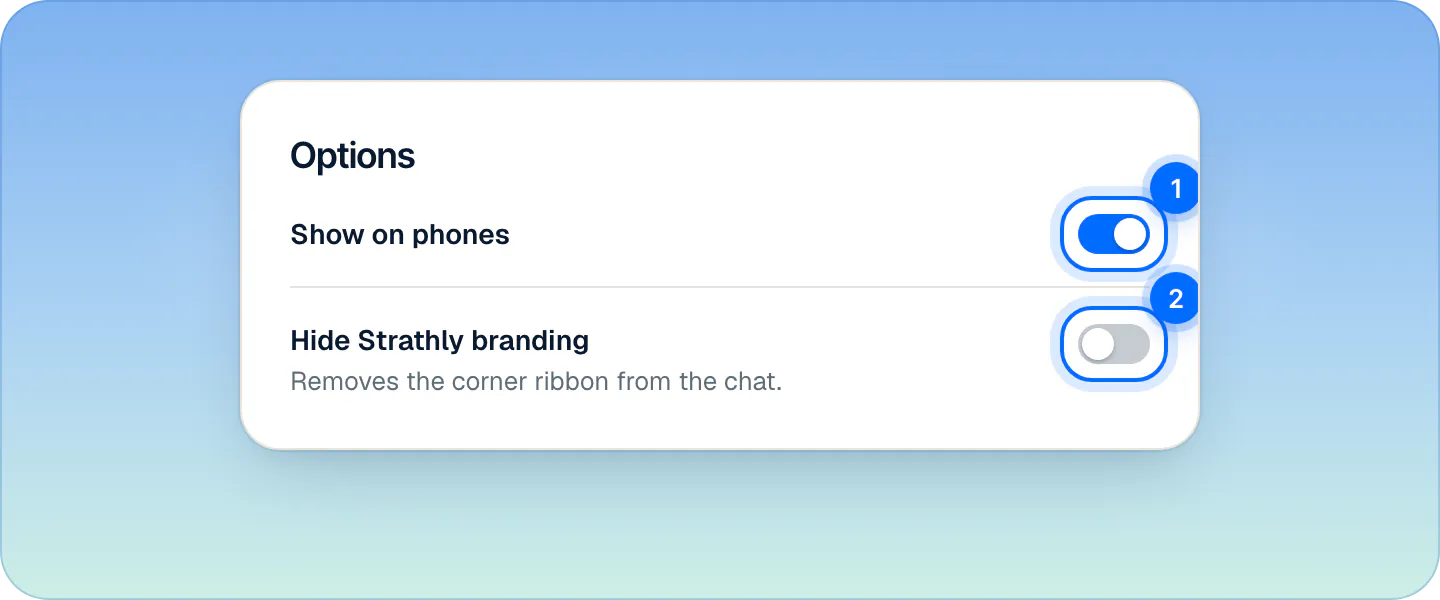
- Show on phones (on by default): turn it off and the chat doesn't appear on screens up to 480 pixels wide. Tablets and computers still get it.
- Hide Strathly branding (off by default): removes the Powered by Strathly ribbon from the chat's top corner. It works on every plan.
On a phone, the chat opens full screen, with a close button in place of the minimize arrow.
The fifth card, Installation, puts the chat on your store: see put the chat on your store.
Save and see it on your store#
Changes stay in the page until you save. A bar at the bottom says Unsaved changes, with Discard and Save changes (or press ⌘S, CtrlS on Windows). If a field needs fixing, the bar says which: Fix the color code, Add a label, Add a greeting or Greeting is too long.
After saving, a message says Updated on your domain, with Shoppers see it on their next page view. and an Undo button. Pages already open can take about a minute to pick it up.
There's no reset to defaults: to go back, set the values again or press Undo right after saving.
The chat's own words and languages#
Buttons and labels of the chat, like Start with a question, Talk to the team or Ask anything…, come in English, Italian, Spanish, French and German. They follow the language your storefront is shown in, or else the shopper's browser language, and are in English otherwise. Ivy's replies follow the language the shopper writes in. What shoppers see in each case is on what shoppers see.
Frequently asked questions
Can I hide the Strathly branding?
Yes. Switch on Hide Strathly branding in Options and save. It's available on every plan.
Can I move the chat button to the left?
Yes. In Launcher, set Position to Left and save. The chat opens on that side too.
Does the chat work on phones?
Yes. On a phone it opens full screen. To keep it off phones, switch off Show on phones.
Can I show my store's logo in the chat?
No. The chat's header always shows Ivy's emblem next to your store's name. You choose the colors and the background behind them.
Can the chat open by itself or pop up a message?
No. It never opens on its own; the only thing that appears unprompted is the label beside the button. To open the chat from an email or a bio, use your chat link.
Related pages
- Storefront widgetPut the chat on your storeOpen the theme editor from Strathly with the app embed already on, then press Save. No theme code to edit, nothing to paste. Plus a chat link for emails.
- Storefront widgetWhat shoppers see in the chatThe chat from the shopper's side: languages, product cards and Add to cart, order status, the AI notice, and email replies after they leave.
- IvySet Ivy's name, tone and rulesRename Ivy, set her tone and reply length, choose her languages, decide what she does with discount codes and topics she won't discuss, then save.