Hours, holidays and who's available
Ivy answers shoppers day and night. Your business hours and each teammate's availability tell her whether someone can take a conversation now, and they decide who gets new handoffs and who gets a push. This page covers both, and the reply target your team aims for.
Updated · 6 min read
Feature overview:AI chatbot with human handoff
On this page
Business hours and the reply target are for admins and the owner. Every teammate sets their own availability.
Set your weekly hours#
Open Settings,Business hours.
Under Weekly hours, click a day's letter to open or close it. A day you open starts with 9:00am to 5:00pm.
Pick the opening and closing time of each day. Press + to add another range on the same day (a lunch break, an evening shift) and × to remove one. Up to 12 ranges a day.
To give other days the same times, press the copy icon beside a day, tick the days in Copy times to (or Select all) and press Apply.
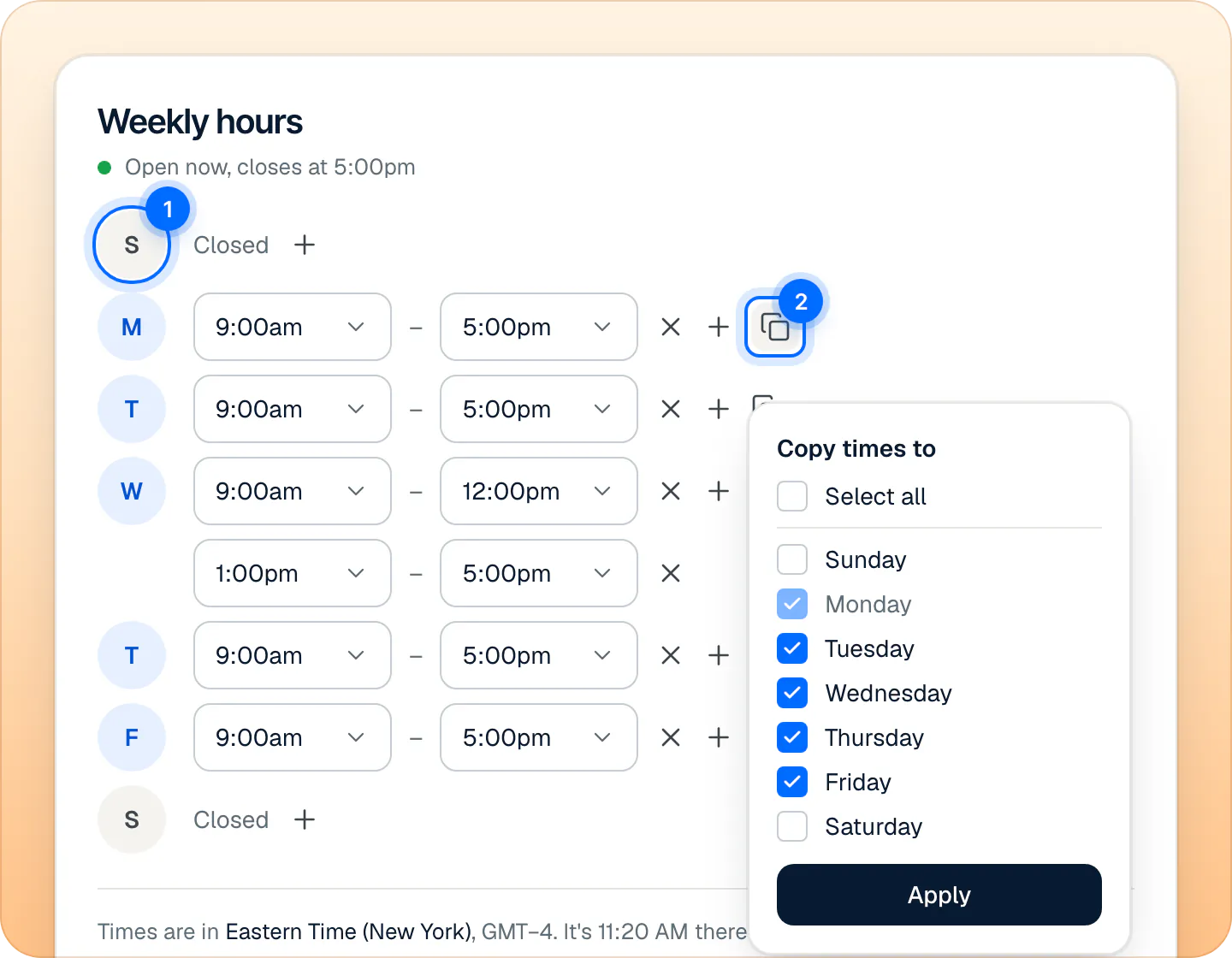
Click a day's letter to open or close it; the copy icon copies a day's times to others. Press Save changes at the bottom of the page.
The line under the card's title says whether you are open right now, for example "Open now, closes at 5:00pm". Times follow your store's time zone, shown under the days; you change it in Settings,General with the Change link.
Add holidays and one-off days#
Under Date-specific hours, press Add date-specific hours.
Pick the days on the calendar. Days already planned and days in the past can't be picked; the blue days are open in your weekly hours.
Set the hours for those days, or tick Closed all day. Add a Label if you like, such as "Thanksgiving".
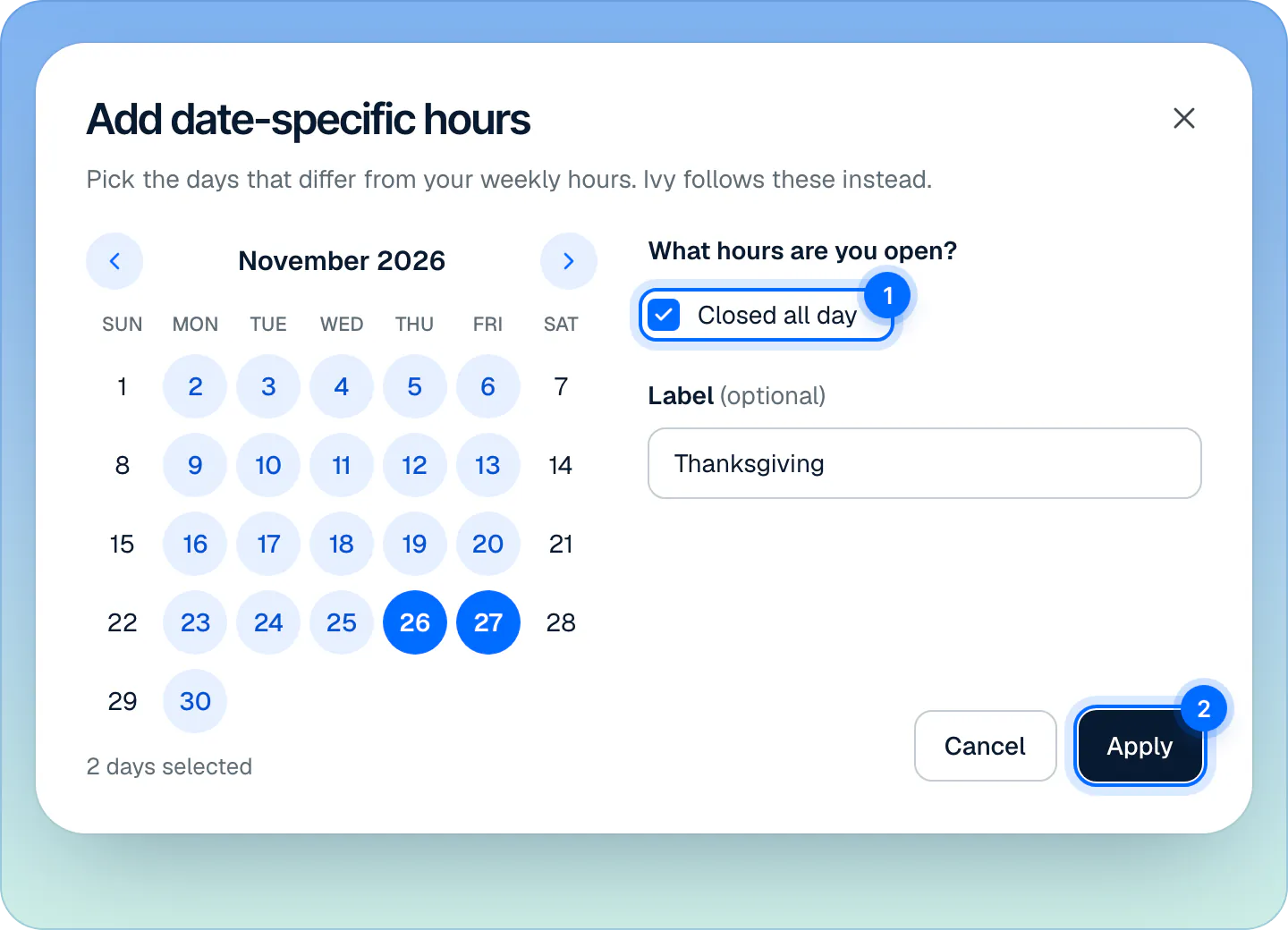
Date-specific hours replace your weekly hours on the days you pick. Press Apply, then Save changes at the bottom of the page.
On those days, Ivy and Strathly follow these hours instead of the weekly ones. Days picked one after the other become one entry. The card lists the upcoming entries ("Thanksgiving, Thu, Nov 26 to Fri, Nov 27, in 48 days"); remove one with its trash icon, then save. Past entries disappear from the list on their own.
Planning the sale weekend? The Black Friday customer service checklist has the dates to set, from Thanksgiving to the week after Cyber Monday.
What does Ivy do at night?#
She keeps answering, at any hour, about your products, orders, shipping and policies. Your hours change only what happens when a shopper needs a person. Choose it under Outside business hours, Ivy will:
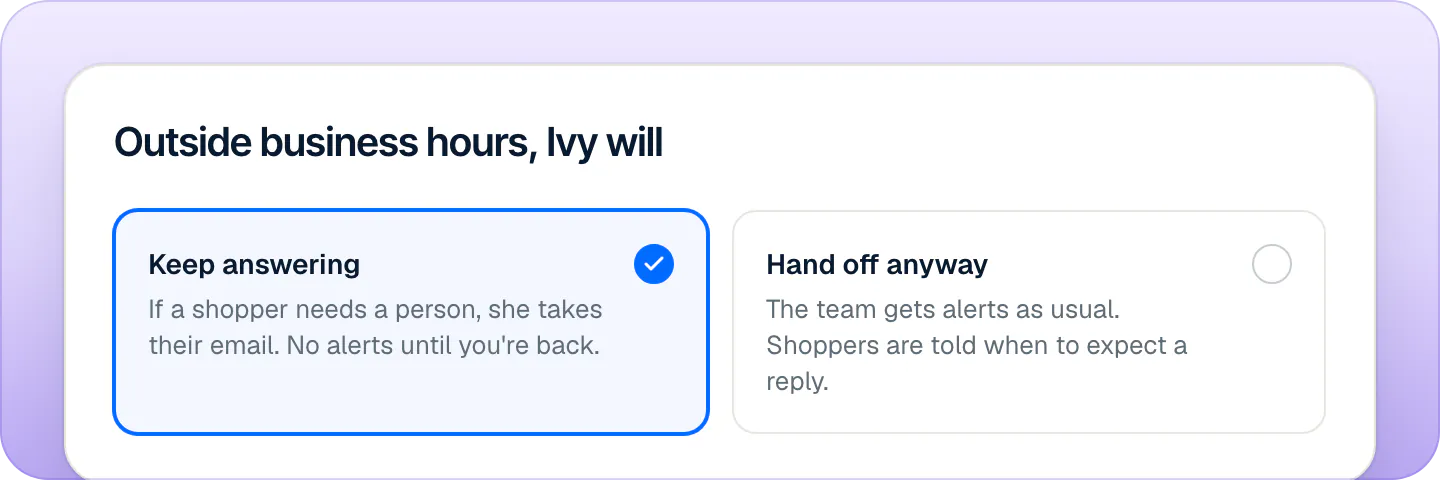
| Choice | What happens when a shopper needs a person while you're closed |
|---|---|
| Keep answering (default) | Ivy asks for the shopper's email: "The team is away right now and back tomorrow at 09:00. Could you leave your email? They'll follow up as soon as they're in." Once they leave it, the conversation goes to Needs you and the team is notified. |
| Hand off anyway | The conversation goes to Needs you at once and the team is notified as usual. Ivy tells the shopper: "The team is away right now. They're back tomorrow at 09:00 and will reply here, or by email if you leave the page." |
Ivy announces your next opening from your hours, up to two weeks ahead.
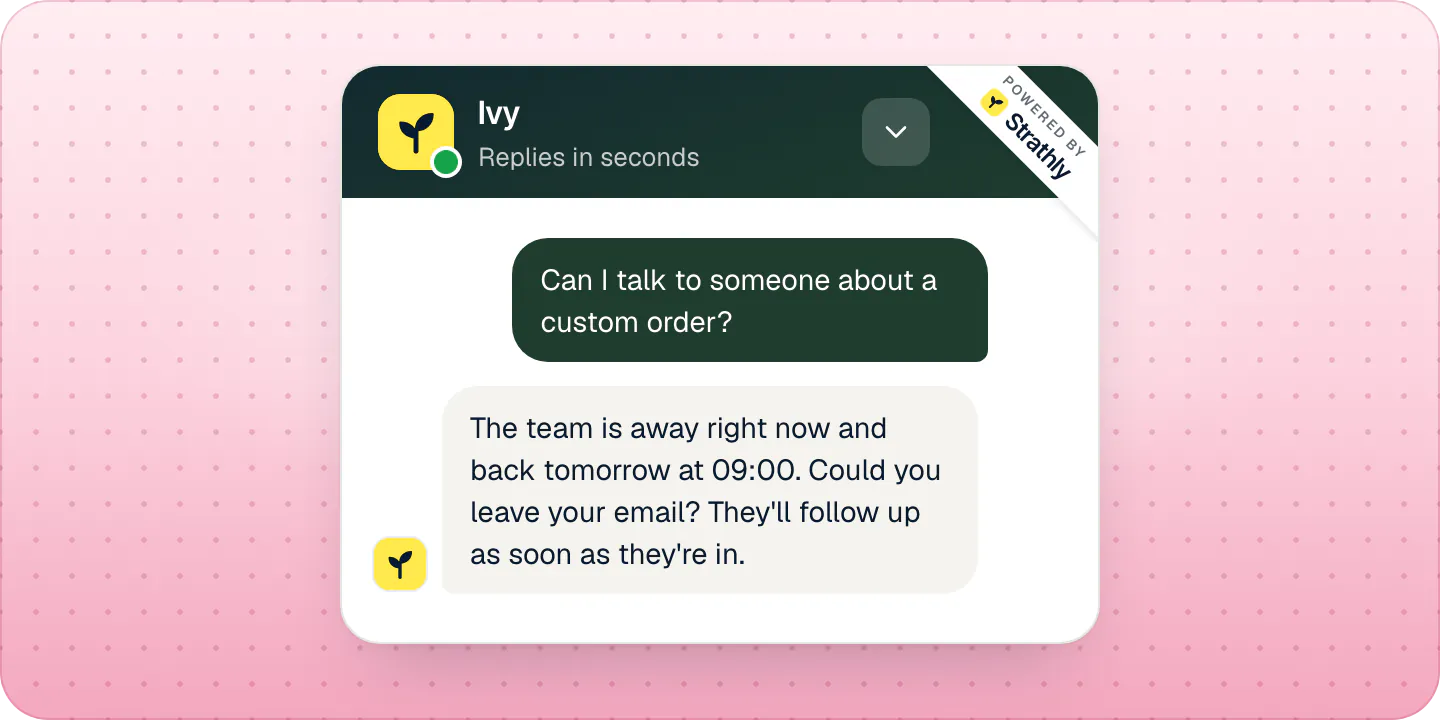
When a shopper presses Talk to the team in the chat outside your hours, the chat always asks for their email, whichever option you picked, and hands the conversation to your team once it has one. Which requests Ivy hands off at all is set in handoff rules.
Available or Away#
Each teammate is either Available or Away. Change yours from:
- the account menu at the bottom of the sidebar (your photo and name);
- Settings,Account, card Availability, under Status;
- the iPhone app's Settings.
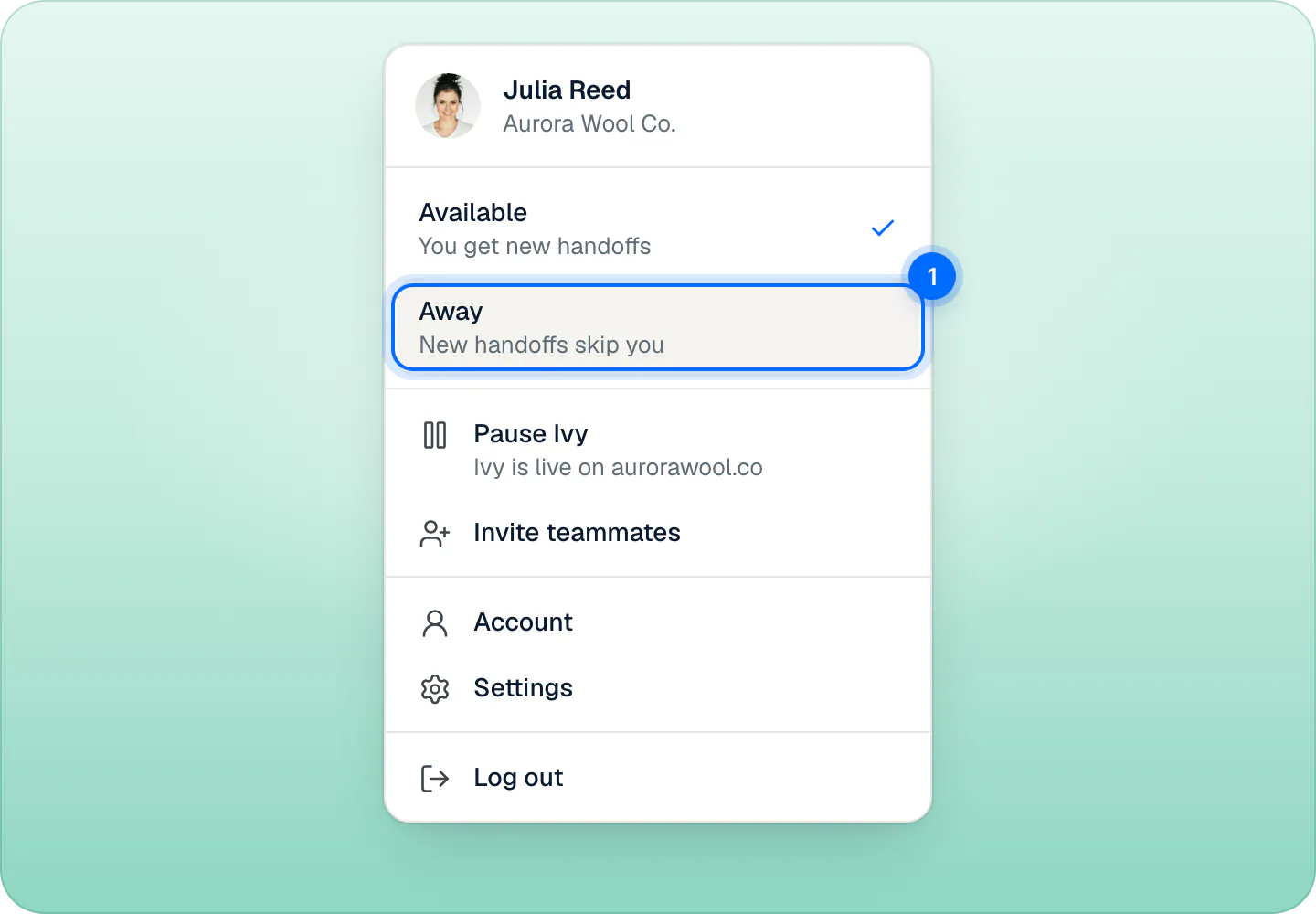
When you are Away:
- new handoffs skip you when handoffs are assigned to whoever is available (how handoffs are assigned);
- with Pause while I'm away on (the default, in Settings,Notifications), your push and desktop alerts pause. Emails still arrive;
- you show as Away to your team, in Settings,Team and in the Assign menu. Teammates can still assign you a conversation.
In Settings,Account, under Status, Away when the store closes (on by default) makes you away outside business hours without touching the switch: no handoffs are assigned to you while the store is closed and, with Pause while I'm away on, no push reaches you. Desktop alerts follow only the switch. You are available again when the store opens. Switch it off if you want handoffs at any hour.
Admins and the owner see everyone's status in Settings,Team: Available (green), Away (orange), or a gray Away for someone who isn't logged in anywhere.
When does Ivy consider the team available?#
When both are true: it is within your business hours, and at least one teammate has the switch set to Available.
- Available: Ivy hands the conversation off and tells the shopper the team will reply right there, within your reply target.
- Within your hours, but nobody is Available: Ivy asks for the shopper's email, and your team replies by email.
- Outside your hours: what you chose under Outside business hours, Ivy will.
What is the reply target?#
It is how fast your team aims to reply to a shopper who waits. An admin sets it in Settings,Team, card Handoffs, under Reply target: 5, 10, 15 or 30 minutes, or 1 hour. The default is 10 minutes.
Past it, a waiting shopper shows as late (orange) on Home, in the Inbox and in the iPhone app. It is also what Ivy promises when she hands off: "I've passed this to the team, and they'll reply right here within 10 minutes."
The wait doesn't pause outside business hours: a shopper who wrote at night shows as late in the morning. See when a chat is late.
Frequently asked questions
Do alerts stop when the store is closed?
With Pause while I'm away on (the default), push stops for teammates who are away, including those away because the store is closed. Desktop alerts stop only for teammates who set themselves to Away. Emails still arrive, for example when a shopper leaves their email after hours, and the notifications in the sidebar are always there.
How do holidays work?
Add them as date-specific hours, closed all day or with shorter hours. They replace your weekly hours on those dates, and Ivy announces your next opening accordingly.
What if nobody is Available during opening hours?
Ivy asks the shopper for their email, hands the conversation to your team, and you reply by email from the Inbox.
From the blog
Related pages
- IvyChoose when Ivy hands offThe rules that bring in your team (a person, an upset shopper, wholesale, your own keywords) and what each does: hand off, ask for an email or notify you.
- TeamChoose your notificationsChoose which handoffs reach you, every handoff or only yours and unassigned, and where they reach you: by email, desktop alert or iPhone app push.
- InboxHow the Inbox worksNeeds you, Mine, Ivy is handling, Resolved, All and Spam: what each Inbox view holds, what the status chip means and how the wait clock works.