Before you go live: a checklist
Setup gets Ivy onto your store in a few minutes. These ten checks make her first real conversations go well: what she knows, what she may do, who hears about a handoff and how fast, and a last look at the chat on your store. Each check names the screen, the default and the page with the details.
Updated · 6 min read
On this page
- 1. Ivy knows your policies
- 2. Test the questions shoppers ask most
- 3. Name, tone and languages
- 4. Discounts and guardrails
- 5. Handoff rules and order actions
- 6. Business hours
- 7. Who gets handoffs, and how fast
- 8. Your notifications and availability
- 9. The chat looks like your store
- 10. The chat is on and works
- Your first days live
- Frequently asked questions
Most checks are on screens for owners and admins. Check 8 is for every teammate, agents included. Work through them once setup is at the Test step, or right after you go live: none of them needs the chat to be off.
Step 1: Ivy knows your policies#
Open Knowledge. The list should show your Shopify policies (refund, shipping and the others you filled in), your published pages and Shipping zones and rates. If a fact shoppers ask about isn't anywhere, like delivery times, care instructions or sizing, add a page or a file. See what Ivy knows.
Step 2: Test the questions shoppers ask most#
Open Ivy,Playground and press Run all. It asks your suggested questions, the top questions Ivy couldn't answer yet, and a set of rule tests such as Can I talk to a real person? and Do you have a discount code?. Fix a wrong or missing answer with Teach Ivy or Correct this answer. Playground tests never count as conversations and never reach shoppers. One exception: when shoppers are already waiting on the same question, the teach dialog's Also send it to… box is ticked, and saving sends them your answer. See test Ivy in the Playground.
Step 3: Name, tone and languages#
In Ivy,Behavior, card Identity: her name, her tone (Friendly by default), her reply length (Balanced by default) and the languages she replies in (any language by default). See Ivy's behavior.
Step 4: Discounts and guardrails#
Still in Ivy,Behavior: Discounts is set to never offer a code by default. Guardrails keeps Ivy from comparing you with competitors and from health or skin claims unless you allow them, and lists topics she won't discuss.
Step 5: Handoff rules and order actions#
In Ivy,Behavior, Handoff rules has four rules on by default, each set to hand off to your team: the shopper asks for a person, sounds upset, wants a wholesale order, or Ivy can't help. Refund requests go to your team too. Orders has every action off: refunds, address changes, replacements and cancellations all go to your team. Change these only once you've watched Ivy for a while. See handoff rules and order actions.
Step 6: Business hours#
Open Settings,Business hours. Until you save them, your team counts as available at any time, so Ivy may promise a quick reply at 3 in the morning. Set your Weekly hours, any Date-specific hours for holidays, and what Ivy does outside them under Outside business hours, Ivy will: Keep answering (she takes the shopper's email when a person is needed) or Hand off anyway. See hours, holidays and availability.
Step 7: Who gets handoffs, and how fast#
Open Settings,Team, card Handoffs:
- When Ivy hands off: Leave it for anyone to take (the default: everyone gets the alert, the first to reply takes it) or Assign to whoever is available (in turn, skipping anyone away).
- Reply target: 5, 10, 15 or 30 minutes, or 1 hour; 10 minutes by default. Ivy promises it to shoppers when she hands off, and a shopper waiting longer shows as late.
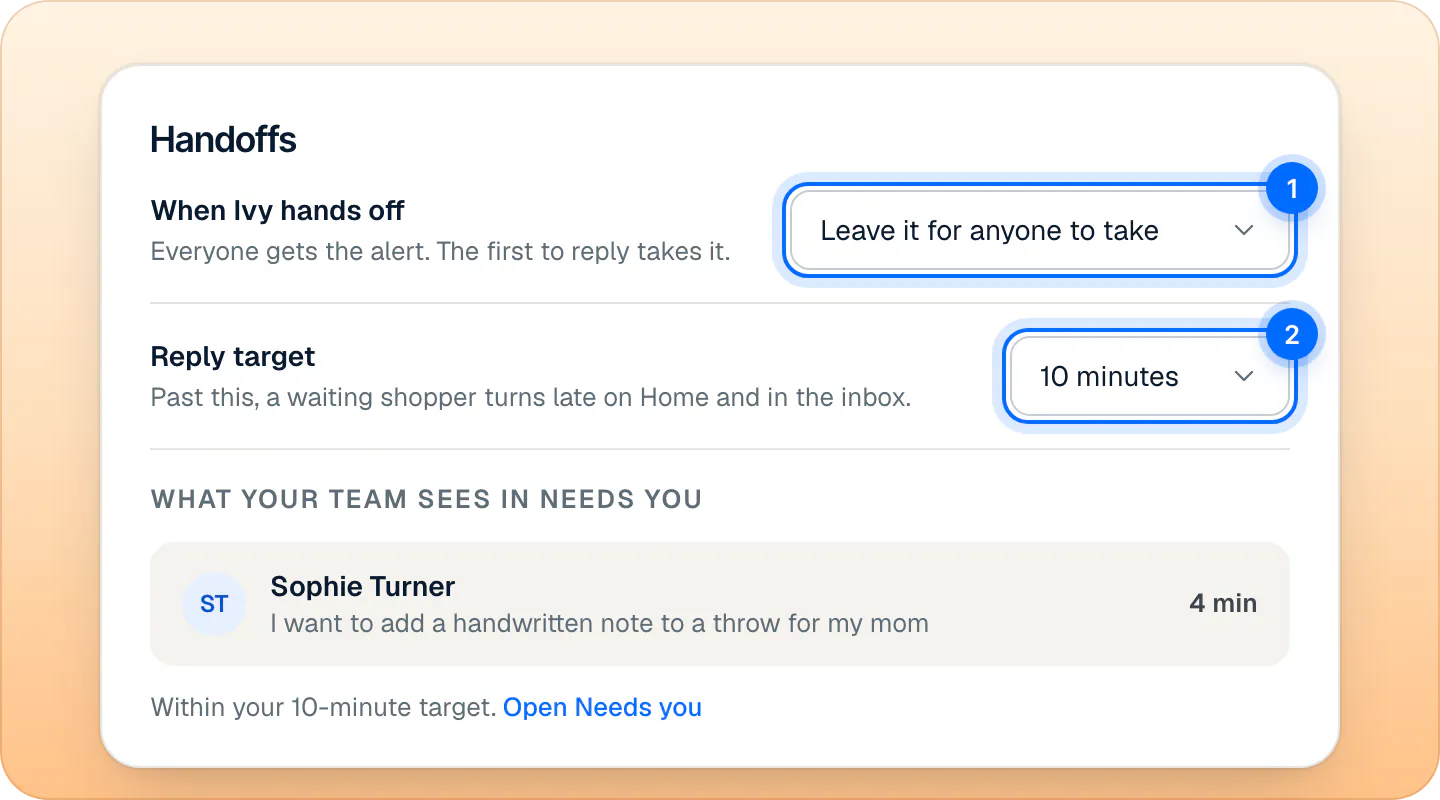
Invite the teammates who will answer from the same page. Your plan sets how many seats you have: 2 on Starter, 5 on Growth, Unlimited on Scale, counting you and pending invites. See invite your team.
Step 8: Your notifications and availability#
Each teammate does this for themselves:
- In Settings,Notifications, card Tell me when, New handoff is on for email, iOS push and desktop by default. Desktop alerts need Allow once in each browser. iOS push starts once you log in to the iPhone app, which you download from the App Store.
- In Handoff alerts, set Alert me about to Every handoff (the default) or Mine and unassigned.
- In the account menu at the bottom of the sidebar, make sure you're Available. While you're Away, Assign to whoever is available skips you, and with Pause while I'm away on (the default) your iOS push and desktop alerts pause; email still arrives.
See choose your notifications.
Step 9: The chat looks like your store#
In Ivy,Widget: the accent color, the background, the launcher and its label, the greeting, up to three suggested questions, and whether the chat shows on phones. The preview shows each change before you save. See customize the chat.
Step 10: The chat is on and works#
Once you've pressed Go live, three signs say the chat is on:
- The Ivy row of the sidebar has a green dot.
- Ivy's pages say Live on your domain at the top.
- Ivy,Widget, card Installation, says Enabled with Seen on your store and the time.
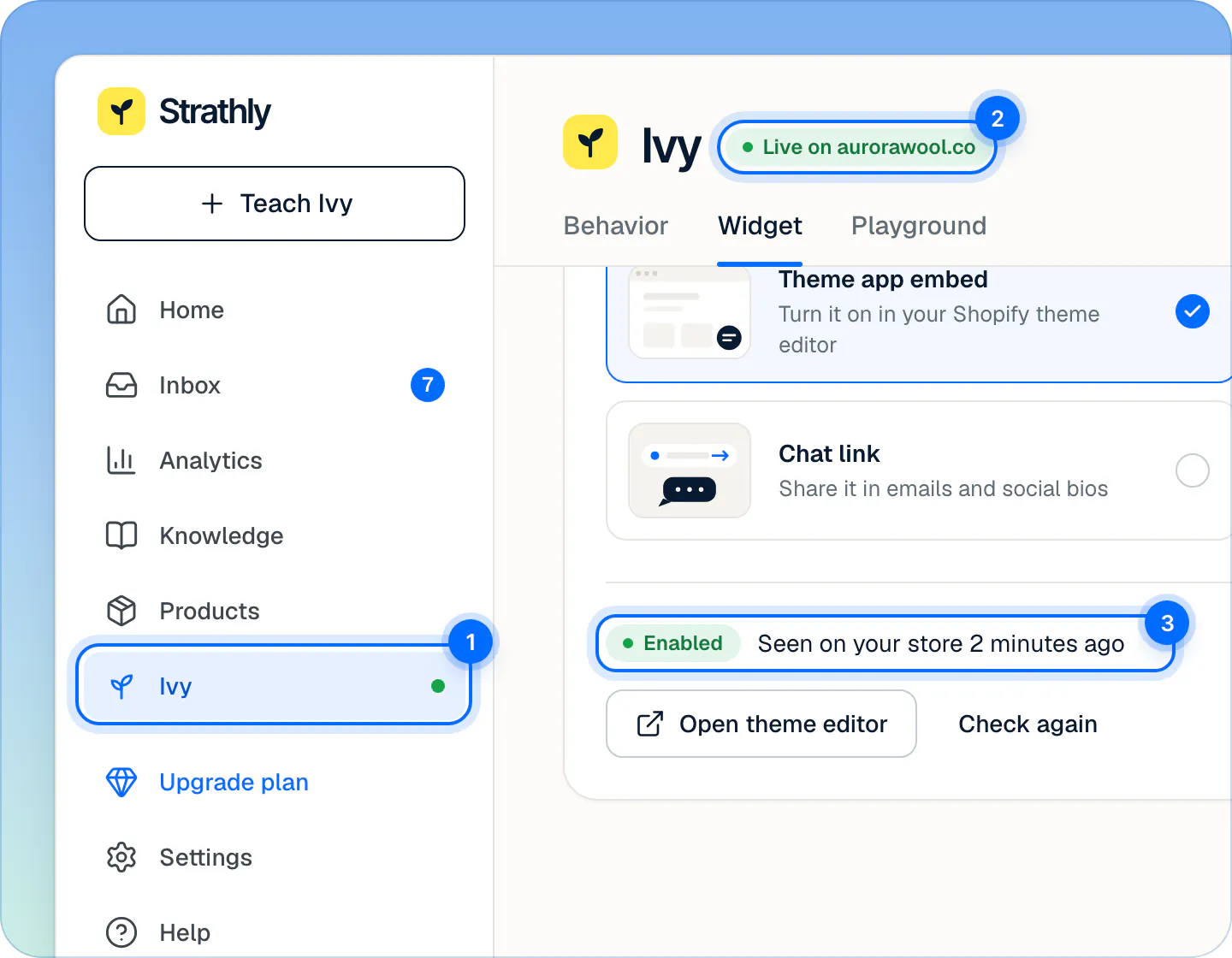
Then try it as a shopper: open your store (View storefront on Ivy's pages, or Ask Ivy a question on your store on Home), ask Ivy a question, and press Talk to the team once. During your business hours, with you set to Available, the conversation lands in Inbox,Needs you and reaches you on the channels you chose. A test on your live store counts as a conversation, like any shopper's. If the chat doesn't show, see put the chat on your store.
Your first days live#
- Each morning, open Home: Needs you lists who is waiting, and Ivy couldn't answer lists what she missed.
- Open Knowledge,Unanswered and answer the questions shoppers asked that Ivy couldn't. Once the same question has been asked 3 times, a notification appears in the bell. See unanswered questions.
- After a week, open Analytics to see the topics, the handoffs and their reasons, and the sales that followed a conversation. See the Analytics reports.
Frequently asked questions
What should I test first?
The Playground's Run all: your suggested questions, the top unanswered ones, and the rule tests (a request for a person, a discount code, a damaged order to refund, a bulk order).
Who gets notified on a handoff?
By default every teammate, on their own channels (email, iOS push, desktop), and the first to reply takes it. With Assign to whoever is available in Settings,Team, each handoff is assigned to the next available teammate in turn, but email and push still reach everyone whose Alert me about is Every handoff, the default; only the bell row and the desktop alert go to the assignee alone. A teammate who sets Mine and unassigned in Settings,Notifications stops getting handoffs assigned to someone else.
How do I check the chat is live?
The green dot on the sidebar's Ivy row, Live on your domain on Ivy's pages, Enabled in Ivy,Widget, card Installation, and the chat button on your store.
Does a test on my own store count as a conversation?
Yes. A chat on your live store where Ivy replies counts like any shopper's. Tests in the Playground and during setup don't.
Related pages
- Get startedSet up Strathly in five stepsSet up Strathly on Shopify in five steps: connect your store, let Ivy read your catalog and policies, make her yours, test her, then switch on the chat.
- IvyTest Ivy in the PlaygroundAsk Ivy anything on your store's real data before and after going live, see which sources she used, and fix answers on the spot. Tests never count.
- IvyChoose when Ivy hands offThe rules that bring in your team (a person, an upset shopper, wholesale, your own keywords) and what each does: hand off, ask for an email or notify you.