Set up Strathly in five steps
Setup takes about two minutes: connect your Shopify store, let Ivy read it, make her yours, test her on your real data and turn on the chat. Ivy stays off your store until the last step, so nothing changes for shoppers while you set her up.
Updated · 8 min read
Product tour:How Strathly works, from install to first sale
On this page
This page walks through setup from your first sign-in to the chat answering shoppers on your store. Each step matches a screen of the setup, in the same order, with the labels you'll see. For what Ivy does once she's live, read how Strathly works.
Before you begin#
You need:
- Your Shopify store, and a Shopify login that can install apps on it (the store owner, or staff allowed to manage apps). Strathly is installed in Shopify: you pick your store there, so there's no address to look up.
- A Strathly account. You can create it on strathly.com or start from Shopify (both ways are compared in install Strathly and connect Shopify). Either way, your plan appears on your Shopify bill:
You create your account with your work email, then confirm it from the link we send you. Setup starts at Connect, which sends you to Shopify to install Strathly on your store.
Shopify asks you to approve the app's permissions, then you create your Strathly account. Setup starts at Import: your store is already connected, so there is no Connect step.
You can leave setup at any time with Save and exit at the top right. What you've done is kept, and Home shows Continue setup to pick up where you left off.
Overview#
- Connect your store: give Strathly read access to your Shopify store.
- Let Ivy read your store: your catalog, policies and pages, in under a minute.
- Make Ivy yours: her name, tone, greeting and the chat's colors.
- Test her on your store: ask her what your shoppers ask, with nothing reaching your store.
- Turn on the chat: switch on the app embed in your theme, start your trial and go live.
Step 1: Connect your store#
- On Connect your store, press Install on Shopify. To see first what Strathly will be able to see (products and inventory, store content, orders, and the customers who chat), press See what Ivy reads.
- Shopify opens in the same tab. Sign in if it asks, pick your store, review the permissions and approve the app.
- Shopify brings you back to Strathly, connected, on the next step.
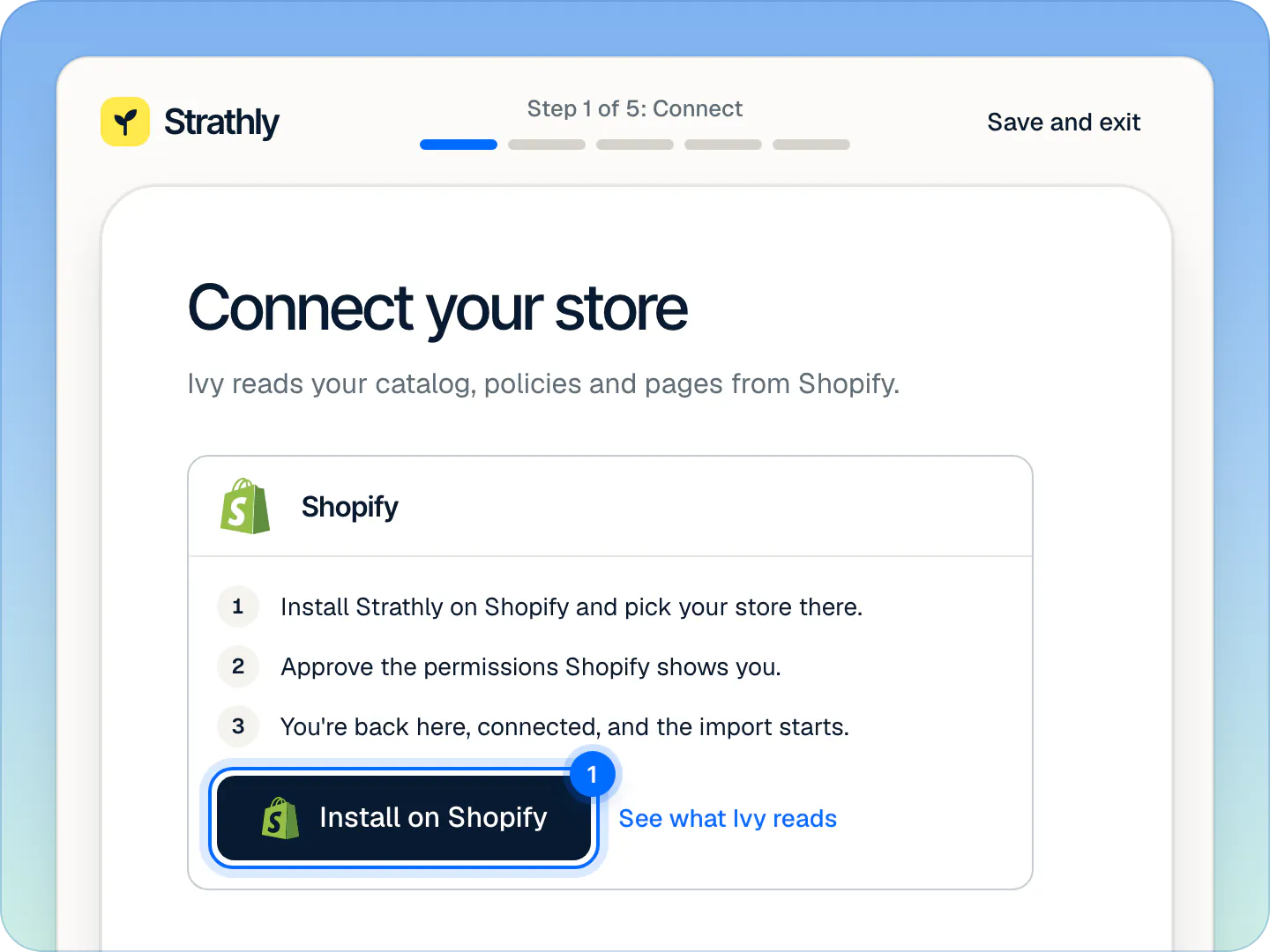
Already installed Strathly in Shopify? Open it from your Shopify admin's apps list and you land back here, connected, or press Check again on the Connect step. Shopify permissions lists every permission and why it's needed.
Step 2: Let Ivy read your store#
While Ivy is reading your store, a checklist fills in: Store info, Products, Collections, Policies, Pages and Product descriptions. It takes under a minute. Keep the tab open.
When it's done, the screen says Ivy knows your store with what she learned: how many products, pages and policies. Press Continue.
After setup, product changes in Shopify reach Ivy within about 15 seconds. Policies, pages and shipping are read again once a day, and whenever you press Sync now in Settings,Integrations.
Step 3: Make Ivy yours#
Everything on this screen shows on your store, and you can change all of it later.
- Name: what shoppers see in the chat. Ivy is the default; up to 20 characters.
- Tone: Friendly, Professional or Playful. Each card shows how she sounds.
- Greeting: the first thing shoppers read, up to 160 characters. Strathly suggests one for your tone and your store's name.
- Chat color: one of the swatches or your own 6-digit hex color. It colors the chat button, the quick replies and the send button.
- Background and Position: the gradient behind the chat's header, and Bottom right or Bottom left.
The preview beside the form is the real chat on your store's pages, and it changes as you type. Press Continue to save.
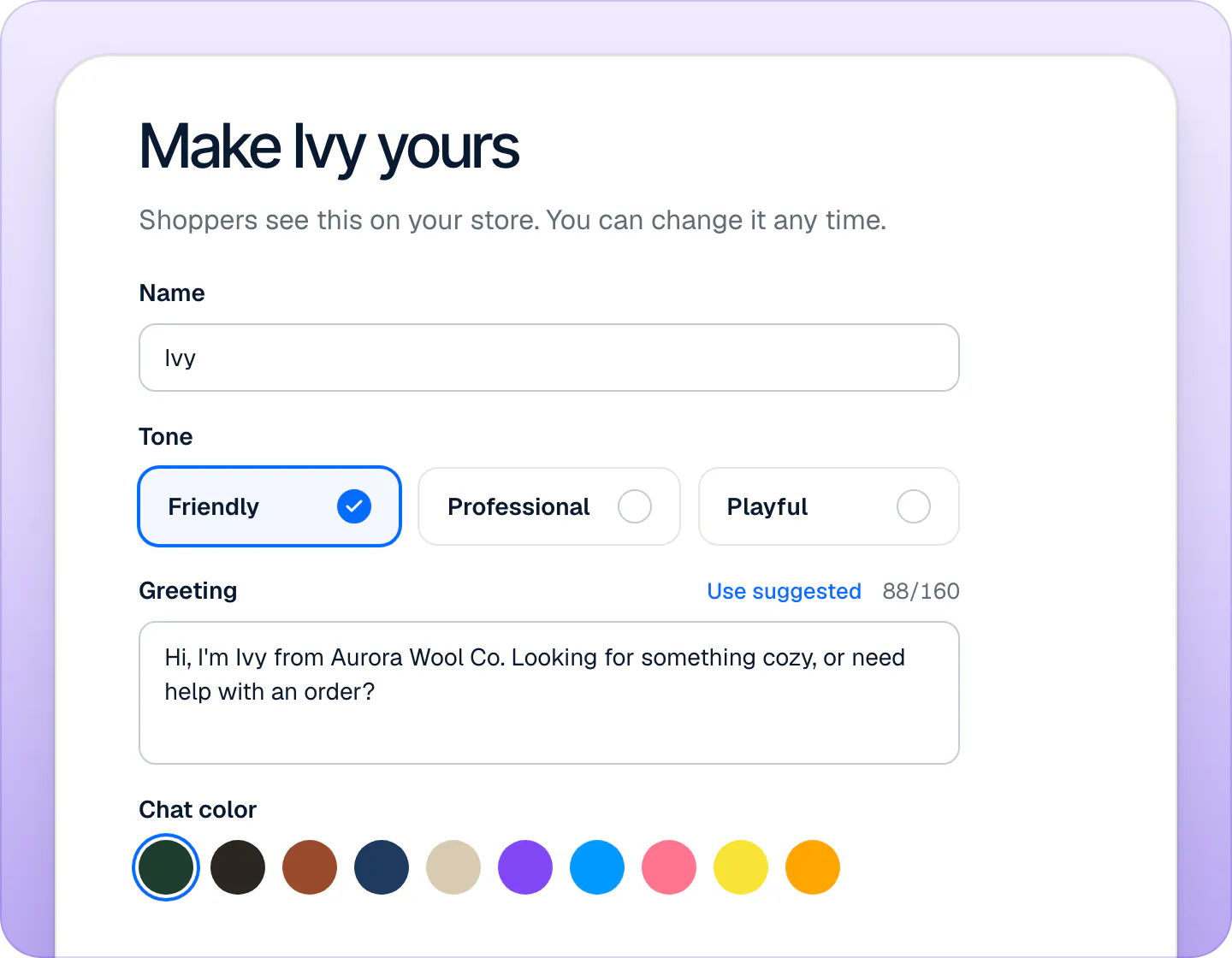
Later, her name, tone, reply length and languages live in Ivy,Behavior, and the chat's look in Ivy,Widget.
Step 4: Test her on your store#
On Ask Ivy something, pick one of the questions or type your own. They come from what shoppers ask most: where an order is, whether a product is in stock, shipping, returns, discount codes and talking to a person. Nothing here reaches your store.
Beside each answer, Behind the answer shows which pages Ivy used and whether she would answer or hand the conversation to your team. If she couldn't answer, press Teach Ivy the answer: she uses it from then on.
Press Continue once you've asked her something, or Skip for now. You can keep testing at any time in the Playground, Ivy,Playground, where tests don't count as conversations.
Step 5: Turn on the chat#
The last screen, Turn on the chat, is a short checklist. Each line turns green when it's done.
Enable the app embed in your theme. Press Open theme editor. Shopify's theme editor opens in a new tab on App embeds, with Strathly AI chat already switched on.
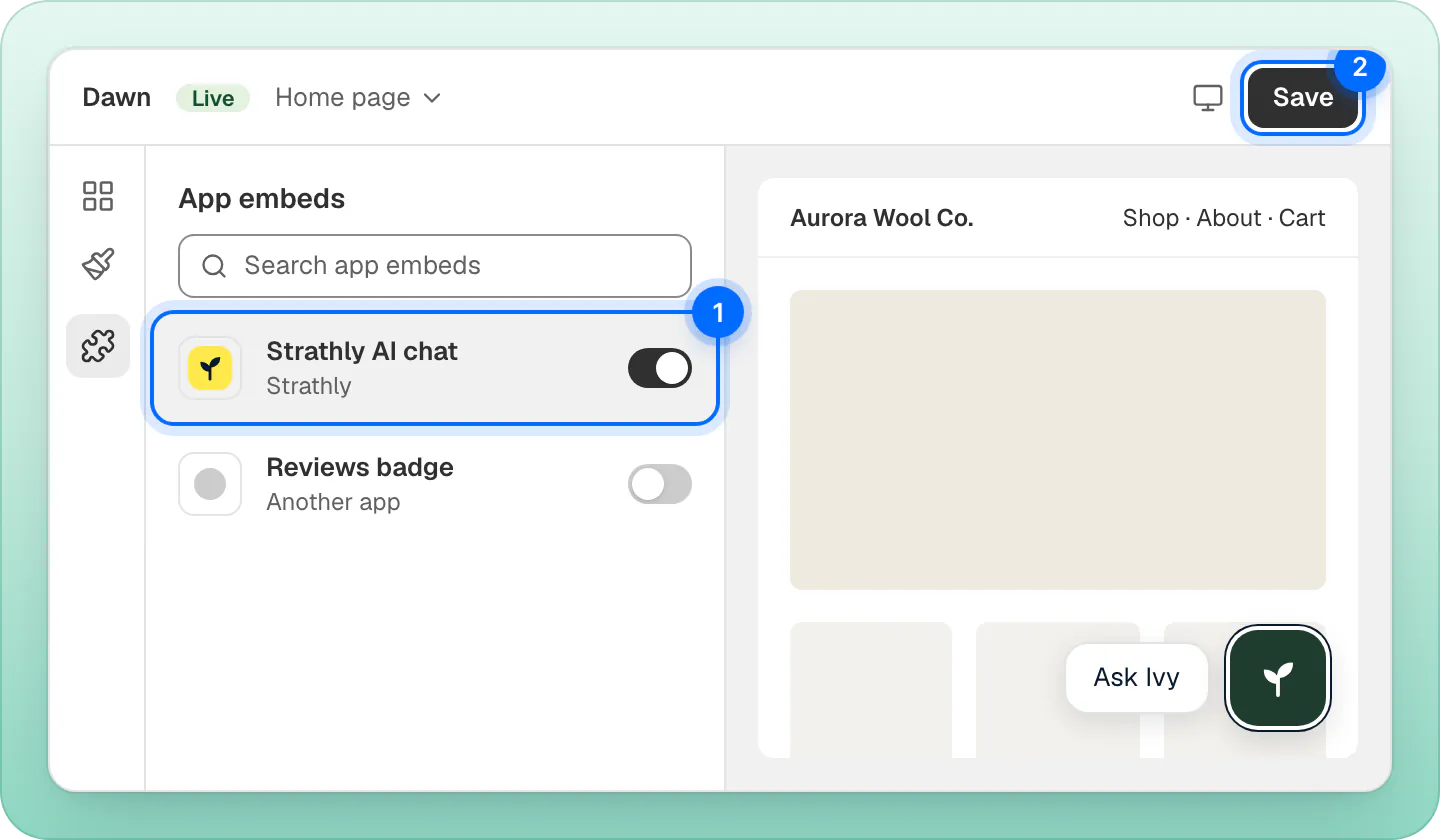
Shopify's theme editor opens on App embeds with Strathly AI chat already on: press Save. In the theme editor, press Save, then come back to Strathly. Once the chat is seen on your store, the line says App embed enabled. If it doesn't after a minute, press Check again. More on the embed and its settings: put the chat on your store.
Where should handoffs go? Conversations Ivy passes to your team always land in your inbox. Email me sends you each one too, and is on by default.
Invite teammates (optional): type their email addresses and press Invite. They join as agents; you can change roles later in Settings,Team (see invite your team).
Start your free trial. Press Choose a plan in Shopify, then pick your plan on Shopify's page and approve it. The trial lasts 14 days, and then your plan appears on your Shopify bill: see plans and the free trial.
Press Go live.
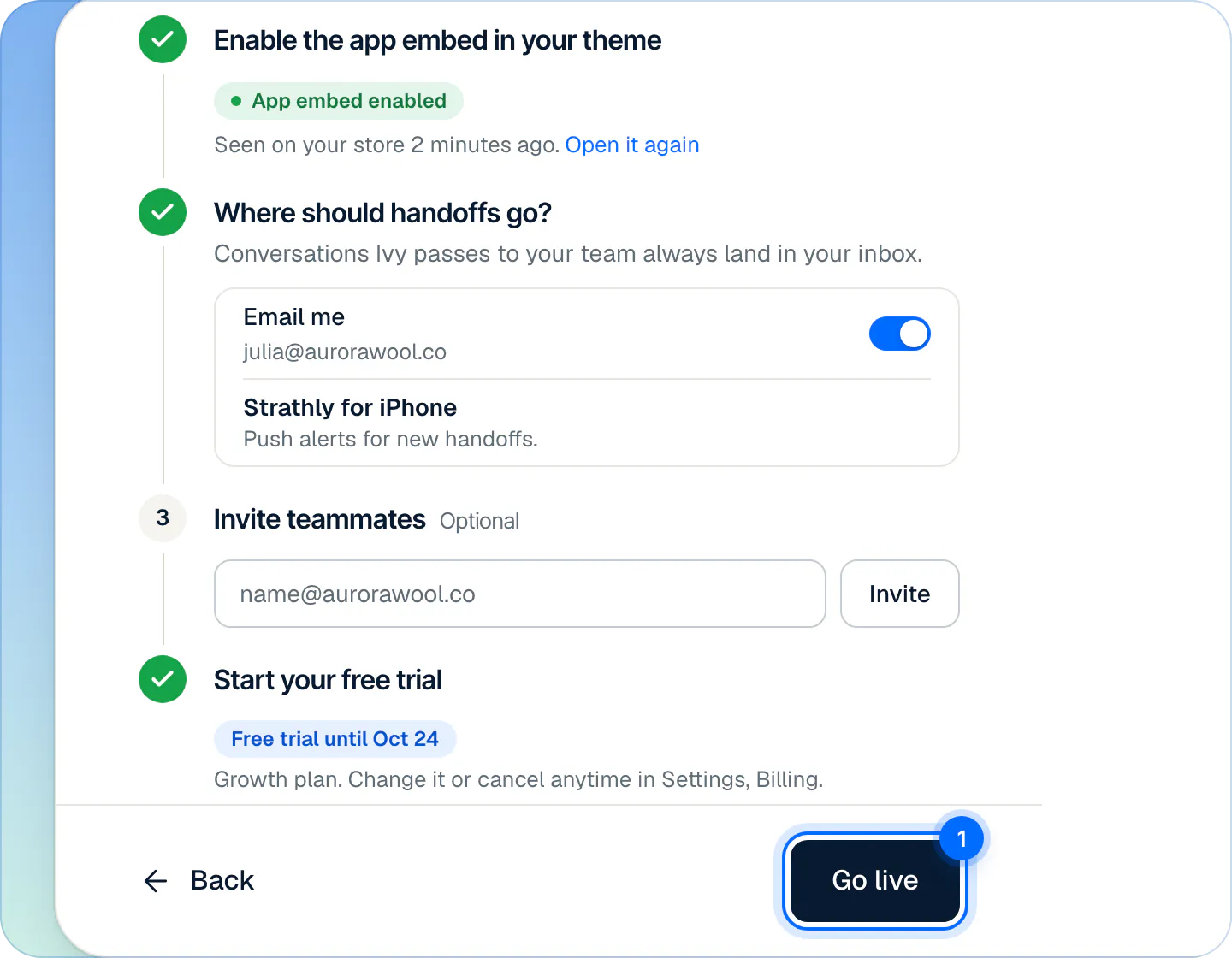
Ivy is now live: the chat shows on your store and she answers shoppers, day and night, in the language they write in.
After you go live#
Home opens with Ivy is live on your store and a short list of next steps:
- Ask Ivy a question on your store: open the chat the way a shopper does.
- Try the questions shoppers ask most, with Test in Playground.
- Teach Ivy something only you know, like how you wrap gifts.
- Get handoffs on your phone, with Set up notifications. The iPhone app is on the App Store.
Your sales from conversations show up on Home after Ivy's first conversations. Before your first busy day, run through the go-live checklist.
Frequently asked questions
How long does setup take?
About two minutes. Reading your store takes under a minute; the rest depends on how long you spend on Ivy's name, tone and colors.
Do I need to edit my theme's code?
No. The chat is a Shopify theme app embed: you switch it on in the theme editor and press Save. Switching it off removes it, with nothing left in your theme.
Do I need a plan for the free trial?
Not to set Ivy up and test her. Going live needs the 14-day free trial, which starts when you approve a plan on Shopify's page; Shopify bills it on your Shopify bill once the trial ends. Nothing is charged if you cancel during the trial. See pricing for the plans.
Do shoppers see Ivy before I go live?
No. Until you press Go live the chat doesn't show on your store, even with the app embed switched on.
Can I stop halfway and finish later?
Yes. Press Save and exit. What you've done is kept, Ivy stays off your store, and Home shows Continue setup to pick up where you left off.
Related pages
- Get startedInstall Strathly and connect ShopifyTwo ways to start Strathly: install it from Shopify, or sign up on strathly.com and install it after. Same setup, billed through Shopify. How connecting works.
- Storefront widgetPut the chat on your storeOpen the theme editor from Strathly with the app embed already on, then press Save. No theme code to edit, nothing to paste. Plus a chat link for emails.
- Get startedBefore you go live: a checklistTen checks before and right after shoppers meet Ivy: knowledge, handoff rules, business hours, notifications, the app embed and a test chat.