Assign and resolve conversations
Every conversation is with Ivy, with one person on your team, or waiting for anyone to take it. This page shows how to move a conversation to the right person or back to Ivy, how to close and reopen it, and how to have new handoffs assigned for you.
Updated · 7 min read
Feature overview:AI chatbot with human handoff
On this page
Every role can do everything on this page from the Inbox: agents, admins and the owner. Only the routing setting in Settings,Team is for admins and the owner.
Take over from Ivy#
Open a conversation in Ivy is handling and press Take over in its header. The conversation becomes yours, Ivy stops replying to that shopper, and the reply box opens. The toast says "You took over from Ivy" with Undo.
You can take over any conversation Ivy is having, live or not. Sending a reply in a conversation does the same: the reply takes it over.
Assign a conversation#
In the conversation's header, press the person icon (it shows the assignee's photo when someone has it). In a narrow window, it is under … › Assign to.
Pick a teammate, or Unassigned to put it back for anyone. You are first in the list; each teammate has a green or orange dot, and Away when they are away. You can still assign to someone who is away.
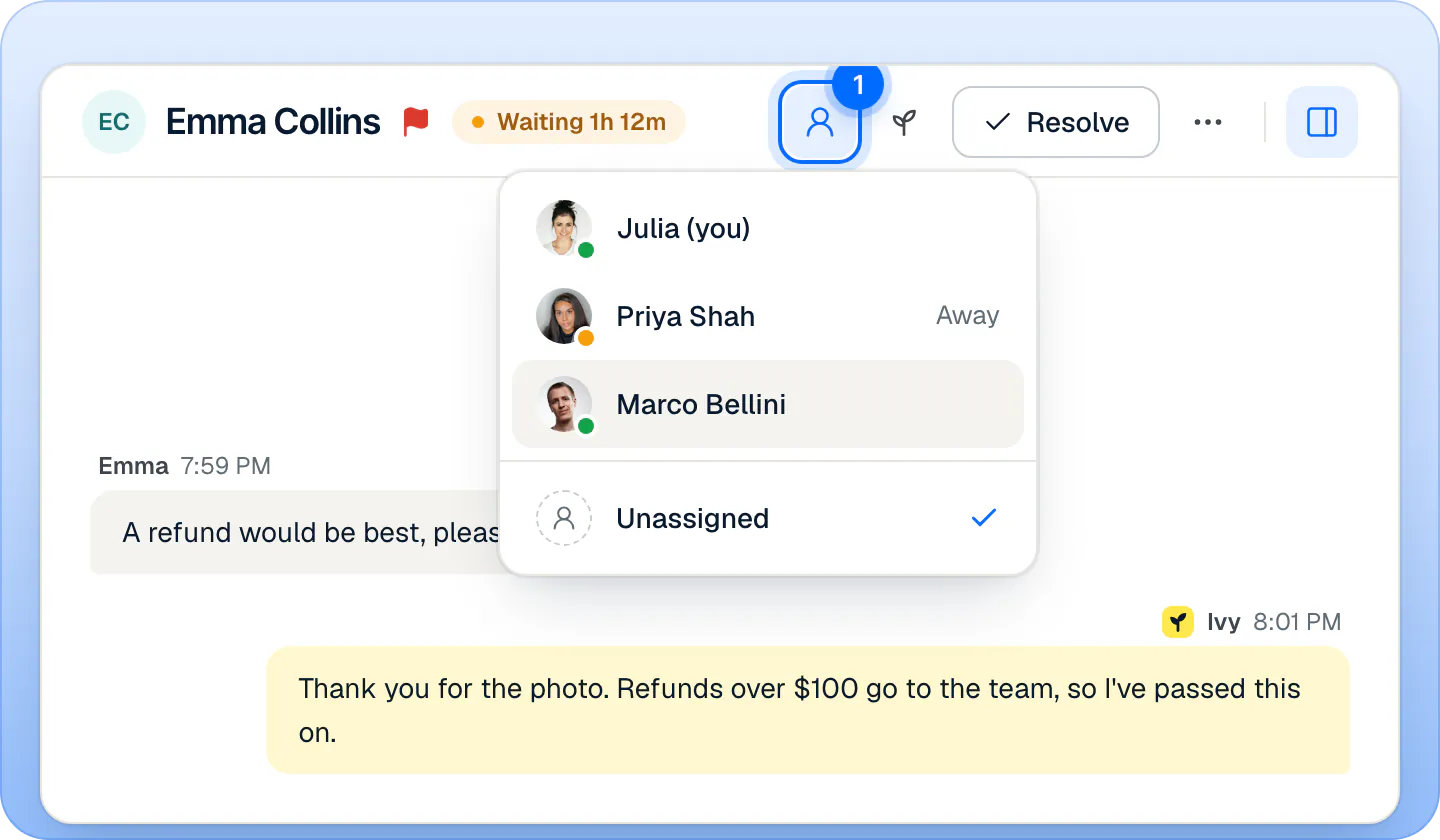
Assign a conversation to anyone on the team, away or not, or put it back to Unassigned.
To take a conversation yourself, press A. The toast says "Assigned to Marco" (or "Assigned to you") with Undo.
The teammate you pick gets an Assigned to me alert, by push, email or desktop, following their notification settings. Assigning doesn't stop the wait clock: the shopper is still waiting until someone replies.
How are new handoffs assigned?#
An admin or the owner chooses it in Settings,Team, card Handoffs, under When Ivy hands off. It applies at once.
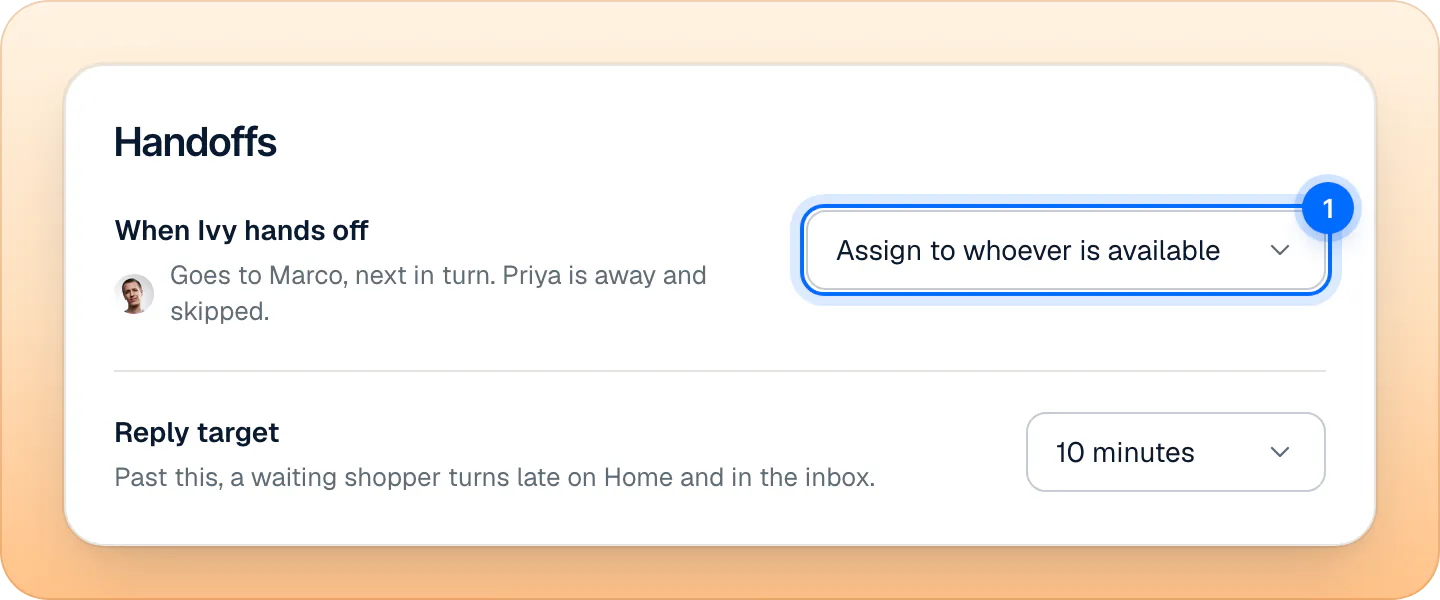
| Option | What happens to a new handoff |
|---|---|
| Leave it for anyone to take (default) | It waits unassigned in Needs you. Everyone gets the alert; the first to reply takes it. |
| Assign to whoever is available | It goes to the teammate who is available and has the fewest open conversations; on a tie, the one who joined the team first. Anyone set to Away, or away because the store is closed, is skipped. With nobody available, it waits unassigned in Needs you. |
The line under the option shows who the next handoff goes to and who is skipped.
The same card holds the Reply target, the wait after which a shopper shows as late: see how the Inbox works.
Resolve a conversation#
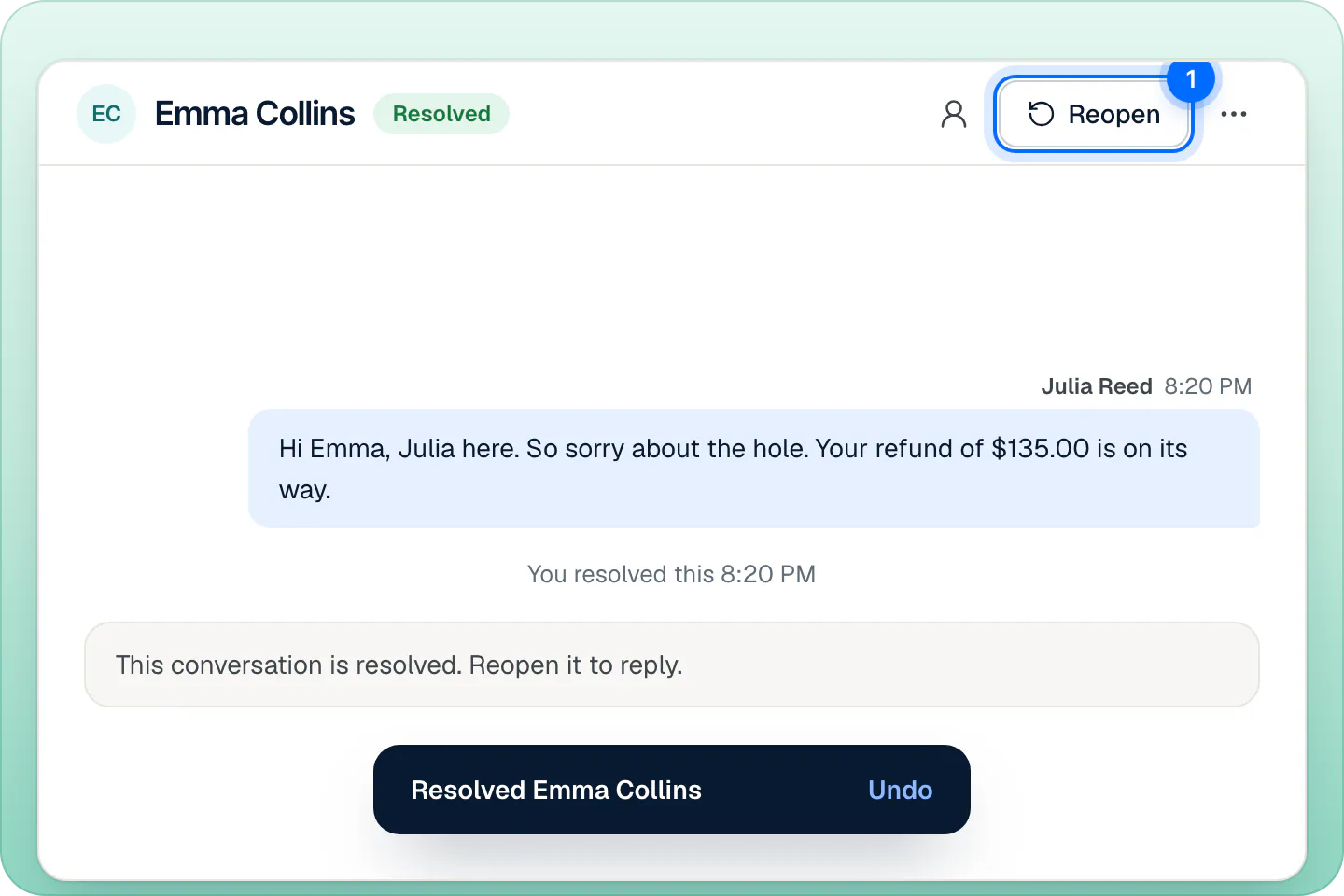
Press Resolve in the header (or E), or send your reply with Send and resolve. The conversation moves to Resolved, its wait clock stops, and the Inbox opens the next conversation of the view. About 30 seconds later, Ivy writes the conversation's summary.
The toast says "Resolved Emma Collins" with Undo, which reopens it.
To close a conversation Ivy is handling, use … › Resolve. If the shopper is on your store and Ivy is still chatting, it reads Resolve, Ivy is still chatting, and E asks you first with Resolve anyway: resolving ends the conversation.
Can Ivy take a chat back?#
Yes. Press the Ivy icon in the header, Return to Ivy (in a narrow window, under …). The conversation goes back to Ivy, unassigned, and she answers the shopper's next message. The toast says "Ivy has it again" with Undo.
It works only while Ivy is live on your store. When she is paused, offline or out of conversations, the button is off and says why, for example "Ivy is paused, so she can't take this back".
Returning a conversation to Ivy also lifts the protection that sent it to your team: Ivy's suspicion of spam, the limit on chats from one visitor, or a failed bot check. It then counts toward your plan like any conversation of Ivy's. A conversation in Spam has no Return to Ivy: use Not spam to lift its block.
Can I reopen a resolved chat?#
Yes. Open it in Resolved and press Reopen (or E). It is assigned to you and back in your Mine; the toast says "Reopened and assigned to you" with Undo. The wait clock doesn't restart: the shopper isn't shown as waiting until they write again.
When the shopper writes again in a resolved conversation, it goes back to Ivy, unassigned, and she answers. While Ivy is paused or out of conversations, it goes to your team in Needs you instead. After 24 hours without a message, the chat on your store offers the shopper a new conversation instead, linked to the old one in the Inbox.
To bring back a resolved conversation, use Reopen rather than the Assign menu.
Ivy's quiet conversations#
A conversation Ivy is handling resolves itself after 24 hours without a message. It moves to Resolved with the chip Resolved by Ivy. Conversations with your team are never resolved on their own: someone on the team resolves them.
Urgent and unread#
Both are in the conversation's … menu.
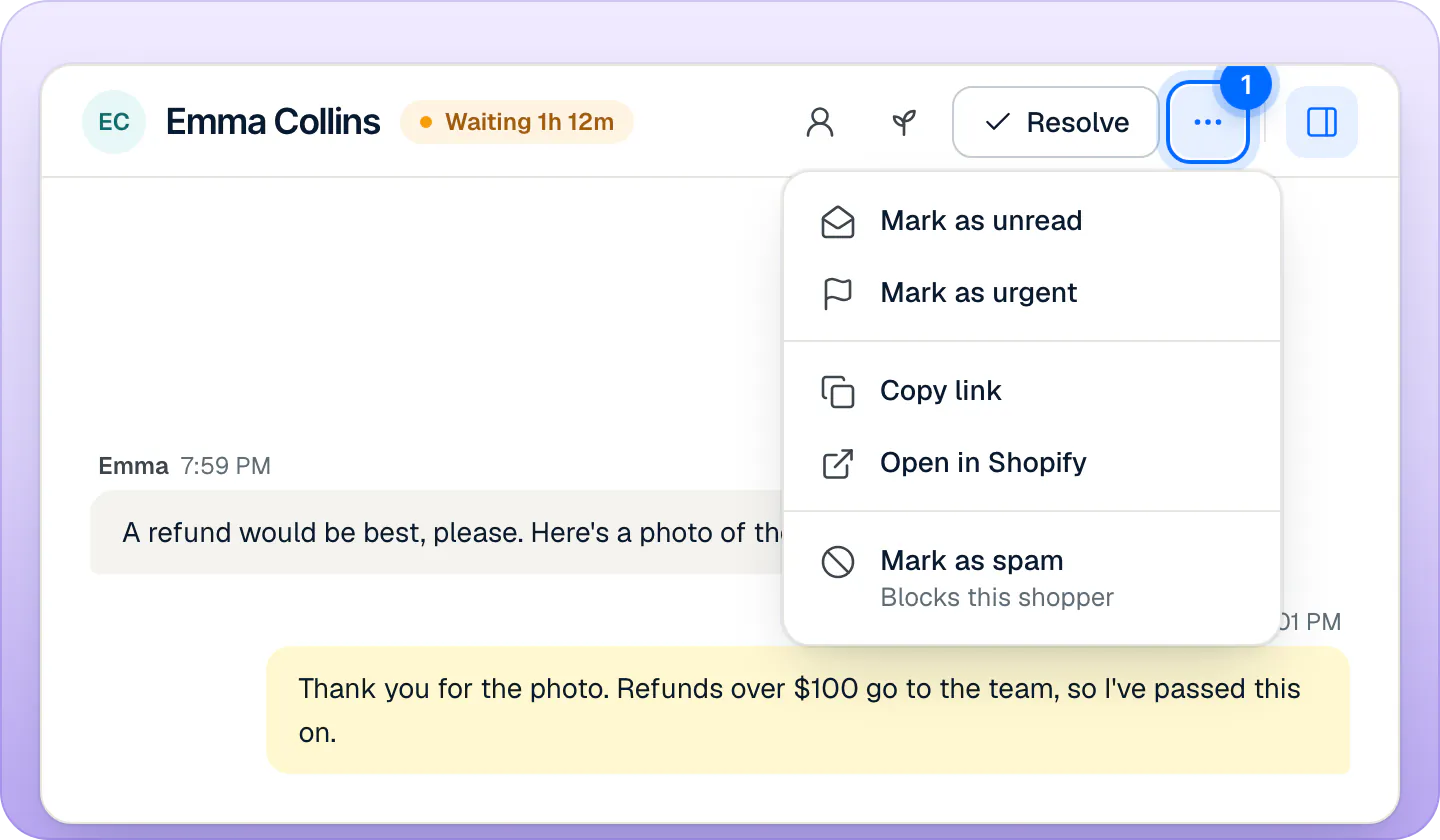
- Mark as urgent puts a red flag on the row and in the header; Remove urgent takes it off. Ivy marks a conversation urgent herself when the shopper sounds upset. The flag is hidden once the conversation is resolved.
- Mark as unread makes the conversation unread again for the whole team and closes it.
- Copy link copies the conversation's address, to share with a teammate.
- Open in Shopify opens the conversation's order in your Shopify admin, or the customer when there is no order.
- Mark as spam blocks the shopper: see block a spammer.
Undo#
Each action below shows a toast with Undo for a few seconds:
| Action | Where | Key | Toast |
|---|---|---|---|
| Take over | Take over in the header | "You took over from Ivy" | |
| Assign | The person icon, or … › Assign to | A (to you) | "Assigned to Marco" |
| Unassign | Assign menu › Unassigned | "Unassigned" | |
| Resolve | Resolve, Send and resolve | E | "Resolved Emma Collins" |
| Reopen | Reopen | E | "Reopened and assigned to you" |
| Return to Ivy | The Ivy icon | "Ivy has it again" | |
| Urgent | … › Mark as urgent | "Marked as urgent" | |
| Unread | … › Mark as unread | "Marked as unread" | |
| Spam | … › Mark as spam | "Marked as spam" |
Undo puts the conversation back as it was. If someone changed it in the meantime (a teammate replied, or resolved it), Undo is refused with "Couldn't undo: the conversation changed". A sent reply, a note and a rating of Ivy's answer can't be undone.
When a teammate leaves#
When an admin removes a teammate in Settings,Team, that person's open conversations go back to Needs you, unassigned, for anyone to take. See invite your team.
Frequently asked questions
Do assigned chats still alert everyone?
Push and email follow each teammate's Alert me about setting. With Every handoff, the default, a teammate hears about every handoff, including one assigned to someone else. With Mine and unassigned, they hear only about their own and the unassigned ones.
Can agents assign and resolve?
Yes. Every role can take over, assign, resolve, reopen and return conversations to Ivy. Only the When Ivy hands off setting is for admins and the owner.
What if nobody is available when Ivy hands off?
With Assign to whoever is available, the handoff waits unassigned in Needs you, and the first teammate who is back takes it.
Related pages
- InboxHow the Inbox worksNeeds you, Mine, Ivy is handling, Resolved, All and Spam: what each Inbox view holds, what the status chip means and how the wait clock works.
- InboxReply to a shopperSend Ivy's drafted reply or rewrite it, reach shoppers who left by email when they gave one, and leave internal notes that @mention a teammate.
- TeamHours, holidays and who's availableSet your weekly business hours and date-specific hours for holidays, choose what Ivy does when you're closed, and set each teammate to Available or Away.